

YouTube Notes
2 valoraciones
)
Descripción general
Take timestamped notes of YouTube videos directly in the browser.
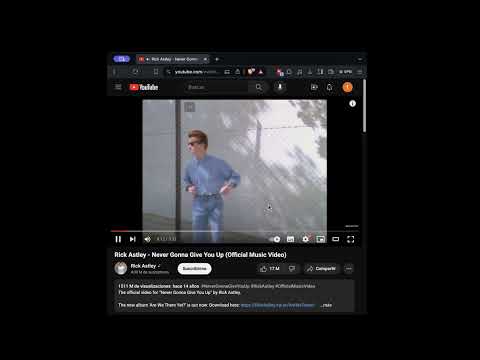
The YouTube Notes Chrome extension is a useful tool for taking timestamped notes on YouTube videos and storing them locally within your browser. Usage To utilize the YouTube Notes extension effectively, follow these steps: 1. Pinning the Extension It's recommended to pin the extension in your browser for easy access. Click the jigsaw icon in your browser toolbar, then select the pin icon for the YouTube Notes extension. If you prefer shortcuts, you can access it by pressing Ctrl + Y on Windows and Linux, or Cmd + I on Mac (the shortcut was chosen to be Y for easy remembrance (YoutTube), but on Mac, it opens the latest downloads). 2. Creating Notes - Navigate to any YouTube video you want to take notes on. - Play the video until the moment you want to take notes. You can pause the video or keep it playing. The extension will automatically capture the timestamp when you open it. 3. Editing Notes - Open the extension on the video where you took notes. - Locate the note you want to edit and click on the timestamp associated with that note. - The video will be navigated to the corresponding moment, and the note will appear in the text box. - Edit the note as desired and save it again. 4. Deleting Notes - Open the extension on the video where you took notes. - Find the note you want to delete and click on the trash icon. - To confirm the deletion, select the check icon. Otherwise, click the cross icon. 5. Viewing All Notes Please note that the functionality to view all notes directly within the extension is not yet implemented. However, you can still access your notes since they are stored locally in your browser. Follow these steps: - Install the Storage Area Explorer extension. - Right-click on the extension icon in your browser's toolbar and select "Inspect pop-up." - Navigate to the "Storage Explorer" tab. You will find your notes stored there, where you can remove, edit, or export them. The format used to store the notes is as follows: - The channels key stores all the channels for the videos you took notes on, formatted as {channelId: channelName, ...}. - For each of the previous channelIds, you will find a key with the channelId storing the videos from that channel you took notes on, formatted as {videoId: videoName, ...}. - Finally, for each video with ID videoId, you will find a key with the videoId storing the notes you took on that video, formatted as {timestamp: note, ...}.
5 de 52 valoraciones
Detalles
- Versión1.0
- Actualizado6 de marzo de 2024
- Ofrecido porfferrin
- Tamaño17.66KiB
- IdiomasEnglish
- Desarrollador
Correo electrónico
facundo.ferrin@gmail.com - No operadorEste desarrollador no se ha identificado como operador. Los consumidores residentes en la Unión Europea deben tener en cuenta que los derechos de los consumidores no son aplicables a los contratos que suscriban con este desarrollador.
Privacidad

Este desarrollador declara que tus datos:
- No se venden a terceros, excepto en los casos de uso aprobados
- No se usan ni se transfieren para fines no relacionados con la función principal del elemento.
- No se usan ni se transfieren para determinar la situación crediticia ni para ofrecer préstamos.