

True Shot – Smart Screenshots & Text
1 rating
)
Overview
Screenshot any section or the full page, mark it up, blur private info, save as PNG or PDF. No tracking, no sign-up. Free forever.
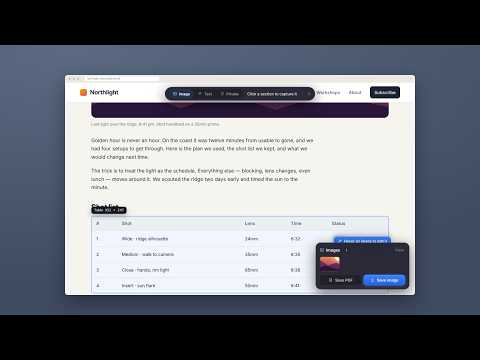
Click any part of a web page to screenshot it, copy its text or capture the entire page in one clean image. Mark it up, hide private details and save as PNG or PDF. Everything happens in your browser. Nothing is uploaded. WHY TRUE SHOT ✓ No access to your sites. True Shot only runs on a tab after you click it. ✓ Nothing leaves your browser. No servers, no accounts, no tracking, no ads. ✓ Small and fast. No bloat and no extra permissions. ✓ Free forever. Every feature, no premium tier. CAPTURE EXACTLY WHAT YOU NEED • Image: hover and click any section (a post, a table, a chart, a chat thread) to capture just that part. Use ↑ ↓ to pick a bigger or smaller block. • Entire page: scrolls and stitches the whole page with no repeated headers, no broken seams and no missing lazy-loaded images. You can cancel it at any time. • Scrolling panels: works inside apps that scroll their own panels, like webmail, chat apps, docs and dashboards. • Very long pages are saved in parts at full sharpness instead of being shrunk. PRIVATE SHOT • Finds emails, phone numbers and card numbers in the section and hides them in one click. • Click any element to hide it, or drag to cover any area, including text inside images, canvases and embedded PDFs. • Black-out or blur, with undo and redo. • Details are hidden before the image is made, so the original never exists in your file. MARK UP • Arrows, boxes, highlighter, text and numbered steps. • Blur or black-out anything you missed. • 5 colors, undo and redo. COPY CLEAN TEXT • Click a section to copy exactly the words you see: no menus, buttons or hidden junk. • Collect clips from different places and save them as one .txt file. SAVE YOUR WAY • Copy any image straight to your clipboard. • Save one PNG, a zip of all your shots, or one PDF with a page per image. HOW TO USE 1. Click the True Shot icon and choose Image, Text, Private shot or Entire page. 2. Click a section on the page. 3. Mark up if you like, then copy or save from the tray in the corner. Press Esc to leave at any time. The floating bar can be dragged anywhere on the page. Note: Chrome doesn't allow extensions on its own pages, the Chrome Web Store or Chrome's built-in PDF viewer.
5 out of 51 rating
Details
- Version1.0
- UpdatedOctober 24, 2026
- Offered byRoopansh.Sharma
- Size56.93KiB
- LanguagesEnglish
- Developer
Email
roopansh.sharma@gmail.com - Non-traderThis developer has not identified itself as a trader. For consumers in the European Union, please note that consumer rights do not apply to contracts between you and this developer.
Privacy

This developer declares that your data is
- Not being sold to third parties, outside of the approved use cases
- Not being used or transferred for purposes that are unrelated to the item's core functionality
- Not being used or transferred to determine creditworthiness or for lending purposes
Support
For help with questions, suggestions, or problems, visit the developer's support site