


Overview
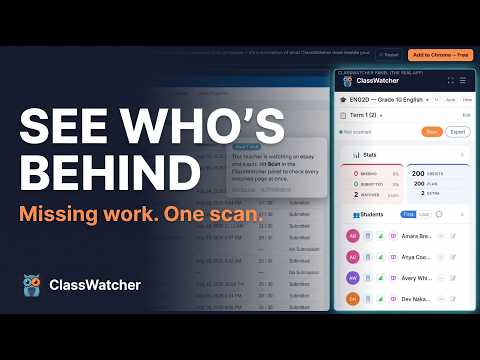
See who hasn't submitted in Brightspace. Track missing work, view marks, and message parents in one tap.
See who hasn't submitted. Message parents in one tap. Built by an Ontario teacher for Brightspace teachers. Brightspace shows you what students DID submit. ClassWatcher shows you who DIDN'T — and lets you contact their parents or students directly from the same screen. What it does • Scans any Brightspace assignment or quiz page — just open the page and see who's missing • Text or email parents or students in one tap, right from the side panel • Every message you send is logged to your contact history — read it in the app, or export it to CSV, Excel or Google Sheets when you need it • Marks display, and every assignment, quiz and mark for one student on a single screen — built for parent-teacher interviews • Watch several assignments and quizzes at once, then scan them all in one pass to see your whole class's missing work • Quick Links put your most-used Brightspace pages one click away: gradebook, attendance, class progress • Class import pulls your student list from Brightspace — once, and you're done • Use it just for scanning. Texting and email are completely optional, never required About texting Messages go out from ClassWatcher to the parent or student. Texting is one-way — if a parent replies, that reply does not come back to you, and the auto-reply tells them so. Use email, or give them your own number, when you want a conversation back. Works at every level • Elementary: contact parents directly when a student misses an assignment • High school: message students and/or parents — your choice • College & university: message students directly about missing coursework — parent fields tuck out of the way • Corporate & workplace training: track completion and message employees — contacts are labelled Employee and Supervisor Tell ClassWatcher where you teach (once, at setup) and the app adapts: who messages go to by default and how contacts are labelled. Switch any time — your saved contact data never changes. How it works 1. Install and create a free account 2. Import your class from your Brightspace classlist page — once 3. Open any assignment or quiz submission page 4. ClassWatcher shows you who's missing. Tap to message them The extension runs as a side panel inside Chrome, right alongside your Brightspace window. No new tabs, no switching apps. Chrome on a desktop or laptop. What's free and what isn't ClassWatcher has a free tier that stays free — it shows you who hasn't submitted on the page you're looking at. Paid plans add the things you act on that with: messaging, watch lists, contact history and exports. Basic is $8/month CAD, Pro is $19/month CAD and adds the parent-meeting reports, student marks export and Google Sheets. Messaging runs on credits — one text costs one credit, one email costs a fifth of a credit — and every plan includes a monthly allowance. Full pricing at classwatcher.com. Privacy & security • Your class rosters and the parent contact details you type stay in your browser on your own computer. They are not uploaded to us. • Grades and submission status are read live from Brightspace and shown on your device. They are never sent to our servers or stored in our database. • What we do store: the messages you send — the student's name and the message text — so your contact history is there when you sign in. Those records are deleted after 365 days. • We record that a scan happened, including the page and the counts. Never student names. • Contact details are used only for messages you start yourself. • No data is sold or shared with third parties. All communication with our servers is over HTTPS. Our servers are in the United States. • Full detail: classwatcher.com/privacy.html Questions or feedback? Visit classwatcher.com or chat with Finn, our support bot, right on the site.
0 out of 5No ratings
Details
- Version2.4.11
- UpdatedSeptember 21, 2026
- FeaturesOffers in-app purchases
- Size145KiB
- LanguagesEnglish
- Developer
- Non-traderThis developer has not identified itself as a trader. For consumers in the European Union, please note that consumer rights do not apply to contracts between you and this developer.
Privacy

ClassWatcher – Brightspace Assignment Tracker has disclosed the following information regarding the collection and usage of your data. More detailed information can be found in the developer's privacy policy.
ClassWatcher – Brightspace Assignment Tracker handles the following:
This developer declares that your data is
- Not being sold to third parties, outside of the approved use cases
- Not being used or transferred for purposes that are unrelated to the item's core functionality
- Not being used or transferred to determine creditworthiness or for lending purposes
Support
For help with questions, suggestions, or problems, visit the developer's support site