

NotebookLM Tools for Gemini Notebook™

Overview
Power tools for NotebookLM (Gemini Notebook): bulk import, collections, folders, export sources, audio & video download.
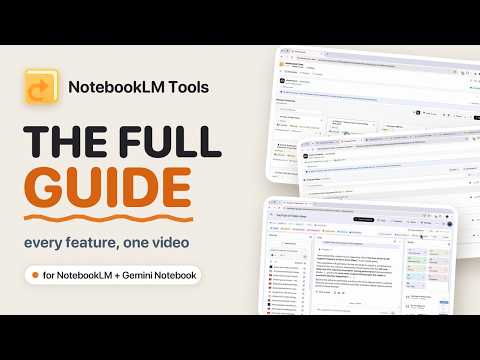
Do more with NotebookLM™ (now Gemini Notebook™). Bulk import sources, organize with collections, download audio & video overviews. NotebookLM Tools turns your browser into a research powerhouse. Import content in bulk, organize your library, generate and download studio outputs, and search everything — all from one extension. Fully compatible with Gemini Notebook, Google's new name for the app. ORGANIZE WITH COLLECTIONS Group your notebooks into native collections — synced to your Google account and visible on notebook.google.com: - Create them with a name and an optional emoji - Put one notebook in as many groups as you need - Bulk-add multiple notebooks in one go - Filter your notebook list by collection, or show only ungrouped notebooks - Dedicated manage page with search, sort, and a two-pane layout - Convert your existing tags with one click — nothing is deleted - Add and remove right from the notebook cards on the homepage - Account-synced: your groups stay even if you remove the extension GENERATE STUDIO ITEMS Create studio items directly from the extension: - Generates nine studio item types, from Audio and Video Overviews to Quizzes and Flashcards - New: 60-second Short Video Overviews — pick Video → Short - "Suggest ideas" fetches AI-generated video concepts from your sources - Customize format, length, style, and difficulty per type - Add custom instructions and override the output language - Choose which sources to include or use the whole notebook - Presets: save the types, options and instructions you picked under a name and load them in one click (up to 30, free) - Saved prompts in every instructions box: Insert prompt or type /, and save what you wrote with the bookmark - Several types at once (Pro): instructions For all types, plus a box for each type - One item per line: put {{topic}} in your instructions and list one topic per line to get one quiz, report or audio per topic in a single run (up to 10 items per run; more than one line is Pro) - Generate in several notebooks (Pro): select up to 20 notebooks on the Notebooks page, pick a preset and run it on all of them - Reports: Interactive or Document; for a Document report, describe your own with Create Your Own - A result for each item after a run of several items (Pro): created, scheduled or failed, with Retry failed only - How it was made: most item types show the options, language and instructions they were generated with - "Also Generate" toggle while adding URLs, playlists, RSS feeds, or tabs - Live progress tracking with cancel anytime - AI usage meter: see how much of your current Gemini Notebook AI usage window is used and when it resets. It's your Google plan's limit, reported by Gemini Notebook — not a limit set by the extension - Generate now or later: what doesn't fit in the current window is generated after your limit resets, on its own ADD SOURCES IN BULK Why add links one at a time? - Paste a list of URLs and add them all at once - Import an entire YouTube playlist - Pull every article from any RSS feed or sitemap - Add all your open browser tabs in one click - Grab every link from any webpage SEARCH EVERYTHING Find anything across your library: - Search notebooks, collections, tags, sources, URLs, and authors at once - Tabbed results with type filters (PDF, URL, Video, and more) - Find a notebook by the tags or groups it belongs to - Matches highlighted in context LABEL YOUR SOURCES Native source labels, managed right from the extension: - Add multiple labels to any source, then filter by label - Color-coded chips make groups easy to spot - Let AI label all your sources, fill in just the gaps, or start over - Labels sync with the notebook — collaborators see them too ORGANIZE SOURCES INTO FOLDERS Keep your sources tidy inside each notebook: - Create up to 50 folders per notebook - Drag and drop to reorder - Move multiple sources at once - Folders preserved when you export and import ORGANIZE WITH TAGS Color-coded tags for your notebooks, private to your browser: - Filter, search, and find notebooks instantly - Merge tags one by one or in bulk - Rebuilt two-pane manager - Undo right after removing one COPY AND MOVE SOURCES BETWEEN NOTEBOOKS Reuse research across projects — or combine notebooks entirely: - Compatibility preview before confirming - URL, YouTube, and PDF sources re-added as originals - Docs, Drive, and Sheets copied as text - Optional move mode deletes originals after success - Progress bar with per-source updates FIND AND REMOVE DUPLICATES Clean up your notebooks in one pass: - One scan checks both links and content similarity - Review duplicate groups before deleting anything - Keep-oldest or keep-newest preference - Delete duplicates in batch COMPARE SOURCES See exactly how sources differ: - Compare the contents of selected sources side by side - Pick any source as the baseline - Inline diff highlights the changes MERGE SOURCES Combine multiple sources into one. Consolidate related material with content size validation. KEEP SOURCES FRESH Stay on top of changing content: - Auto-detect stale sources on notebook open - One-click refresh individually or in bulk - "Sync X sources" pill when updates are available - Bulk Sync: check every source across chosen notebooks and re-sync stale ones in one run - Live progress plus a clear summary at the end RENAME ANYTHING Sources, studio items, notebooks — rename them all: - Single or bulk rename with Replace, Add, or Custom methods - Live preview before you apply MANAGE YOUR NOTEBOOKS Full control without leaving the extension: - Create new notebooks and delete the ones you no longer need - Owner, Editor, and Viewer badges on every notebook - Read-only mode keeps shared notebooks safe - Notes management: search, rename, and bulk delete VIEW AND STUDY INLINE Open studio items without leaving the extension: - Every studio item type and your notes open inline, including Mind Maps, Slide Decks and Infographics - Take quizzes with scoring and try-again - Study flashcards with shuffle, flip, self-rating, and fullscreen - Keyboard shortcuts and session resume - Math formulas render as formulas — on screen and in the Print / PDF view EXPORT AND DOWNLOAD STUDIO ITEMS Take your outputs with you: - Download Audio Overviews as MP3 and Video Overviews as MP4 - Export selected or all studio items as a ZIP - Quizzes as a CSV spreadsheet — one row per question; multiple-choice questions include their options and the correct answer - Flashcards as an Anki-ready CSV — deck, note type, and fields preset for Anki's Basic note type (if your Anki isn't set to English, check the field mapping in the import dialog) - Data tables: Copy as CSV in the viewer, or the CSV inside the ZIP - Print / PDF: print notes, reports, quizzes, flashcard sets, data tables, and text sources — or save them as a PDF - Source viewer with Rendered and Raw views — headings, lists, tables, and formulas, or the plain text your exports carry - Get a CSV map of which sources built each output - Filter by type or by source, and bulk delete LISTEN ANYWHERE Built-in player and library for your Audio Overviews: - Play from any notebook and download as MP3 - Search and sort all your podcasts in one place - Mark episodes as listened — automatic at 90% - Bulk download as a ZIP SAVE CUSTOM PROMPTS Build a personal library of AI prompts: - Use shortcodes like /myprompt to insert instantly - Prompt dropdown injected right into the chat - Use them in the Generate panel too: Insert prompt or type / in any instructions box - Pin favorites and organize prompts into categories - Get started fast with the sample library - Import and export prompts as JSON QUICK ACTIONS ON NOTEBOOK PAGES A handy toolbar right on NotebookLM notebook pages: - See what's inside at a glance - Generate studio items or find duplicates in one tap - Configure which actions appear — or hide any you don't want CONNECT MULTIPLE ACCOUNTS Switch between Google accounts with one click: - Color-coded avatars for each account - Per-account data isolation SWITCH LANGUAGES INSTANTLY Change the interface or AI output language with one click. Save favorite languages for one-tap switching. Floating widget stays accessible while you work. DARK MODE Switch between dark and light themes. Your preference persists across sessions. BACKUP YOUR WORK Export sources and notebooks as JSON or ZIP and import them back anytime. Back up extension data by category — tags, prompts, folders, and settings. Your research is always safe. BUILT FOR EVERYONE Whether you're a student, writer, creator, or professional — this extension fits your workflow. Free to use — some advanced features require a Pro upgrade. The free version also shows a small NLMTools.com badge on NotebookLM pages and an occasional reminder to buy a license; upgrading removes the badge. YOUR DATA STAYS YOURS Tags, prompts, folders, and settings stay local in your browser. Collections and labels live in your Google account. Your content is never sent to third-party servers. Works exclusively with NotebookLM (Gemini Notebook) — on both notebook.google.com and the older notebooklm.google.com address. NotebookLM™ and Gemini Notebook™ are trademarks of Google LLC. Use of these trademarks is subject to Google Permissions. This extension is not affiliated with, endorsed by, or sponsored by Google.
4.6 out of 5113 ratings
Details
- Version2.2.4
- UpdatedOctober 26, 2026
- FeaturesOffers in-app purchases
- Size1.32MiB
- Languages55 languages
- DeveloperWebsite
Email
ytuongdotme@gmail.com - Non-traderThis developer has not identified itself as a trader. For consumers in the European Union, please note that consumer rights do not apply to contracts between you and this developer.
Privacy

NotebookLM Tools for Gemini Notebook™ has disclosed the following information regarding the collection and usage of your data. More detailed information can be found in the developer's privacy policy.
NotebookLM Tools for Gemini Notebook™ handles the following:
This developer declares that your data is
- Not being sold to third parties, outside of the approved use cases
- Not being used or transferred for purposes that are unrelated to the item's core functionality
- Not being used or transferred to determine creditworthiness or for lending purposes
Support
For help with questions, suggestions, or problems, please open this page on your desktop browser