

Whole Scroll - Full Page Screen Capture

Overview
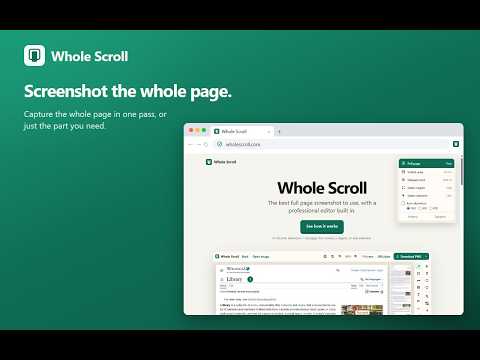
Screenshot the whole page, this screen, a region, or one element. Save as PNG, JPG, or PDF.
The best full page screenshot to use, with a professional editor built in. Screenshot the page you are reading, or just the part you need, and save it as a PNG, JPG, or PDF. Click the Whole Scroll icon. Choose the full page, the area on screen, a box you drag, or one element you click. For the full page, Whole Scroll scrolls down and stitches the shots into one image, then opens that image in a new tab. From there you can save it, or crop it and mark it up. The visible area can wait 3 seconds, so a menu has time to open. Alt+Shift+F starts a full-page capture. Highlight a line, write a note, drop in an emoji, or add an arrow or a step number. Blur or pixelate a detail. Frame the shot with the page URL and date so the source stays on the image. Select a region and run text recognition to copy text out of the screenshot. Capture, editing, and text recognition all run on your device. Screenshots and recognized text stay on your computer and are not uploaded to us.
0 out of 5No ratings
Details
- Version5.7.3
- UpdatedOctober 15, 2026
- FeaturesOffers in-app purchases
- Offered byHY Thinking AI Technology Co., Limited
- Size30.66MiB
- LanguagesEnglish
- DeveloperHY Thinking AI Technology
Email
trading@hythinkingtec.comPhone
+852 6531 8858 - TraderThis developer has identified itself as a trader per the definition from the European Union and committed to only offer products or services that comply with EU laws.
- D-U-N-S765320159
Privacy

This developer declares that your data is
- Not being sold to third parties, outside of the approved use cases
- Not being used or transferred for purposes that are unrelated to the item's core functionality
- Not being used or transferred to determine creditworthiness or for lending purposes
Support
For help with questions, suggestions, or problems, visit the developer's support site