

WebKora – Full Page Screenshot, PDF & Image Downloader

Overview
Full page screenshot to PDF, PNG or JPG. Capture a section, snip any area and download every image on the page.
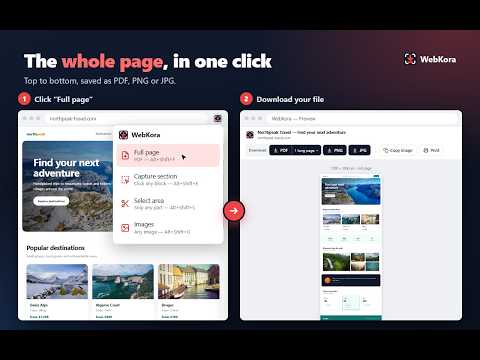
Take a full page screenshot of any website and save it as PDF, PNG or JPG — exactly as you see it. Capture the whole page, a single section, or any area you select, and download every image on the page in its original size. 📸 Looking for a fast, reliable way to screenshot an entire web page? WebKora captures the whole page from top to bottom in one click, even on modern websites full of animations, and turns it into a real PDF or a sharp image. 🔥 Why WebKora • Real PDFs, not pictures: text stays selectable and searchable, so you can copy, search and highlight it later. • Captures what others miss: pages that scroll inside a box, like chat apps, webmail and dashboards. • Works on modern websites: animations and scroll effects are paused while capturing, so no section comes out blank or half-loaded. • 100% private: everything happens on your computer. No servers, no accounts, no tracking, no ads. • One click (or a keyboard shortcut) and a preview opens, ready to download, copy or print. 🖥️ Full Page Screenshot • One click (or Alt+Shift+F) captures the entire page, top to bottom. • PDF: save as one long page, or split into Letter, A4 or Legal pages (portrait or landscape). • PNG / JPG: save as a single image, or split it into 2–5 images or one image per screen. • Advanced scroll capture for pages that scroll inside a box (chats, webmail, dashboards). • Lazy-loaded images are loaded before capturing, and full-screen sections don't get stretched. • Animations, fade-in effects and parallax backgrounds are paused, so every part of the page shows up. • Slow website? Use "Wait for slow pages" in Options to give each part more time to load. • A progress card shows how the capture is going, so you always know it's working. • Preview window: download PDF, PNG or JPG, copy the image or print — no need to dig into settings. 🎯 Capture a Section • Hover any block of the page (a product card, an article, a table) and click to capture just that part. • Use the ↑ and ↓ keys to make the selection larger or smaller. ✂️ Snip Any Area • Drag to select any area, like a snipping tool. • Download it as PDF, PNG or JPG in high resolution (up to 3×), copy the image or print. • Prefer to choose the file name and folder yourself? Set "After snip" to "Save directly" in Options. 🖼️ Image Downloader • Hover any image — even CSS backgrounds and images hidden under links — and download it with one click. • "Show all images" opens a gallery with every image on the page, its real size and type. • Filter by size and type, select several and download them together. • Always picks the largest version available (srcset) and the real file behind lazy-loading placeholders. 💡 How to Use WebKora 1. Open the web page you want to save. 2. Click the WebKora icon (or right-click the page → WebKora). 3. Choose Full page, Capture section, Select area or Images. 4. Pick PDF, PNG or JPG in the preview window. 5. Download, copy or print — your file is ready in seconds! ⌨️ Keyboard Shortcuts • Alt+Shift+F — Full page • Alt+Shift+E — Capture section • Alt+Shift+S — Snip an area • Alt+Shift+G — Images (Change them anytime at chrome://extensions/shortcuts) 🗂️ History • Your recent captures and downloaded images are kept in a History page with thumbnails. • Filter by type, search, open, download again or delete. • Choose how many captures to keep. 📚 Great For Students, Professionals and Designers • Receipts and invoices: save order confirmations and payments as PDF. • Research: archive articles, documentation and study material. • Design and work: share web pages and designs with clients or your team. • Conversations: save long chat conversations and email threads. • Shopping and inspiration: collect product photos and images from any site. 📄 Tips for Best Captures 1. Let the page finish loading before capturing. 2. Close pop-ups and cookie banners, as they may appear in the capture. 3. If a page loads slowly, turn on "Wait for slow pages" in Options. 4. For chats, webmail and dashboards, use the advanced scroll capture. 🧐 FAQs ❓ How do I take a full page screenshot? Click the WebKora icon and choose Full page, or press Alt+Shift+F. ❓ Can I copy the text from the PDF? Yes. WebKora creates real PDFs, so the text is selectable and searchable. ❓ Are my pages uploaded anywhere? No. Everything happens on your computer. No servers, no accounts, no tracking. ❓ Is it free? Yes, WebKora is free and has no ads. 🔧 About the "Debugging" Bar While capturing, Chrome briefly shows "WebKora started debugging this browser". This is normal: WebKora uses Chrome's own rendering engine to create PDFs with real text and sharp, high-resolution images. The bar disappears as soon as the capture is done. WebKora never sends your pages anywhere. 👍 Get Started Today! Add WebKora to Chrome and save any web page as PDF, PNG or JPG in one click. Questions or suggestions? Visit https://webkora.pages.dev/
0 out of 5No ratings
Details
- Version1.2.1
- UpdatedNovember 12, 2026
- Offered bySB Dev Labs
- Size72.18KiB
- Languages2 languages
- Developer
Email
slbarriosdev@gmail.com - Non-traderThis developer has not identified itself as a trader. For consumers in the European Union, please note that consumer rights do not apply to contracts between you and this developer.
Privacy

This developer declares that your data is
- Not being sold to third parties, outside of the approved use cases
- Not being used or transferred for purposes that are unrelated to the item's core functionality
- Not being used or transferred to determine creditworthiness or for lending purposes
Support
For help with questions, suggestions, or problems, visit the developer's support site