


總覽
VideoStudio video editor online to create and edit videos using videos, audios, images and texts
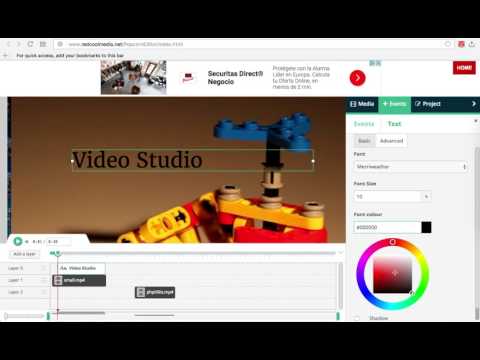
VideoStudio is a video editor that allows you to create and edit videos using a combination of files: videos, audios, images, and texts. Moreover, it scans and collects the webpages you browse in the Internet. These webpages are uploaded to our servers in order to know if they contain MP4 video files that can be edited using our extension integrated with our online app. It is based on Mozilla PopcornMaker and it can handle MP4, MP3, GIF, PNG, JPG and TEXT files. PopcornMaker could handle sounds or videos from a number of places like videos from YouTube, Vimeo, or SoundCloud. However, VideoStudio has removed any feature related to YouTube, Vimeo, or SoundCloud in order to be compliant with YouTube, Vimeo and SoundCloud service terms. Main Features: - Add videos in your project * Add MP4 videos to your Gallery from the Internet by pasting in the link, or from your local disk. Once you have found a MP4 video you like, copy the link by right-clicking on the Video link and selecting Copy Link Address from the context menu. Then paste the link into your VideoStudio project and click on Get Media. * Drag your video from the Media Gallery to the timeline. Drag it to Layer 0 or any other layer. * Once you have dragged your video to the timeline, you will see the Clip Editor in the Events pane with the following options: + Extend the video time or shorten it. + Select only a portion of your video if you would like. + Remove any video portion and do the same thing with the audio, as well as turn the volume down. * Mix your project in layers. Layers with lower numbers appear above layers with a higher number. So layer one appears on top of layer two. * Zoom in on part of your timeline. This makes it easier to work with events of shorter duration. - Add audios in your project * Add MP3 audio files to your Gallery from the Internet by pasting in the link, or from your local disk. Once you have found a MP3 audio you like, copy the link by right-clicking on the audio link and selecting Copy Link Address from the context menu. Then paste the link into your VideoStudio project and click on Get Media. * Drag your audio from the Media Gallery to the timeline. Drag it to Layer 0 or any other layer. * Extend the audio time or shorten it. - Add texts to your video * If you click on the Events tab, you will see that you have the option to add some text to your video. * Once you start typing your text, you will see that you have a number of different options. + Change the time when your text starts and ends. + Move the text around on the video canvas. + Change the way the text transitions on and off the video. + Under the Advanced tab, Change the font and color. - Add an image to your video * Add an image into your video by uploading it from your local disk or from a URL link. - Create your MP4 video file * If you click on the Project tab, you will see that there is a button to create a MP4 file with your composition of videos, audios, images and texts. The engine to create the MP4 file uses FFMPEG.
2.7 分 (滿分 5 分)214 個評分
詳細資料
隱私權

「Video editor VideoStudio」已揭露下列關於收集及使用資料的資訊。 如需更多詳細資訊,請參閱開發人員的《privacy policy》。
Video editor VideoStudio 會處理下列資料:
這位開發者就你的資料做出下列聲明:
- 除經核准的用途外,不會將你的資料販售給第三方
- 不會基於與商品核心功能無關的目的,使用或轉移資料
- 不會為了確認信用度或基於貸款目的,使用或轉移資料
支援
如有疑問或建議,請使用電腦版瀏覽器開啟這個頁面