


Overview
Free 2FA authenticator: one-click codes, smart autofill, passkeys, QR scan and encrypted backup & sync. No ads, works offline.
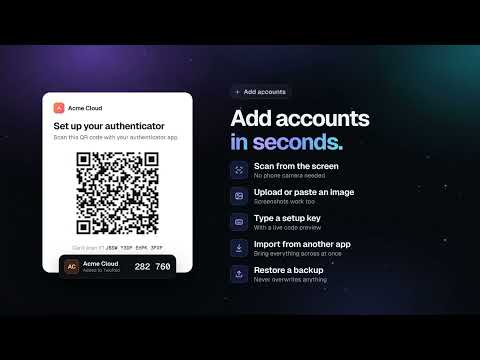
Twofold is a free authenticator for Chrome. It creates the six-digit sign-in codes that websites ask for when two-step verification is turned on, keeps your passkeys, and puts the right code in front of you for the site you are on. Everything is stored in an encrypted vault on your own device. There are no ads, no sign-up and no tracking, and it works offline. WHAT TWOFOLD DOES FOR YOU • Copies a fresh code with a single click, with a ring that counts down to the next one. • Recognizes the website in your current tab and puts its account at the top. • Offers the right code next to the field on a sign-in page, or fills it in for you. • Saves passkeys, so you can sign in with one click and without your phone. • Keeps an encrypted copy of your vault in Chrome Sync or Google Drive, if you want one. GETTING STARTED 1. Install Twofold and pin it to the toolbar: click the puzzle-piece icon next to the address bar and choose the pin next to Twofold. A welcome page walks you through the first steps. 2. Create a master password when you are asked. It is optional, but it protects your vault and it is required for sync. Pick something long that you will remember, such as a few random words. 3. Add your first account. Go to the security settings of a website you use, turn on two-step verification (often called "authenticator app" or "2FA"), and the site shows a QR code. Click the Twofold icon, press the scan button, and the account appears. 4. Type the code Twofold shows into the website to finish the setup. From then on, Twofold has your code whenever the site asks for it. FIVE WAYS TO ADD AN ACCOUNT • Scan from the page: while the QR code is on screen, open Twofold and press Scan. You can also right-click anywhere on the page and choose "Scan QR code on this page". No phone camera is needed. • Upload an image: if you have a screenshot or photo of a QR code, choose Add account, then Upload image. • Paste: copy a QR code image or a setup link and press Ctrl+V (Cmd+V on a Mac) while Twofold is open. • Type a setup key: many sites offer a text key next to the QR code ("Can't scan it?"). Choose Add account, then Enter setup key, and type the service name, your account name and the key. Spaces don't matter. A live preview shows the code before you save, so you can check it matches. • Import: bring all your accounts across at once from another authenticator app or from a backup file. Open Import, drop the exported file onto the window or paste its contents, and Twofold shows a list of everything it found. Untick anything you don't want, then confirm. Accounts you already have are recognized and not added twice. Advanced options in the setup form cover less common types, such as counter-based and Steam Guard codes. Most people never need them. USING YOUR CODES • Click any account to copy its code. A "Copied" badge confirms it. • In the last ten seconds you can already see the next one, so you never have to wait. • Type to search: start typing a name and the list filters instantly. Press / to jump to the search field from anywhere. • Pin the accounts you use most so they stay at the top. • Sort alphabetically, by most recently used, by most used, or drag accounts into your own order. • Right-click an account (or use its menu button) to fill it on the current page, copy the next code, edit it, see its QR code again, pin it, link it to the current website or delete it. • Edit an account to rename it, add the websites it belongs to, write a note (for example where your backup codes are kept) or pick its color. SMART AUTOFILL Smart autofill fills codes for you on sign-in pages, whether they use one field or one box per digit. It is off until you turn it on, because it needs your permission to look at the pages you visit. 1. Open Settings and turn on "Detect 2FA fields on websites". Chrome asks for permission; choose Allow. 2. Choose what happens when a code field appears: "Ask me first" shows a small Twofold panel next to the field with the right account at the top, while "Fill automatically" types the code for you as soon as the page asks for it. 3. Optionally turn on "Submit after filling", and Twofold presses the site's Verify button for you as well. Without autofill, you can still fill with one action: press Fill on the suggested account in Twofold, use the right-click menu in the field, or press Alt+Shift+F. Autofill is built to be safe. Twofold only suggests an account on the website it belongs to. A lookalike or phishing site with a similar address never matches, so a fake page can't trick you into handing over a code. If you choose an account that isn't linked to the current site, Twofold asks you to confirm with a second click. The panel also refuses clicks when another page tries to cover it or make it invisible, a common trick used to steal clicks. PASSKEYS Passkeys replace passwords with a key that only works on the real website. Twofold can store them for you. • Saving: when a website offers to create a passkey, Twofold shows a "Save a passkey?" panel. Choose Save passkey, and it is stored in your encrypted vault. • Signing in: on the sign-in page, choose the passkey option. Twofold shows your saved passkeys for that site; pick one and you are in. Sites that show passkey suggestions in the username field work too. • Your choice every time: if you'd rather use your phone, a security key or your browser for a particular site, choose "Use another device or browser" in the Twofold panel. • Managing: Settings, then Manage passkeys, lists every saved passkey and lets you delete any of them. With a master password, you can also require it before each passkey sign-in. THE FULL-PAGE APP Press the Full page button at the top of the popup and Twofold opens in its own tab. On a large screen you get a sidebar with all sections, your accounts as a grid of tiles, and roomy settings. Arrow keys move between tiles, and you can drag tiles to reorder them. Changes you make in the popup appear in the full page instantly, and the other way round. SYNC AND BACKUP Twofold works fine on a single computer, but it can also keep your vault safe and in step across devices. Everything below is end-to-end encrypted with your master password before it leaves your computer, so Google can't read it. • Chrome Sync: open Sync & backup and turn on Chrome Sync. Your vault follows you to every Chrome where you are signed in with the same Google account. • Google Drive: choose Connect Google Drive and allow access. Twofold stores its data in a private app folder that only Twofold can see; it can't see any of your other files. It keeps a daily snapshot and holds on to the last ten, so you can step back in time. Use Back up now to make a snapshot at any moment, and Restore to bring one back. • Joining another device: install Twofold on the other computer, turn on the same kind of sync, and enter the same master password. Accounts from both devices are combined; nothing is lost. • Backup file: Export encrypted backup saves a password-protected file you can keep anywhere, such as a USB drive or your own cloud storage. Restore from file adds its accounts back. Restoring never overwrites what you already have. • Moving to a phone: Transfer to phone shows QR codes that phone authenticator apps can scan, a few accounts at a time. SECURITY AND PRIVACY • Your vault is encrypted with AES-256, a widely trusted standard. With a master password, only you can unlock it, and repeated wrong guesses are slowed down. • Auto-lock: with a master password, choose when Twofold locks itself, from one minute of inactivity to when the browser closes. It can also lock whenever your computer locks or goes to sleep. • Hide codes until hover keeps codes blurred until you point at them, which helps when sharing your screen. • Clear clipboard removes a copied code after the delay you choose. • Showing a secret key, transferring accounts to a phone or exporting unencrypted links asks for your master password first. • No ads, no analytics, no tracking. Twofold has no servers of its own and never sees your data. Nothing leaves your computer unless you turn on sync, and then only in encrypted form. • Every permission is explained below. The optional one is only requested when you turn on a feature that needs it. MAKE IT YOURS • Dark, light or automatic theme that follows your system. • Six accent colors. • A compact list if you have many accounts. • Keyboard friendly: Alt+Shift+O opens Twofold (Ctrl+Shift+O on a Mac), Alt+Shift+F fills the code on the current page, / searches, the arrow keys move through accounts, Enter copies, F fills and E edits. You can change the shortcuts at chrome://extensions/shortcuts. • It respects your system's "reduce motion" setting. PERMISSIONS, EXPLAINED • Storage: keeps your encrypted vault and settings on your device. • Timers: run auto-lock and scheduled sync. • Clipboard and helper page: copy what you click, and clear it later if you ask. • Current tab and scripting: let Scan and Fill work on the page in front of you when you ask, and run autofill or passkeys once you turn them on. • Right-click menu: adds "Fill 2FA code" and "Scan QR code on this page". • Google sign-in: used only if you connect Google Drive. • Idle detection: locks the vault when your computer locks, if you chose that. • Website icons: shows each site's icon next to its account. • Access to websites (optional): requested only when you turn on smart autofill or passkeys. Pages are checked on your device and never sent anywhere. FREQUENTLY ASKED QUESTIONS Is Twofold really free? Yes. There are no ads, no premium plan, no trial and no account to create. Do I need my phone? No. Twofold creates your codes in the browser. If you want codes on your phone as well, use Transfer to phone at any time. Are these the same codes my phone app shows? Yes. They follow the same open standard, so any website that works with an authenticator app works with Twofold. You can even keep an account in both places. Does it work offline? Yes. Everything is calculated on your device from the current time. Only sync needs a connection. Can I move my accounts from the app I use now? Yes. Most authenticator apps can export your accounts as a file or as QR codes. Open Import in Twofold and add the file, or scan or upload the export QR codes, and everything comes across in one go. What happens if I forget my master password? Your vault can't be opened without it, and nobody can reset it for you, not even us. That is exactly what keeps it private. Keep an encrypted backup file and write your password down somewhere safe. What if I lose my computer? If you used Chrome Sync, Google Drive or a backup file, install Twofold on a new computer and restore. If you set a master password, whoever has the old computer can't open your vault. It is also wise to keep each website's backup codes somewhere safe. Can Google read my synced data? No. Your vault is encrypted with your master password on your device before it is uploaded, so only scrambled data is stored. Does smart autofill read the pages I visit? Only if you turn it on and allow it. Even then, pages are checked on your device, and nothing about them is stored or sent anywhere. Why does Twofold sometimes ask me to click twice? When you pick an account that isn't linked to the website you are on, Twofold asks for a second click to make sure you meant it. This stops look-alike websites from collecting your codes. Accounts you have linked to a site are filled with one click. Will my passkeys work everywhere? They work on websites that support passkeys. A few sites only accept passkeys stored on a hardware security key; for those, choose "Use another device or browser". How many accounts can I keep? As many as you need. Chrome Sync holds roughly 250, so for more, use Google Drive. Which browsers are supported? Chrome 116 or newer. Twofold also runs in other browsers based on Chrome. A code is not accepted. What should I do? Codes depend on the time, so check that your computer's clock is set automatically. Make sure you picked the account for that website, and try again if the code was about to change. Where can I get help or give feedback? Use the support section of this listing. If Twofold makes your day easier, a short review helps other people find it. A product of Unique Labs. Developed by Shahriar Ahmed.
0 out of 5No ratings
Details
- Version1.1.0
- UpdatedNovember 10, 2026
- Size291KiB
- LanguagesEnglish
- DeveloperUnique LabsWebsite
#942, Shakila Tower Ashkona (Uchartek Water Pump Road), Dakshinkhan Dhaka 1230 BDEmail
shahriar.bmb@gmail.com - Non-traderThis developer has not identified itself as a trader. For consumers in the European Union, please note that consumer rights do not apply to contracts between you and this developer.
Privacy

Twofold — 2FA Authenticator & Passkeys has disclosed the following information regarding the collection and usage of your data. More detailed information can be found in the developer's privacy policy.
Twofold — 2FA Authenticator & Passkeys handles the following:
This developer declares that your data is
- Not being sold to third parties, outside of the approved use cases
- Not being used or transferred for purposes that are unrelated to the item's core functionality
- Not being used or transferred to determine creditworthiness or for lending purposes
Support
For help with questions, suggestions, or problems, please open this page on your desktop browser