

Ticketmaster SeatLens
2 ratings
)
Overview
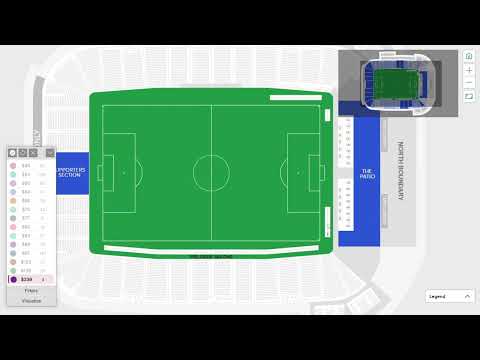
See Ticketmaster seat prices on the map. Color-coded by tier, click to highlight sections, and analyze deals instantly.
SeatLens overlays real ticket prices directly onto the Ticketmaster interactive seat map — so you can see exactly what every section costs before you buy. HOW TO USE 1. Install SeatLens from the Chrome Web Store 2. Go to any event page on Ticketmaster.com 3. Open the seat map — SeatLens loads automatically 4. A price panel appears on the left side of the map 5. Each price tier is color-coded directly on the seats 6. Click any price group in the panel to highlight those seats on the map 7. Click again to deselect and show all seats FEATURES - Real prices including fees — no surprises at checkout - Color-coded seat map — instantly see which sections are cheapest - Click to highlight — isolate any price group on the map - Price chart — visualize the full price distribution (fullscreen mode) - Filter by inventory type — primary, resale, and more - Auto-updates when you navigate between events - Works on all Ticketmaster events — concerts, sports, theater
5 out of 52 ratings
Details
- Version1.0.3
- UpdatedMarch 12, 2026
- Offered byDealerFill
- Size273KiB
- LanguagesEnglish (United States)
- Developer
Email
hytkhn830@gmail.com - Non-traderThis developer has not identified itself as a trader. For consumers in the European Union, please note that consumer rights do not apply to contracts between you and this developer.
Privacy

This developer declares that your data is
- Not being sold to third parties, outside of the approved use cases
- Not being used or transferred for purposes that are unrelated to the item's core functionality
- Not being used or transferred to determine creditworthiness or for lending purposes