

The Cutting Room — Debate Evidence Cutter
3 ratings
)
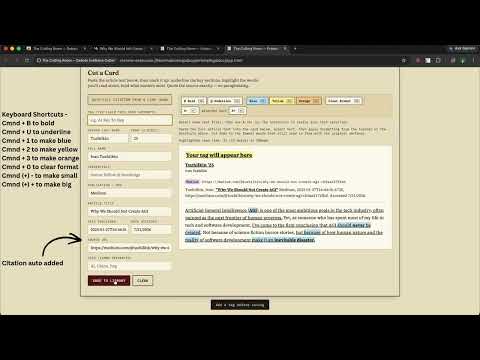
Overview
Grab citation info and your selected quote directly from the page you're reading, then cut and organize debate evidence cards.
THE CUTTING ROOM TUTORIAL Complete guide to cutting, formatting, and syncing debate evidence TABLE OF CONTENTS 1. Installation 2. Basic Workflow 3. Formatting a Card 4. Saving & The Library 5. Team Sync (Groups) 6. Exporting Cards 7. Keyboard Shortcuts 8. FAQ & Tips 1. INSTALLATION STEP 1: Get it from the Chrome Web Store Visit https://chromewebstore.google.com and search for "The Cutting Room" or use the direct link from the website. Click "Add to Chrome". Chrome will ask for permission — click "Add extension" to confirm. STEP 2: Verify it's installed Look in the top-right corner of your browser. You should see a puzzle piece icon (the extensions menu). Click it and pin The Cutting Room to your toolbar. Now you'll always see the icon, and clicking it opens the app. TIP: If you don't see the puzzle piece, click the three-dot menu (⋮) in the top-right, scroll to "Extensions," and pin The Cutting Room from there. 2. BASIC WORKFLOW Here's how to cut a card in 30 seconds: STEP 1: Find an article and select your quote Open any article in a new tab. Read through it and highlight a direct quote you want to use as evidence — just select the text normally (click and drag). KEY RULE: Always quote directly from the source. Don't paraphrase, don't interpret. Copy what's actually written. STEP 2: Right-click and send it With your text still selected, right-click. You'll see a menu that says "Send selection to The Cutting Room." Click it. STEP 3: The app opens with your quote The Cutting Room opens in a new tab. The citation fields (author, publication, date) are already filled in automatically from the page. Your selected text is in the card editor, ready to mark up. CHECK THE CITATION: Verify that the auto-filled fields are correct before you mark anything up. If something's wrong, fix it now. STEP 4: Mark up the text Select the words you'll actually read aloud and highlight them. Underline the key sentence. Bold what's most important. (More on this below.) STEP 5: Save Click the "Cut a Card" tab if you're not there already, then click Save Card. Enter a tag (e.g., "Trade — Sanctions") and save. Done. 3. FORMATTING A CARD Your card needs three layers of formatting: UNDERLINE THE KEY SECTION Select one sentence that sums up the whole card's argument. Underline it. This is the sentence a judge would hear if they weren't paying full attention. HIGHLIGHT WHAT YOU'LL READ The highlighted text is what gets read aloud in a debate round. It should: • Be fewer than 150 words (usually) • Flow naturally when read alone • Support your debate argument clearly • Include only the most important words Use three colors: • YELLOW: Tag line or main claim • BLUE: Evidence or reasoning • ORANGE: Qualifier or limit ("some," "may," "suggests") BOLD FOR EMPHASIS Bold 2-3 key words per card that you want to emphasize verbally. Don't overdo it — every word bolded means nothing's bold. EXAMPLE CARD: --- Sanctions — Trade Impact Author YYYY (yy) | Publication | URL "International trade sanctions" directly reduce economic output in targeted nations by an average of 7% annually. Some economists argue this underestimates the spillover effects to allied trading partners. --- KEYBOARD SHORTCUTS FOR FORMATTING (FASTER THAN TOOLBAR) • Ctrl/Cmd + U = Underline • Ctrl/Cmd + B = Bold • Click the highlight buttons for colors WARNING: Make sure your highlighted text makes sense when read by itself. Read it aloud — if it's confusing, select different words. 4. SAVING & THE LIBRARY BEFORE YOU SAVE When you click "Save Card", you'll need to add a tag. Tags organize your library and are the first thing you read when skimming cards. FINDING SAVED CARDS IN THE LIBRARY Click the "Library" tab to see all your cards. You can: • SEARCH by tag, author, publication, or any word in the card text • CLICK A CARD to open it and edit it • COPY the card to your clipboard (paste into Google Docs or Word) • DOWNLOAD as PDF or Word document EDIT A SAVED CARD Click any card in the Library to open it. You can re-edit the formatting, citation, or tag. Just click Save Card when you're done — it updates the existing card, doesn't create a new one. READ TIME ESTIMATE: Every card shows how many seconds it takes to read aloud (only counting highlighted text). Use this to balance your case — you want cards that fit in your speaking time. 5. TEAM SYNC (GROUPS) PERSONAL LIBRARY (DEFAULT) By default, your cards live only on this device. You control the library completely. CREATE A GROUP TO SYNC WITH YOUR TEAM STEP 1: Click the workspace selector at the top You'll see "Working in: Personal (this device)" at the top of the app. Click it. STEP 2: Click "Create group" Give your group a name (e.g., "Lincoln HS Varsity") and click Create. The app generates a 6-letter code (e.g., K7MQ2R). STEP 3: Share the code with your team Send that code to your teammates however you want (text, Slack, Discord, etc.). They join with "Join group" and enter the code. STEP 4: Start syncing When anyone on the team cuts a card in that group, everyone sees it instantly in their Library. No refresh needed. MULTIPLE GROUPS: You can be in several groups at once (one for each team you're on). Switch between them using the workspace selector. GUARD YOUR GROUP CODE: Anyone with the code can read and edit cards in that group. Treat it like a shared document link. 6. EXPORTING CARDS COPY ONE CARD TO DOCS/WORD In the Library, click "Copy" on any card. Paste it directly into Google Docs or Word — the formatting (bold, highlight, underline) comes with it. No re-formatting needed. DOWNLOAD A SINGLE CARD AS PDF OR WORD Click "PDF" or "Word" next to any card in the Library. A file downloads to your computer. COMBINE MULTIPLE CARDS INTO A BRIEF STEP 1: Check the boxes on cards you want In the Library, you'll see a checkbox on each card. Check the ones you want to combine. STEP 2: Click "Combine into brief" A bar appears with export options. You can: • COPY FORMATTED — paste into Docs/Word with formatting intact • COMBINE INTO BRIEF (PDF) — each card on its own page, ready to print or share • COMBINE INTO BRIEF (WORD) — editable Word document with all cards TIP: Use "Copy formatted" for quick pasting. Use PDF/Word exports for making a permanent brief document. 7. KEYBOARD SHORTCUTS (QUICK REFERENCE) SEND TEXT TO THE CUTTING ROOM Windows/Linux: Ctrl + Shift + Y Mac: Cmd + Shift + Y BOLD SELECTED TEXT Windows/Linux: Ctrl + B Mac: Cmd + B UNDERLINE SELECTED TEXT Windows/Linux: Ctrl + U Mac: Cmd + U INCREASE TEXT SIZE Windows/Linux: Ctrl + = Mac: Cmd + = DECREASE TEXT SIZE Windows/Linux: Ctrl + - Mac: Cmd + - MAKE TEXT BLUE/YELLOW/ORANGE CMD 1/2/3 - respectively PRO TIP: Use Ctrl/Cmd + Shift + Y to send a quote instantly — no right-click needed. Just select text and hit the shortcut. 8. FAQ & TIPS Q: Can I edit a card after saving it? A: Yes. Click the card in the Library and re-edit anything — citation, formatting, tag. Click Save and it updates the existing card. Q: Why did the citation fields come back blank? A: Some websites don't include standard citation info in their page source. For those, you have two options: • Manually type in the citation fields • Use "Auto-fill citation from a link" — paste the URL and it tries to find more info Q: Can I be in multiple groups? A: Yes. Use the workspace selector at the top to switch between groups. You can join as many as you're on teams for. Q: What happens if I delete a card? A: It's gone forever (no undo). Be careful. In a group, it deletes for everyone. Q: How do I back up my library? A: Click "Export" in the Library tab to download a `.json` file. Save this somewhere safe. Later, you can import it if needed. Q: The app is showing "Modified since original cut" on one of my cards. What does that mean? A: You edited the highlighted text after first saving the card. The app flags this so you know the quote is different from what you originally cut. This is useful for catching accidental edits. Q: How do I change the keyboard shortcut? A: Go to Settings in the app or visit chrome://extensions/shortcuts and customize it there. Q: Can I use The Cutting Room on a Chromebook? A: Yes. It works exactly the same way — it's a Chrome extension, so Chromebooks run it natively. Q: What if I'm offline? A: Personal library works offline — your cards are stored locally. Groups require an internet connection to sync. WORKFLOW TIPS CUTTING TIP: Cut cards the night before a tournament. Do it in bulk. That way your team has everything prepped and sorted before you get to the venue. FORMATTING TIP: Keep highlighted text under 100 words. Anything longer takes too long to read aloud under time pressure. TEAM TIP: Create a group for each tournament or each team you're on. Makes it easy to organize and share evidence specific to that competition. Questions? Check the extension's Settings tab or visit the Chrome Web Store listing. The Cutting Room — Built for debate.
5 out of 53 ratings
Details
- Version1.1.1
- UpdatedAugust 2, 2026
- Size456KiB
- LanguagesEnglish (United States)
- Developer
Email
abhijay.potluri@gmail.com - Non-traderThis developer has not identified itself as a trader. For consumers in the European Union, please note that consumer rights do not apply to contracts between you and this developer.
Privacy

This developer declares that your data is
- Not being sold to third parties, outside of the approved use cases
- Not being used or transferred for purposes that are unrelated to the item's core functionality
- Not being used or transferred to determine creditworthiness or for lending purposes