


Overview
Create SmartTests from manual test steps, Find, report and fix bugs directly from the browser and more...
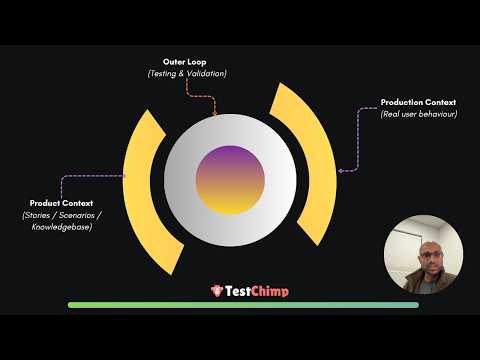
## What is TestChimp TestChimp is a QA workflow layer for agents: test plans, Smart Tests in your repo, CI, and production behaviour in one loop—so you get traceability and coverage across what you planned, what you automated, and what users actually do. ## Chrome Extension This extension brings that workflow into the browser while you test your app—so manual runs and script authoring both stay linked to TestChimp scenarios, not lost in screenshots or ad‑hoc notes. ### Manual — capture manual test sessions with scenario traceability Run a planned scenario in the browser and record it as a manual test session tied to a TestChimp scenario (branch/environment included). Capture steps as you interact, with screenshots for evidence * Add notes on any step—optionally tag an element or area for annotated screenshots * End as passed or failed; the session syncs to TestChimp for history, reporting, and coverage alongside automated tests * Report Bugs with exploratory testing sessions - just like with notes, you can tag an element or an area that corresponds to the bug, and report bugs directly from your exploratory test sessions - which will be tracked by TestChimp, visible in the Atlas page as well as bug listings. ### Script Gen — create Smart Tests from what you do in the browser * Start step capture to record actions and generate Playwright commands plus page context, then turn the capture into a Smart Test—Playwright scripts with optional AI-native steps (e.g. ai.act("…")) for resilient automation and guided exploration. * Capture can be started from test planning (“Record via extension”) so new tests stay tied to the right scenario. Documentation: https://docs.testchimp.io/chrome-extension/intro
5 out of 51 rating
Details
- Version1.0.34
- UpdatedSeptember 14, 2026
- Size1.33MiB
- LanguagesEnglish (United States)
- Developer
- Non-traderThis developer has not identified itself as a trader. For consumers in the European Union, please note that consumer rights do not apply to contracts between you and this developer.
Privacy

TestChimp - AI Co-Pilot for QA teams has disclosed the following information regarding the collection and usage of your data. More detailed information can be found in the developer's privacy policy.
TestChimp - AI Co-Pilot for QA teams handles the following:
This developer declares that your data is
- Not being sold to third parties, outside of the approved use cases
- Not being used or transferred for purposes that are unrelated to the item's core functionality
- Not being used or transferred to determine creditworthiness or for lending purposes
Support
For help with questions, suggestions, or problems, please open this page on your desktop browser