

Tearsheet: Print Article, Save Page as PDF

Overview
Save a web page as PDF without the ads. Put a whole article, a table, a list or a highlight on a clean sheet to print, save or copy.
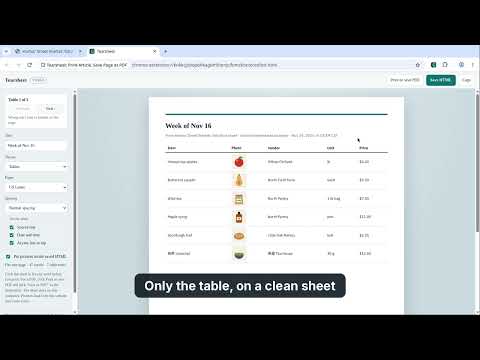
Tearsheet saves a web page as a PDF without the ads, pop-ups and sidebars. Click "Whole article" and it finds the story on the page and puts it on a clean sheet: the headline, the author and date when the page lists them, the web address, the pictures and every paragraph. You can also pick just a table, a list or some highlighted text. The name comes from a page torn out of a newspaper to keep. Whole article to PDF - Made for news stories, blog posts, recipes, Wikipedia and help pages. - The text stays text, so you can search and copy it in the PDF. - A long article continues onto as many pages as it needs. The end isn't cut off. - It works on pages you're signed in to. It reads the page already open in your tab, so nothing is uploaded to be converted. - If a page has no article, like a home page or search results, Tearsheet says so. Highlight the part you want instead. Ways to start - Click the toolbar icon, then "Whole article", "Highlighted text", "Biggest table" or "Biggest list". - Right-click the page or a highlight, then pick an item under Tearsheet, such as "Put the whole article on a clean sheet". - Press Alt+Shift+Y (Option+Shift+Y on a Mac) to put your highlight on a sheet. "Whole article" has no key at first. You can give it one at chrome://extensions/shortcuts. The menu also has "Open last tearsheet", which reopens the last sheet you made, and "Show a sample sheet", which opens an example so you can try the styles first. Wrong table? Tearsheet starts with the biggest table or list on the page. If you wanted a different one, click Next in the sheet's side panel to step through the others, and Previous to go back. This works while the original page is still open. What the sheet keeps - Paragraphs, headings, links, and lists - Tables, with their headers and merged cells - Pictures, and captions for article photos - Text in any language. Japanese, Chinese and Korean text is set in one font made for that script, so the letters on a line all look alike instead of mixing styles. What gets left out Ads, menus, comments, share buttons, forms and scripts, and text the page hides from view. Finding the article is a best guess. If something extra lands on the sheet, click it and delete it before you print. Before you print - Click the sheet to fix any word, and change the title. - Pick a style: Serif, Newspaper, Tables or Memo. - Pick US Letter or A4. - Spacing: Normal spacing, Less spacing or Smallest text. - Turn the source line, the date and the accent line at the top on or off. - A note shows about how many pages the sheet will print on. Print, save or copy - "Print or save PDF" opens the Chrome print window. Pick a printer, or pick Save as PDF as the destination to get a PDF file. - Save HTML saves the sheet as a web page file you can open without internet. Do it while the original page is still open, so the pictures can be stored inside the file. If you save after closing that page, or a website blocks the copy, those pictures load from the website instead and won't show offline. - Copy puts the sheet on your clipboard for an email or a document. Permissions - Read the current tab, only when you click the icon, use the right-click menu or press a shortcut. - Add the right-click menu items. - Storage, to keep the current sheet and the last sheet on your computer. Tearsheet can't see any site at other times, and it never sees your list of tabs. Privacy No account, no servers, no analytics. The sheet stays on your computer. Pictures on the sheet load from the website they came from, as they did on the page. Finding the article uses Mozilla's open-source Readability code, which is included in the extension and runs on your computer.
0 out of 5No ratings
Details
- Version1.1.0
- UpdatedNovember 20, 2026
- Offered byjustperk27
- Size62.65KiB
- LanguagesEnglish (United States)
- Developer
Email
justperk27@gmail.com - Non-traderThis developer has not identified itself as a trader. For consumers in the European Union, please note that consumer rights do not apply to contracts between you and this developer.
Privacy

Tearsheet: Print Article, Save Page as PDF has disclosed the following information regarding the collection and usage of your data. More detailed information can be found in the developer's privacy policy.
Tearsheet: Print Article, Save Page as PDF handles the following:
This developer declares that your data is
- Not being sold to third parties, outside of the approved use cases
- Not being used or transferred for purposes that are unrelated to the item's core functionality
- Not being used or transferred to determine creditworthiness or for lending purposes