


Overview
Select and export Microsoft Teams messages to Markdown or HTML. Requires an active Teams web session.
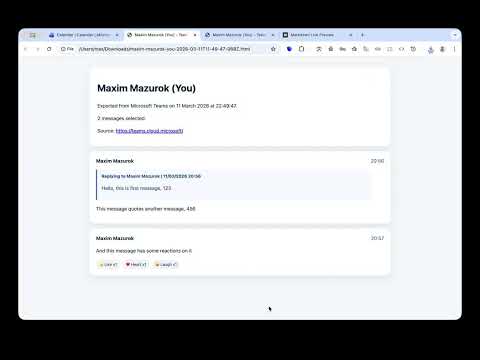
Teams Selected Messages Export lets you select and export Microsoft Teams messages to Markdown or HTML — right from the Teams web app. IMPORTANT: This extension works entirely inside the Microsoft Teams web page. All buttons and controls appear within the Teams interface, not in the browser extension popup. You must be signed into Microsoft Teams for Web (teams.microsoft.com or teams.cloud.microsoft) to use this extension. FEATURES: • Click-to-select messages — click individual messages or Shift-click to select a range • Visible checkboxes with Shift-click range support • Copy to clipboard — quick-copy selected messages as Markdown • Download exports — save selected messages as Markdown or HTML files • Full chat export — export the entire chat history as Markdown or HTML • Rich formatting — inline @mentions, reply blockquotes, reactions, and image placeholders • Theme-aware UI — follows Teams light/dark theme automatically • Non-intrusive — export controls embed into the Teams title bar HOW TO USE: 1. Open Microsoft Teams in Chrome (teams.microsoft.com or teams.cloud.microsoft) and sign in 2. Click the blue "Export" button in the Teams title bar (top-right, next to settings) 3. The export panel opens inside the Teams page with 6 action buttons: — Copy MD: copy selected messages as Markdown — Clear Selection: deselect all messages — Download MD: save selected messages as a Markdown file — Download HTML: save selected messages as an HTML file — Full chat MD: export the entire chat as Markdown — Full chat HTML: export the entire chat as HTML 4. Click messages to select them — hold Shift and click to select a range 5. Click any export button to copy or download NOTE: When you click the extension icon in the Chrome toolbar, you will see an informational popup directing you to open Teams. The actual export functionality (all 6 buttons listed above) appears inside the Teams web page after clicking the "Export" button in the Teams title bar. EXPORT FORMATS: • Markdown — clean, portable text format ideal for pasting into docs, wikis, or notes • HTML — styled standalone page preserving the look and feel of the conversation Perfect for archiving important conversations, sharing meeting notes, saving reference threads, or backing up project discussions from Microsoft Teams.
0 out of 5No ratings
Details
- Version0.3.0
- UpdatedApril 10, 2026
- Size54.09KiB
- LanguagesEnglish
- DeveloperWebsite
Email
maxim@mazurok.com - Non-traderThis developer has not identified itself as a trader. For consumers in the European Union, please note that consumer rights do not apply to contracts between you and this developer.
Privacy

Teams Selected Messages Export has disclosed the following information regarding the collection and usage of your data. More detailed information can be found in the developer's privacy policy.
Teams Selected Messages Export handles the following:
This developer declares that your data is
- Not being sold to third parties, outside of the approved use cases
- Not being used or transferred for purposes that are unrelated to the item's core functionality
- Not being used or transferred to determine creditworthiness or for lending purposes
Support
For help with questions, suggestions, or problems, visit the developer's support site