

tabFx

Overview
Search and auto filter similar tabs in a fast way
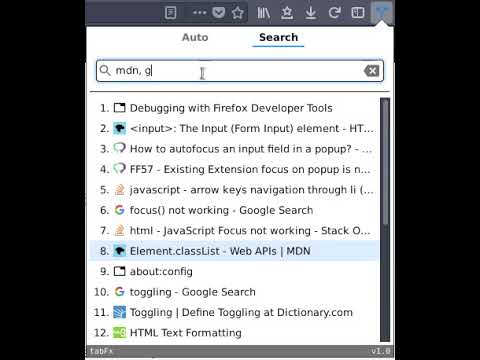
Search and find the tab you want or auto filter opened tabs similar to the active one in a fast, clean and smart approach. Perfect when you need to handle many tabs. Please be aware that the extension is only made for desktop environments. You can see the extension on action, here: https://youtu.be/o0TLDZKxJIU =========================== tabFx features two modes that will allow you to find the tabs you want when you are handling many of them *** Search Mode *** It uses the words written in the search box to find tabs with urls or titles containing them. You can also use commas and spaces as logical operators. Comma is considered the OR operator, and space is considered the AND operator. Examples: - "dog, cat" will show tabs that matches 'dog' or 'cat' - "cat food" will show tabs that matches 'cat' and 'food' - "dog toy, google, duckduckgo" will show tabs that matches ('dog' and 'toy') or 'google' or 'duckduckgo' check the pictures added in the extension page to see the given examples in action. *** Auto Mode *** - By default, it will show all tabs similar to the active one, taking into consideration the beginning part of the url (domain, about:, file:, etc.), and for the ending, if the active tab has words like '$edit', '.pdf', '.png', etc, it will take those as consideration as well, otherwise it will ignore the url's end. - You can keep only one checked ('start' or 'end') to show tabs with same domain independent of the ending, or same file extension independent of the domain. - Play around with ending settings: 'Separators' are used to auto recognize words that start with those characters and either consider or ignore them in your tabs filter list. The same goes with 'keyword'. A useful example: If you type search in there, select 'keyword', unselect all separators, also unselect 'start' and 'end', you end up having access to all search tabs whichever active tab you are on! check the pictures added in the extension page to see the previous examples in action. *** Changelog *** https://github.com/2alin/tabFx/wiki/Changelog
0 out of 5No ratings
Details
- Version1.3.1
- UpdatedNovember 25, 2024
- Offered by2alin
- Size23.1KiB
- LanguagesEnglish
- Developer
Email
adilsonsdev@gmail.com - Non-traderThis developer has not identified itself as a trader. For consumers in the European Union, please note that consumer rights do not apply to contracts between you and this developer.
Privacy

This developer declares that your data is
- Not being sold to third parties, outside of the approved use cases
- Not being used or transferred for purposes that are unrelated to the item's core functionality
- Not being used or transferred to determine creditworthiness or for lending purposes
Support
For help with questions, suggestions, or problems, visit the developer's support site