

Tabatha: Visual Tab Switcher with Live Previews
2 ratings
)
Overview
Alt+Tab for Chrome tabs: live previews, instant search and recently closed tabs. Free, private, nothing leaves your computer.
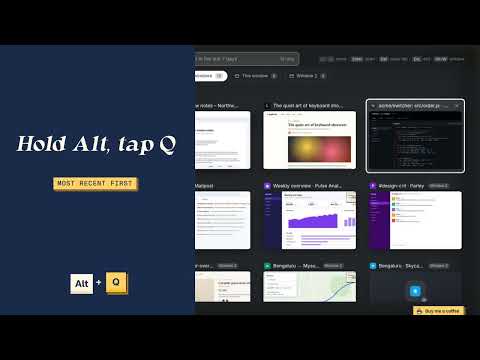
Too many tabs? Tabatha is a visual tab switcher for Chrome. Press Alt+Q to see live previews of every open tab, search across all your windows and reopen the tabs you just closed. It's Alt+Tab for your browser tabs, and a simple tab manager that never sends your tabs anywhere. HOW IT WORKS Tap Alt+Q and Tabatha stays open. No need to keep holding anything: use the arrow keys, type to search, or click with the mouse. Enter opens a tab, Esc or a click outside closes Tabatha. Prefer Alt+Tab style? Hold Alt and tap Q again to move through your tabs, most recently used first, then let go to jump. Alt+Shift+Q moves backwards. WHAT YOU GET Live previews: see a screenshot of each tab, not just its title. Search: start typing to filter open tabs and tabs you closed in the last 7 days, by title or address. All your windows: tabs from every Chrome window in one view, each labelled with its site and window. Press Alt+W (or click a window chip) to narrow it to one window. Recently closed: reopen tabs and windows you closed in the last few hours, with a preview of what they looked like. Search reaches back 7 days, further than Chrome's own list. Tidy up fast: press Delete (Cmd+Backspace on a Mac) or middle-click to close tabs straight from the switcher. Sleeping tabs: tabs Chrome puts to sleep while you browse are marked Sleeping, with their last preview faded. After a restart, tabs keep their saved preview. Tabs Tabatha can't screenshot yet say No preview yet. Capture all previews: Chrome only lets extensions screenshot the tab on screen, so a tab you haven't looked at has no preview yet. One click flips through your open tabs for a few seconds, captures each, skips sleeping tabs, and puts you back where you were. Tab groups (optional): your Chrome tab groups appear as sections, with their names and colours. Close a group, or its whole window, and Tabatha keeps it under "Saved tab groups" until you remove it; Enter brings it back as a real tab group. Turn it on from the footer: Chrome then asks for one extra permission. A short tour the first time you open Tabatha, and a "How it works" button whenever you want it again. Help when you need it: the manual, answers and a feedback form at https://tabatha-vert.vercel.app/ (links in the switcher's footer). Free, with a small Buy Me a Coffee button in the corner if you want to say thanks. Works everywhere: on pages extensions can't draw on (New Tab, Chrome settings, the Web Store) Tabatha opens in its own small window instead. KEYBOARD SHORTCUTS Alt+Q: open Tabatha / next tab Alt+Shift+Q: previous tab Alt+W: switch window filter Enter: open the selected tab Arrow keys: move the selection Delete (Mac: Cmd+Backspace): close the selected tab Esc: clear search, or close Tabatha Ctrl+F: jump to search On a Mac, Alt is the Option key. You can change the shortcut at chrome://extensions/shortcuts. PRIVATE BY DESIGN Previews never leave your computer. They are saved on your computer so they are still there after a restart: kept while the tab is open, and for 7 days after you close it. They are never uploaded anywhere. The titles and addresses of tabs you closed are kept on your computer for 7 days (never uploaded) so you can find them again. Saved tab groups (name, colour, tab titles and addresses) also stay on your computer, until you remove them. Old previews and entries are deleted automatically, and uninstalling Tabatha removes them. No accounts, no analytics, no tracking, no ads. The extension is blocked from making any network requests at all. (The optional Buy Me a Coffee button simply opens buymeacoffee.com in a new tab when you click it.) Tabatha does not run in Incognito windows. WHY IT ASKS FOR ACCESS TO ALL SITES Chrome can only take a screenshot of a tab, and show the switcher on top of a page, if the extension has access to that site. Tabatha uses that access only to capture the preview and draw the switcher. It never reads or changes what's on the page. QUESTIONS - Does Tabatha send my tabs or screenshots anywhere? No. Everything stays on your computer, and the extension is blocked from making network requests. - Why does a tab have no preview? Chrome only lets extensions screenshot the tab that is on screen, so a tab gets its preview the first time you look at it. Click "Capture all previews" in Tabatha to fill in the rest in a few seconds. If no tab ever gets one, check chrome://extensions > Tabatha > Site access is "On all sites"; Tabatha tells you if it isn't. - Why is the tab-groups permission separate? It is optional, so Tabatha works fully without it. Chrome only asks when you click "Turn on tab groups". - How do I change the Alt+Q shortcut? Open chrome://extensions/shortcuts. - Does it work on a Mac? Yes. Alt is the Option key. Open source: https://github.com/Vajrayu/tabatha ``` **Additional fields** - Homepage URL: `https://tabatha-vert.vercel.app/` - Support URL: `https://tabatha-vert.vercel.app/feedback` - Official URL: https://tabatha-vert.vercel.app/ - Mature content: No **Screenshots, promo tiles, icon, category, language:** unchanged. (The screenshots are from 1.3.1: still accurate for the main screen. Your demo video can be added any time.)
5 out of 52 ratings
Details
- Version1.3.2
- UpdatedOctober 5, 2026
- Size67.53KiB
- LanguagesEnglish (United Kingdom)
- Developer
Email
yuvarajvshetty@gmail.com - Non-traderThis developer has not identified itself as a trader. For consumers in the European Union, please note that consumer rights do not apply to contracts between you and this developer.
Privacy

Tabatha: Visual Tab Switcher with Live Previews has disclosed the following information regarding the collection and usage of your data. More detailed information can be found in the developer's privacy policy.
Tabatha: Visual Tab Switcher with Live Previews handles the following:
This developer declares that your data is
- Not being sold to third parties, outside of the approved use cases
- Not being used or transferred for purposes that are unrelated to the item's core functionality
- Not being used or transferred to determine creditworthiness or for lending purposes
Support
For help with questions, suggestions, or problems, visit the developer's support site