


Overview
macOS Finder-style tab manager
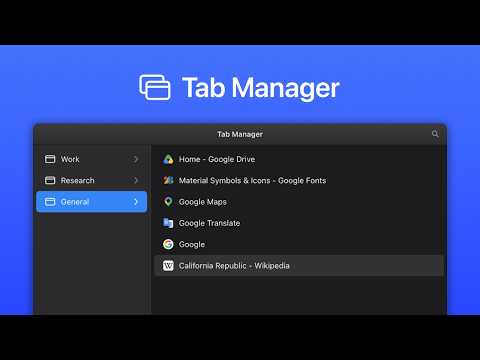
Manage your tabs and windows like files in macOS Finder (or Windows Explorer). Search, drag, rename, and tidy up your browser from one keyboard shortcut. If you usually have dozens of tabs open across several windows, Tab Manager gives you a quick, keyboard-friendly way to find and organize them without leaving the page you're on. Press Cmd/Ctrl+E and a Finder-style overlay opens over your current tab. A familiar two-pane layout Your windows live in the sidebar, and the tabs inside the selected window fill the main list. Click to select, double-click to jump, right-click for everything else. Find any tab fast Press Cmd/Ctrl+F and start typing. Search filters your tabs as you go, so you're not hunting through a crowded tab strip. Organize by dragging Drag tabs between windows to rearrange your workspace, one at a time or several at once. You can also use keyboard shortcuts to cut (Cmd/Ctrl+X), copy (+ C) and paste (+ V) – just like moving files. Name your windows Give windows real names like "Work," "Research," or "Shopping". The names stick for as long as they're open. Free up memory by unloading tabs Unload tabs you're not using to reclaim memory, and load them back when you need them again. Helpful when a session gets heavy. Fits right in Tab Manager automatically follows your light or dark theme, so it looks at home next to the rest of your browser. Built for the keyboard - Cmd/Ctrl+E — Toggle Tab Manager - Cmd/Ctrl+F — Search tabs - Cmd/Ctrl+A — Select all - Cmd/Ctrl+C / X / V — Copy / cut / paste tabs - ↑ / ↓ — Navigate (Shift to extend selection) - Enter — Jump to a tab - Backspace — Close selected tabs - Esc — Step back or close You can also select ranges and groups of tabs, then close, move, or unload them all at once. Your data stays yours Tab Manager doesn't collect your browsing data or send it anywhere. Everything stays on your device. ------- Built by Ben Hatsor (berryscript.com)
5 out of 52 ratings
Details
- Version1.0.0
- UpdatedAugust 4, 2026
- Size80.18KiB
- LanguagesEnglish (United States)
- DeveloperWebsite
Email
ben@berryscript.com - Non-traderThis developer has not identified itself as a trader. For consumers in the European Union, please note that consumer rights do not apply to contracts between you and this developer.
Privacy

This developer declares that your data is
- Not being sold to third parties, outside of the approved use cases
- Not being used or transferred for purposes that are unrelated to the item's core functionality
- Not being used or transferred to determine creditworthiness or for lending purposes
Support
For help with questions, suggestions, or problems, visit the developer's support site