

SwitchCue — Switch projects, keep your place

Overview
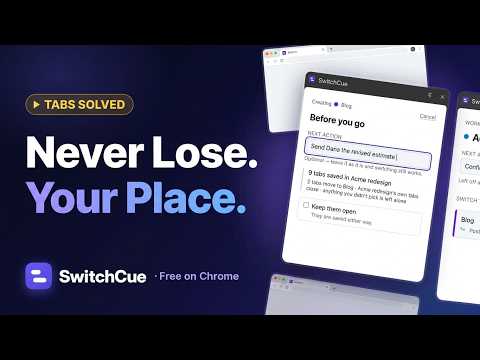
Switch projects without losing your place. SwitchCue saves each project's tabs with a note on what to do next.
Most tab managers save your tabs. SwitchCue also saves what you were about to do. Switch projects without losing your place. Organize your tabs by project: keep each project in its own Workspace, leave yourself a one-line note before you switch, and come back to your tabs and your next step. Built for freelancers, consultants, students and anyone juggling several projects, courses or side projects in one browser. WHY SWITCHCUE - A calmer tab bar: the project you leave is saved and closed, so what's open is what you're working on. - A note for your future self: when you come back, your next step is waiting, along with the tab you left off at whenever SwitchCue knows it. - Fast switching: press a keyboard shortcut twice to jump back to the project you just left. - Your tabs don't close until you agree: they are saved first, SwitchCue asks the first time, you can choose to keep them open, and you can export a backup file anytime. - A record of progress: mark a step done, and each project keeps a history of what got done, and when. HOW IT WORKS 1. Open SwitchCue in Chrome's side panel and save the tabs you have open as a Workspace, like a saved session for one project. 2. Starting something else? Create another Workspace. Before you go, write the next step in one line. 3. SwitchCue saves and closes the first project's tabs and opens the new one's. 4. Switch back anytime: your tabs return, with your note. After a Chrome restart, open the panel: SwitchCue reconnects your Workspace to the tabs Chrome restored, or asks you when it isn't sure. GETTING STARTED Pin SwitchCue from the puzzle-piece menu and click its icon, or press Alt+Shift+S (⌥⇧S on Mac). Switch back with Alt+Shift+X (⌥⇧X on Mac). If another extension already uses one of these keys, you can choose a different one at chrome://extensions/shortcuts. YOUR DATA No account. Your Workspaces and notes live only on this computer, and SwitchCue never uploads them. The panel shows each open tab's icon, which your browser loads from that site; the privacy policy has the details. PERMISSIONS - Tabs and tab groups: to save, close and reopen the tabs you put in a Workspace. - Side panel: SwitchCue lives next to your tabs. - Storage: to tell a browser restart apart from a background restart. GOOD TO KNOW - SwitchCue is deliberately narrow: it does what is described above. - Pages Chrome doesn't let extensions reopen (settings pages, the New Tab page, local files) can't be saved in a Workspace, and SwitchCue tells you so instead of losing them quietly. - Requires Chrome 116 or later on desktop. - Feedback is welcome from Settings › Help & feedback. Privacy: https://switchcue.app/privacy Support: https://switchcue.app/support
5 out of 52 ratings
Details
- Version0.3.2
- UpdatedOctober 11, 2026
- Size196KiB
- LanguagesEnglish
- DeveloperNGUYEN TUAN ANHWebsite
KHU 5, XA XUAN LOC, H.THANH THUY, T.PHU THO VN Thanh Thủy, Phú Thọ 35859 VNEmail
support@switchcue.appPhone
+84 333 750 653 - TraderThis developer has identified itself as a trader per the definition from the European Union and committed to only offer products or services that comply with EU laws.
Privacy

SwitchCue — Switch projects, keep your place has disclosed the following information regarding the collection and usage of your data. More detailed information can be found in the developer's privacy policy.
SwitchCue — Switch projects, keep your place handles the following:
This developer declares that your data is
- Not being sold to third parties, outside of the approved use cases
- Not being used or transferred for purposes that are unrelated to the item's core functionality
- Not being used or transferred to determine creditworthiness or for lending purposes
Support
For help with questions, suggestions, or problems, visit the developer's support site