

SlideSieve: Auto Lecture Slides to PDF & Transcripts

Overview
Auto-capture lecture slides to PDF + export transcripts (SRT/VTT/TXT) on Coursera, Udemy, YouTube & DeepLearning.AI. No uploads.
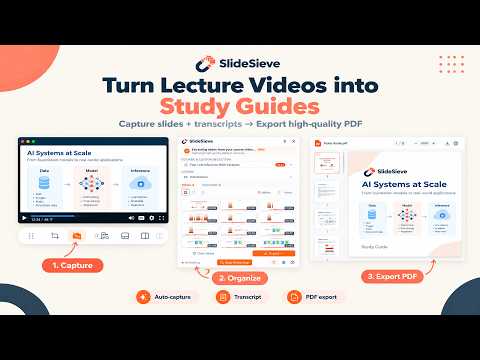
Stop pausing lectures to screenshot slides. SlideSieve automatically captures the real slides from your course videos, saves them as a clean PDF, and extracts a synced transcript you can export as TXT, SRT or VTT. Works on Coursera, Udemy, YouTube and DeepLearning.AI. Slides and transcripts are processed in your browser and never uploaded. WHAT YOU CAN DO • Convert a lecture video to slides: save every slide as a clean PDF, with no manual screenshots • Save Coursera, Udemy, YouTube and DeepLearning.AI lecture slides as PDF or images • Get the transcript of a Udemy, Coursera, YouTube or DeepLearning.AI lesson and export it as TXT, SRT or VTT, or copy it in one click • Remove the instructor's webcam overlay from your saved slides with PiP Magic Eraser • Build study notes from a course video without rewatching it FEATURES 🎯 Auto slide detection – finds real slide frames in any course layout, no setup 🚫 Instructor frame filter – skips frames where the instructor or webcam dominates the screen 🧹 Smart deduplication – keeps every step of a bullet build without saving 50 near-duplicates 📸 Manual Snap – capture any frame with one click, including code, demos and diagrams 🎛️ Floating toolbar – start capture, snap a frame or extract the transcript right below the video 📝 Transcript extraction (Pro, 3 free trials) – synced with the video, current sentence highlighted. Timed or Readable view 🗺️ Slide area selector – draw a box over the slides or over the webcam so only that area is analyzed, in every lesson of the course (called Slide Detection Zone in the app) ✨ Remove webcam overlay from slides – when the webcam is excluded, saved slides are rebuilt without it, not cropped or blurred (called PiP Magic Eraser in the app) 🖼️ Slide browser – grid, list or full-screen view; delete unwanted frames before export 📄 PDF and image export – original aspect ratio preserved 🗂️ Saved by course and lesson in your browser 🌐 15 languages, auto-detected HOW TO USE 1. Open a supported course video. 2. Click "Start Auto Capture" in the toolbar under the video. 3. Press play. Slides are captured automatically and appear in the side panel. 4. Use Snap for anything the detector misses, and click × on a thumbnail to delete it. 5. Click Export for a PDF or images. Extract the transcript from the same toolbar. GOOD TO KNOW SlideSieve does not download video files. It captures what is on your screen and reads the transcript your course provides. Auto-capture is tuned for slides and diagrams. Use Manual Snap to save code walkthroughs. PRIVACY Video frames, slides and transcripts are processed in your browser and never uploaded. The network is used only for license checks, reading your course's captions, and anonymous feature metrics. PERFECT FOR • Saving Coursera lecture slides as a PDF without manual screenshots • Turning Udemy and YouTube lectures into a PDF study guide • Pulling slides and study notes from DeepLearning.AI courses • Language learners who want SRT or VTT subtitle files from online lectures SlideSieve is an independent study tool and is not affiliated with, sponsored by, or endorsed by Coursera, Udemy, YouTube, DeepLearning.AI or Google LLC. All trademarks belong to their owners and are used for identification only.
3 out of 51 rating
Details
- Version1.2.2
- UpdatedOctober 16, 2026
- FeaturesOffers in-app purchases
- Size7.54MiB
- Languages65 languages
- DeveloperWebsite
Email
iprowlee@gmail.com - Non-traderThis developer has not identified itself as a trader. For consumers in the European Union, please note that consumer rights do not apply to contracts between you and this developer.
Privacy

SlideSieve: Auto Lecture Slides to PDF & Transcripts has disclosed the following information regarding the collection and usage of your data. More detailed information can be found in the developer's privacy policy.
SlideSieve: Auto Lecture Slides to PDF & Transcripts handles the following:
This developer declares that your data is
- Not being sold to third parties, outside of the approved use cases
- Not being used or transferred for purposes that are unrelated to the item's core functionality
- Not being used or transferred to determine creditworthiness or for lending purposes
Support
For help with questions, suggestions, or problems, visit the developer's support site