


Overview
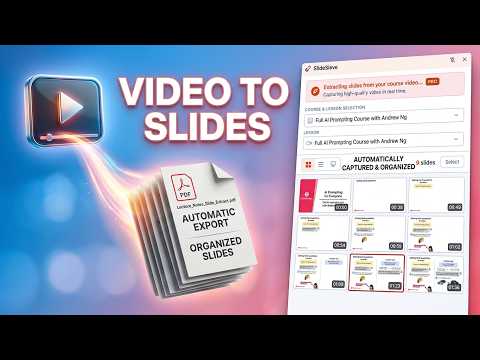
Auto-capture lecture slides from any online video course as PDF. Skips instructor webcam. Smart deduplication. 100% private.
Save lecture slides from Coursera, Udemy, YouTube, and DeepLearning.AI — automatically, as a clean PDF, with zero manual screenshots. SlideSieve watches your video, identifies every real slide frame, and exports them into a perfectly organized, multi-page PDF. Smart image analysis filters out talking-head instructor segments, dark transitions, and near-identical duplicates so you only get the slides — nothing else. Works with YouTube, Udemy, Coursera, and DeepLearning.AI. More platforms coming soon. ✨ Key Features: 🎯 Auto Slide Detection Identifies genuine slide frames across any course style or platform — no configuration needed. Works with different video layouts, aspect ratios, and slide designs automatically. 🚫 Instructor Frame Filter Skips any frame where the instructor's face dominates the screen, including picture-in-picture overlays and full webcam segments. Only real slide content is captured. 🧹 Smart Deduplication Never end up with 50 copies of the same static slide. Subtle text additions, bullet-point builds, and progressive reveals are still captured reliably. 📸 Manual Snap Instantly capture any specific frame with a single click — perfect for moments you want to save regardless of auto-detection. 📄 PDF & Image Export Compile all captured slides into a clean, multi-page PDF — or export them as individual images. Each slide preserves its original aspect ratio exactly as it appeared in the video. 🗂️ Course-Scoped Storage Slides are automatically organized by course and lesson, stored locally in your browser. Nothing is uploaded anywhere. 🔒 100% Private All captured slides are stored entirely on your local device. SlideSieve collects no personal data and transmits nothing to external servers. 📚 Perfect For: - Students saving lecture slides from Coursera, Udemy, or DeepLearning.AI courses - Anyone building PDF study notes from YouTube educational videos - AI and ML learners who want to capture slides from fast-paced technical courses - Anyone tired of pausing and screenshotting videos manually 📋 How to Use: 1. Navigate to any supported video course page. 2. Click "Start Auto Capture" in the floating toolbar that appears below the video. 3. Play the video — slides are detected and captured automatically. 4. *(Optional)* Open the SlideSieve side panel by clicking the Chrome toolbar icon or the toggle on the floating toolbar to watch captured slides in real-time. 5. Use the "Snap" button anytime to manually capture a specific frame. 6. Delete unwanted frames by hovering over a thumbnail and clicking ×. 7. Click "Export" to download all slides as a PDF or individual images.
0 out of 5No ratings
Details
- Version1.0.9
- UpdatedAugust 14, 2026
- FeaturesOffers in-app purchases
- Size7.09MiB
- Languages65 languages
- DeveloperWebsite
Email
iprowlee@gmail.com - Non-traderThis developer has not identified itself as a trader. For consumers in the European Union, please note that consumer rights do not apply to contracts between you and this developer.
Privacy

SlideSieve — Auto Slide Capture & PDF Export has disclosed the following information regarding the collection and usage of your data. More detailed information can be found in the developer's privacy policy.
SlideSieve — Auto Slide Capture & PDF Export handles the following:
This developer declares that your data is
- Not being sold to third parties, outside of the approved use cases
- Not being used or transferred for purposes that are unrelated to the item's core functionality
- Not being used or transferred to determine creditworthiness or for lending purposes
Support
For help with questions, suggestions, or problems, visit the developer's support site