

SF Toolbox

Overview
Salesforce toolkit for admins & devs — SOQL, apps, record views, compare, field security & usage, users, Apex, REST, debug logs.
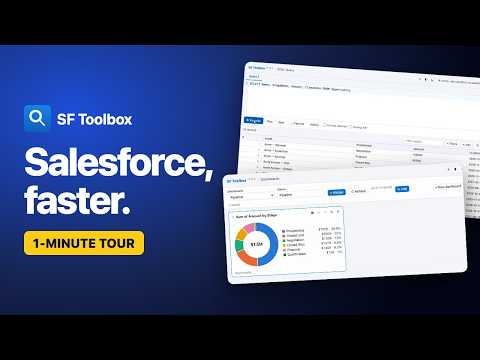
SF Toolbox is a fast, in-browser toolkit for Salesforce developers, admins and QA. It works off your existing Salesforce session — open your org in a tab and the tools use your current login (SSO/MFA included). It has no login of its own, stores no passwords, and nothing you do leaves your browser except calls to your own Salesforce org. Tools included: • SOQL editor — autocomplete, a sortable/filterable results grid, per-column filters, "include deleted" (queryAll), Tooling API queries, GraphQL tabs (UI API, with suggestions) and a SOQL → GraphQL converter, query plans (see which index a query uses and why it's slow), large results with cancel / load more, inline edit / insert / delete of result rows (with a confirmation step), CSV/JSON export, saved queries, and query history. 📄 Report lays the results out as a report you design by dragging — columns and formats, up to 3 group levels with subtotals, totals, highlight rules, a page title and logo — then CSV or Print / Save as PDF; designs are saved with their query. • Show All Data / Inspect — every field of a record with metadata (type, required, formula, picklists, references), child relationships, and record types; edit updateable fields inline. • Record Views — design your own layout for an object's records: pick the fields, group them into sections of 1–4 columns, drag them into order, rename labels, add related lists (such as an Account's Contacts), or start from the org's own page layout or Lightning record page with "From org layout" — then open any record in it — find it by typing its name, or click "Record View" in Show All Data. Mark fields editable to edit and save the record in your layout (each value checked as you type, only changes sent, a warning if someone else changed the record), or create new records with "+ New" — including from a related list, with the parent filled in. Changes on a production org ask for confirmation first. Designs are saved in your browser, work in every org that has those fields, and can be exported and imported as files. • Apps — your own simple front end for the objects you use: a sidebar of objects, a list view for each (pick the columns, including fields of a parent record, filters by field type with relative dates such as THIS_MONTH, My records, search by name, sort, and Load more on objects of any size), and records opened beside the list in your Record Views design to read, edit and create — or in an automatic layout when an object has no design yet. Resizable panels. Apps are saved in your browser and can be exported and imported as files; an app can show dashboards too. • Dashboards — charts built by dragging fields: group by a field, a parent's field or a date bucket (day to fiscal year), count / sum / average / min / max, filters, date range and My records; number, bar, donut, line and table charts with tooltips; click a bar to see its records. Show a dashboard as an app's Home, in its sidebar, or above a list where its charts follow the list's filters. Optional auto-refresh every 5–60 minutes. Read-only. • Reports — run your saved Salesforce reports: search and folders, a chart of a summary or matrix report's groups, the matrix grid and the detail rows. Create and edit tabular and summary reports right here: pick a report type, drag columns and up to 3 groupings, add totals, a date range and filters, see a live preview, and save the report to Salesforce (asks first on production). Dashboards can show a saved report too. • Objects — browse the fields, types and attributes of any object; create or edit custom fields; download the fields as CSV or Excel. • Field-Level Security — for any field, see which profiles, permission sets and permission set groups grant Read / Edit, with filters and CSV export. Open it from Objects, the record popup, or "Check FLS →" next to any field in Show All Data. • Object Permissions (CRUD) — Create / Read / Edit / Delete / View All / Modify All for any object, per profile, permission set and group. • Schema Builder — a diagram of your objects: their fields, and the lookup and master-detail lines between them. Start from one object and add its parents and children; drag, zoom, auto layout; download as PNG or SVG. Read-only. • Flow Analyzer — checks your org's flows the way a reviewer would: records changed or read inside loops, missing fault paths, hardcoded Ids and URLs, record-triggered flows with no entry conditions, unused resources, old API versions and more. Each finding names the element, why it matters and how to fix it; a score per flow, an outline in run order, CSV. Read-only. • Users — find any user by name, username, alias or email (or paste an Id) and see their profile, role, last login, permission sets and permission set groups. Turn on debug logs for a user for 24 hours (with a confirmation on production). Reset a user's password (Salesforce emails them a link), freeze or unfreeze a login, and change your own language, each asked first. • Debug Logs — list recent Apex debug logs (filter by user), open them in Salesforce, paste a log from elsewhere, or delete logs (with a confirmation step). • Anonymous Apex — run Apex in your org from an editor with Apex syntax highlighting, and see the result and the debug log right away; on a production org it asks for confirmation first. Saved scripts and history per org. • Code Search — find text inside the org's own Apex classes, triggers, Visualforce and Lightning components, with every matching line. Salesforce's own search picks the files first, so big orgs aren't downloaded. Match case, whole word, regex, CSV. • Apex Tests — run selected test classes or all local tests, see failures with stack traces, and code coverage per class and org-wide. Re-run only the tests that failed. • REST Explorer — send GET / POST / PATCH / PUT / DELETE requests to your org's REST API and read the response as formatted JSON; history and favorites. Requests only go to the org you're logged into, and anything other than GET asks for confirmation on production. • Log Analyzer — turns a debug log into summary figures, slowest methods, a call tree, SOQL/DML totals with query-in-loop warnings, governor-limit usage, and a zoomable timeline. • Compare Records — compare two records field by field, in the same org or across two logged-in orgs (for example a sandbox and production), or compare many records by a filter, paired by an external id or name; differences highlighted, with CSV export. Open it from Show All Data with "Compare". Read-only. • Compare Permissions — compare two profiles or permission sets side by side: system permissions, object CRUD and field-level security, differences only or everything, with CSV export. Read-only. • Where Used — for a field, object, Apex class or trigger, Flow, Lightning component, Visualforce page, custom label or static resource: what uses it (Apex, Flows, page layouts, Lightning pages, validation rules, formula fields, reports…), what it uses, and where its name appears in Apex and Visualforce code; click through to look up each one in turn. Open it from "Where used →" next to any custom field in Show All Data. Read-only. • Field Usage — find cleanup candidates: every custom field on an object (or on all objects) gets a 0–100 usage score from how many records have a value, whether new records still fill it in, when it last changed (field history), and where it's used; filter by verdict and export to CSV. Read-only. • Duplicate Finder — find records entered twice: same name and city, same email, similar names (typos), with formats, spaces and company endings ignored if you like. Groups side by side with the differences highlighted, Salesforce's own duplicate rules alongside, CSV. Merge Accounts, Contacts and Leads with Salesforce's merge: pick the record to keep and each field's value; always confirmed first. • Object Search (SOSL) — full-text search across objects for a keyword to find where a value lives. • Org Info & Limits — organization details, current user, and org limits (API, storage, etc.) with usage bars. • Custom Settings — view and edit the values of any custom setting (list or hierarchy): checkbox fields toggle feature flags in one click, add the org default or a new list entry, delete entries; every save asks for confirmation. Save a setting as a favorite to reopen it from the launcher. • Scheduled Jobs — every scheduled job in the org (Apex, batch, flows, report runs) with its state, next and previous run; abort a job, or schedule an Apex class that implements Schedulable with a CRON expression or a preset (both ask for confirmation, scheduling only on production). • Event Monitor — subscribe to Platform Events, Change Data Capture, PushTopics or custom channels and watch events arrive live, with a filter and the full JSON of each event. Events are shown only while the page is open and are not stored. • Help & user guide — every tool explained inside the extension, with a contents list and search. • Toolbar popup and in-page launcher in your choice of layout (Cards, Command, Tabs or Classic): one search for tools, objects, Setup pages and pasted record Ids; the record you're on with its name and External Ids; pinned and recent tools. Plus a ⌘K / Ctrl-K command palette; copy a record's 15- or 18-char Id, its link, or a SOQL query for it in one click. • Coloured tab icons: each Salesforce tab's icon shows its environment (P production, S sandbox, D developer, T trial) or the org's own colour, so you can tell orgs apart in the tab strip. • Production safety: changes to a production org ask for confirmation first. • Resizable SOQL editor and results (size is remembered), and themes: system, light, dark, and light Warm, Mint, Lavender or High contrast. Privacy: SF Toolbox runs entirely in your browser and talks only to the Salesforce org you are logged into. It does not collect, transmit, or sell any data — no analytics, no trackers. © 2026 SF Toolbox. All rights reserved. Bundled open-source libraries keep their own licences (listed in the package). Not affiliated with, endorsed by, or sponsored by Salesforce, Inc. "Salesforce" is a trademark of Salesforce, Inc.
0 out of 5No ratings
Details
- Version1.19.0
- UpdatedNovember 11, 2026
- Size703KiB
- LanguagesEnglish
- Developer
Email
sftoolbox.dev@gmail.com - Non-traderThis developer has not identified itself as a trader. For consumers in the European Union, please note that consumer rights do not apply to contracts between you and this developer.
Privacy

SF Toolbox has disclosed the following information regarding the collection and usage of your data. More detailed information can be found in the developer's privacy policy.
SF Toolbox handles the following:
This developer declares that your data is
- Not being sold to third parties, outside of the approved use cases
- Not being used or transferred for purposes that are unrelated to the item's core functionality
- Not being used or transferred to determine creditworthiness or for lending purposes