


Overview
See what your Salesforce org actually says. Inspect and search metadata and edit translations without leaving your org.
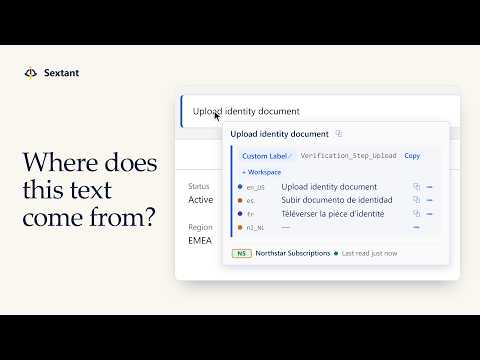
Sextant tells you what a piece of text on a Salesforce Lightning page actually is: which Custom Label, field, picklist value, button or layout section it comes from, its API name, and what it says in each language you work with. You can fix a translation right where you spotted it, find the metadata behind a phrase from a support ticket, and see what changed in your org. INSPECT ON HOVER Hold Shift and point at a label, field, picklist value or button. Sextant shows you what it is (object, standard or custom field, picklist value, Custom Label, record type, button, tab or layout section), its API name ready to copy, its help text if it has any, and every language you work with side by side, so missing translations stand out. You pick the languages in Settings. If Sextant can't tell what a piece of text is, it shows nothing instead of guessing. TRANSLATE ALL Press Alt+T to mark every translatable label on the page at once. Filter by missing, identical to the source language or complete, step through the gaps while the page scrolls to each one, and fill them in yourself. Nothing is machine translated. SEARCH THE WHOLE ORG Search by label, API name or translation. Paste the wording from a support ticket, in any of your languages, and you get the field it belongs to. Exact matches come first and each result says why it matched. Alt+K (by default) opens Search from any page. EDIT WITH CARE You can translate Custom Labels, custom fields, custom picklist values (including global value sets), record types, custom buttons and links, quick actions, layout sections, custom tabs and apps, and create new Custom Labels with their translations. Sextant writes to the same metadata that Translation Workbench in Setup edits. It re-reads the current value before saving and won't overwrite a newer change, it asks before writing to a production org, and if Salesforce rejects a save you see Salesforce's own message. Standard fields and standard picklist values are read-only on purpose, because Salesforce's ways of writing them aren't reliable. Object names, related list titles, help text and standard buttons and tabs are shown but not edited. WORKSPACE Keep the components you're working on in one place: group them, pin them, add a note on why each one is there, translate them side by side and export a package.xml for your deployment. ACTIVITY AND COMPARISON Activity shows what changed in your org between Sextant's reads, the translations you edited and, if you import it, your org's Setup Audit Trail. Changes made in Translation Workbench appear there too, even though the Setup Audit Trail doesn't record them. You can also compare translations across two orgs, for example Production and a sandbox, to see what differs, what's missing and what exists in only one of them. PRIVACY Sextant has no server and no account. It only talks to Salesforce, your own org with your own session, and the browser blocks its pages from contacting any other site. No analytics, no telemetry, no ads. Whatever Sextant stores stays in your browser profile, and you can see, export or delete it in Settings. WHO IT'S FOR Salesforce admins, developers, consultants and localization teams working in multilingual orgs. REQUIREMENTS Lightning Experience and a Salesforce user with API access. Edits are saved as you, with your own permissions. The interface is available in English, Spanish and Japanese (the Japanese hasn't been reviewed by a native speaker yet), in light and dark themes. Sextant is an independent product and is not affiliated with, endorsed by or sponsored by Salesforce.
5 out of 51 rating
Details
- Version1.1.1 (beta)
- UpdatedOctober 26, 2026
- Size659KiB
- Languages2 languages
- DeveloperWebsite
Email
manuelrp15@outlook.es - Non-traderThis developer has not identified itself as a trader. For consumers in the European Union, please note that consumer rights do not apply to contracts between you and this developer.
Privacy

Sextant — Salesforce Metadata & Translations has disclosed the following information regarding the collection and usage of your data. More detailed information can be found in the developer's privacy policy.
Sextant — Salesforce Metadata & Translations handles the following:
This developer declares that your data is
- Not being sold to third parties, outside of the approved use cases
- Not being used or transferred for purposes that are unrelated to the item's core functionality
- Not being used or transferred to determine creditworthiness or for lending purposes
Support
For help with questions, suggestions, or problems, please open this page on your desktop browser