

Separate Window
343 個評分
)

總覽
Derive an arbitrary area of a page in a separate popup window
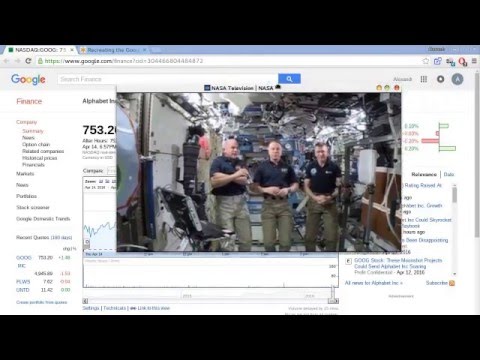
Select any element on the page in a separate popup window.Watch the video, play the games in a popup window, separate the informers, widgets. Save to bookmarks for quick access. For transition from the tab to the window and back you don't need to reload the page. How to use: - Click on the extension icon; - Press the "Select" button; - Put the cursor on the item to separate. - !IMPORTANT: Rotation the mouse wheel can increase the selection area. - Press the left mouse button and the selected area will be displayed in a separate window. For next visits to the page, the previously selected item(if present) will be marked with an icon in the upper left corner, clicking on the object will be putting in a separate window.. To save the location and size of the window, you must: 1. Place the window in the desired location; 2. Stretch the window to the required size; 3. Click on the 2nd button on the panel in the upper right corner; 4. Now the window will always appear in the selected location with the specified dimensions. 5. To delete the saved dimensions, press the button again; Added features: - take a snapshot of the selected window; - save to bookmarks (in the folder "Separate windows"); - get a link to the window (by clicking on which, when the extension is installed, the window will automatically open). If there are several identical elements on the page, the first in order will be selected.
4.7 分 (滿分 5 分)343 個評分
詳細資料
- 版本0.9.5
- 已更新2019年4月7日
- 提供者Alek
- 大小98.43KiB
- 語言2 種語言
- 開發人員
電子郵件
myfilterapp@gmail.com - 非交易商這位開發人員並未表明自己是交易商。歐盟地區的消費者請注意,消費者權利不適用於你和這位開發人員之間簽訂的合約。
隱私權
支援
如有疑問或建議,請使用電腦版瀏覽器開啟這個頁面