

Scroll-Triggered Animations Debugger
Overview
A DevTools extension to visualize and debug Scroll-Triggered Animations
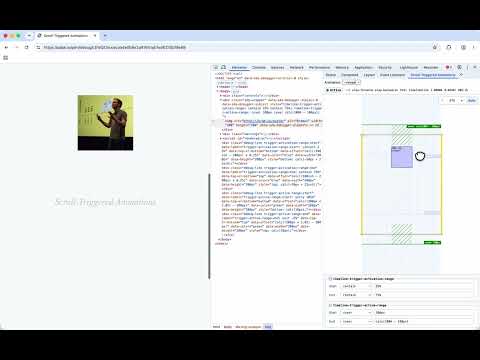
Use this DevTools extension to debug and visualize CSS Scroll-Triggered Animations (`timeline-trigger`, `animation-trigger`, `trigger-scope`). - Visualize the Scroll-Triggered Animation’s scroller, element, and subject. - Supports both ScrollTimeline (`scroll()`) and ViewTimeline (`view()`). - Shows an active/inactive status light indicator that switches from red (Inactive) to green (Active) when the trigger activates. - Plays nice with `position: sticky`. - Visualize the `timeline-trigger-activation-range` (blue) and `timeline-trigger-active-range` (green) debug lines and boxes. - Edit the `timeline-trigger-activation-range` and `timeline-trigger-active-range` values live. Once installed, a new “Scroll-Triggered Animations” pane gets added to Chrome DevTools’s Elements Panel. To use it, inspect an Element using Chrome DevTools as you’d normally do and select the “Scroll-Triggered Animations” pane to see a visualization of the Scroll-Triggered Animations that are added to that element. The visualization is a live representation of the scroller, animated element, and – in case of a ViewTimeline – tracked subject: as you scroll in the document, the visualization and trigger active/inactive status light also update. Use the top toolbar to switch between multiple animations _(if more than one)_. Also included in the top toolbar are an active/inactive status light indicator, the trigger name and actions, scroller name, timeline type, and progress numbers: total scroll progress, effect progress, actual scroll offset _(in pixels)_. Use the controls in the top-right corner of the visualization to set the scale factor. Typically you don’t need to set the scale factor, as the visualization automatically adapts itself to the available space. At the bottom of the pane is a range editor for `timeline-trigger-activation-range` and `timeline-trigger-active-range` (collapsible via the “Edit Values” toggle when vertical space is limited). The visualization shows indicators for both the activation range (blue) and active range (green): in case of a ScrollTimeline these are dashed lines on the scroller’s contents, and in case of a ViewTimeline these are shaded boxes representing the areas for the configured range values. Change the values live using the dropdowns and/or the inputs.
0 out of 5No ratings
Details
- Version1.0.0
- UpdatedOctober 14, 2026
- Offered byBramus Van Damme
- Size137KiB
- LanguagesEnglish
- Developer
Email
bramus@bram.us - Non-traderThis developer has not identified itself as a trader. For consumers in the European Union, please note that consumer rights do not apply to contracts between you and this developer.
Privacy

This developer declares that your data is
- Not being sold to third parties, outside of the approved use cases
- Not being used or transferred for purposes that are unrelated to the item's core functionality
- Not being used or transferred to determine creditworthiness or for lending purposes
Support
For help with questions, suggestions, or problems, visit the developer's support site