


Overview
Capture screen content, analyze it with AI, and instantly create tasks in Google Calendar, Notion, and more.
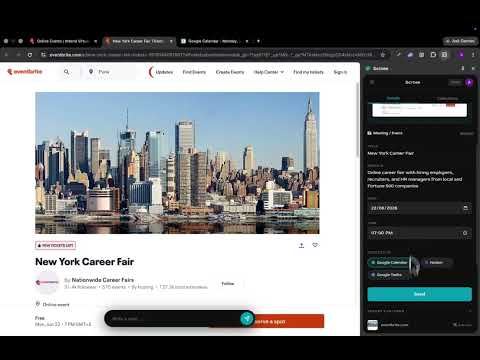
🚀 Scrnee — AI Action Capture & Smart Task Router Transform everything you see into everything you do. Welcome to Scrnee, the ultimate AI-powered productivity bridge between your browser and your digital workspace. How often do you find yourself staring at a webinar schedule, a flight itinerary, a Zoom meeting invite, or a brilliant quote in an article, only to manually retype that exact information into your calendar or to-do list? Scrnee eliminates the friction of manual data entry. With a single keyboard shortcut, Scrnee allows you to capture any fragment of your screen, instantly extracts the text using lightning-fast Optical Character Recognition (OCR), and leverages advanced AI to understand exactly what you captured. It then seamlessly routes it to Google Calendar, Google Tasks, or Notion—perfectly formatted and ready for action. Stop typing. Start doing. 🔥 CORE FEATURES: THE MAGIC BEHIND SCRNEE 📸 1. Precision Screen Capture No more full-screen screenshots when you only need one sentence. Scrnee allows you to selectively drag and capture specific fragments of your active tab. Custom Shortcuts: Trigger captures instantly using Cmd/Ctrl + Shift + S. Zero-Lag Interface: The capture overlay is lightweight and instantly responsive. 🧠 2. Blazing-Fast AI & OCR Extraction Scrnee doesn't just take a picture; it reads it. Puter.js OCR Engine: We utilize state-of-the-art OCR to flawlessly lift text from images, videos, PDFs, and heavily stylized websites where copy-pasting is disabled. Groq AI Processing: Once the text is extracted, our AI pipeline (powered by Groq for near-zero latency) analyzes the context, intent, and crucial details (dates, times, action verbs) of your capture. 🔀 3. Intelligent Intent Classification Scrnee’s AI acts as your personal executive assistant. It reads the captured text and automatically classifies it into one of three categories: Events: Finds dates, times, durations, and locations. Tasks: Identifies action items, deadlines, and deliverables. Notes: Recognizes research, quotes, and reference material. ⚙️ 4. The Seamless Side Panel UI Never lose context. Scrnee operates entirely within Chrome’s native Side Panel (Cmd/Ctrl + Shift + P). When you capture something, the Side Panel instantly updates with the extracted data, allowing you to review, edit, and confirm before sending it to your integrations. No annoying pop-ups or new tabs required. 🔌 DEEP INTEGRATIONS: YOUR TOOLS, SUPERCHARGED Scrnee connects directly to the tools you already use every day, requiring zero changes to your existing workflow. 📅 Google Calendar Integration Captured a poster for an upcoming event or a schedule in an email? Scrnee extracts the Title, Start Date, End Date, Time, and Description. It then generates a perfectly formatted Google Calendar event. Just hit "Save" in the side panel, and it instantly syncs to your schedule. ✅ Google Tasks Integration Found an action item in a massive block of text? Scrnee distills the fluff and creates a concise Google Task, complete with a title, descriptive context, and a designated due date if one was mentioned in the image. 📝 Notion Integration Researching for an essay, building a mood board, or saving code snippets? Scrnee formats your captures into clean, markdown-ready Notion pages or database entries. (Note: We automatically hide irrelevant date/time metadata for plain notes to keep your Notion workspace clean and clutter-free). 🎯 WHO IS SCRNEE FOR? For Students & Academics: Capture lecture slides from Zoom or YouTube and turn them into searchable Notion notes instantly. Grab syllabus schedules and let Scrnee build your Google Calendar for the semester. For Professionals & Executives: Turn complex email threads or Slack messages into actionable Google Tasks. Capture meeting agendas and automatically block out time on your Calendar. For Developers & Designers: Screenshot error codes or UI/UX inspiration and route them into Notion documentation. Capture feature requests from support tickets and turn them into actionable tasks. For Researchers & Writers: Save quotes from protected PDFs or Kindle Cloud Reader where traditional copy-pasting is blocked. 🛠️ HOW IT WORKS (THE 3-STEP WORKFLOW) CAPTURE: Press Cmd/Ctrl + Shift + S and highlight any area of your screen containing information. ANALYZE: The Scrnee Side Panel automatically opens. Behind the scenes, the image is converted to text and structured by AI in milliseconds. EXECUTE: Review the automatically generated Event, Task, or Note in the Side Panel. Make any quick edits if needed, and click "Send". It’s that simple. What used to take 2 minutes of tab-switching and typing now takes 3 seconds. 🔒 PRIVACY & SECURITY FIRST We believe your screen is your private domain. Scrnee is built with strict adherence to modern security standards: Manifest V3 Compliant: Built on the latest, most secure Chrome extension architecture. No Creepy Tracking: We do not track your browsing history or record your screen in the background. The extension only activates exactly when you trigger a capture. Secure API Handling: All OAuth tokens (Google, Notion) and API requests are handled securely through our dedicated backend environment, ensuring your credentials are never exposed in the browser. Strict Content Security Policy (CSP): Protected against cross-site scripting and unauthorized data access. ⌨️ PRO-TIPS & KEYBOARD SHORTCUTS Master Scrnee and navigate at the speed of thought: Trigger Capture: Cmd + Shift + S (Mac) / Ctrl + Shift + S (Windows/Linux) Toggle Side Panel: Cmd + Shift + P (Mac) / Ctrl + Shift + P (Windows/Linux) (Note: You can easily customize these shortcuts in your Chrome Extension settings by navigating to chrome://extensions/shortcuts) 🌟 WHY WE BUILT SCRNEE The internet is full of information trapped in formats we can't easily use—images, videos, unselectable text, and chaotic layouts. We built Scrnee because we were tired of the "copy, switch tab, paste, format, save" loop. We wanted a tool that behaved like an extension of our own memory—see it, capture it, and trust that it's organized exactly where it needs to be. With the power of modern Large Language Models and fast OCR, Scrnee finally makes this possible. Ready to supercharge your productivity? Add Scrnee to Chrome today and experience the fastest way to turn your screen into action. (Requires a Google Account for Calendar/Tasks integration, or a Notion Account for Notes integration. API usage is optimized for speed and reliability).
0 out of 5No ratings
Details
- Version0.2.2
- UpdatedMay 17, 2026
- Size1000KiB
- LanguagesEnglish
- DeveloperWebsite
Email
abhinav.amrute@gmail.com - Non-traderThis developer has not identified itself as a trader. For consumers in the European Union, please note that consumer rights do not apply to contracts between you and this developer.
Privacy

Scrnee — AI Action Capture has disclosed the following information regarding the collection and usage of your data. More detailed information can be found in the developer's privacy policy.
Scrnee — AI Action Capture handles the following:
This developer declares that your data is
- Not being sold to third parties, outside of the approved use cases
- Not being used or transferred for purposes that are unrelated to the item's core functionality
- Not being used or transferred to determine creditworthiness or for lending purposes
Support
For help with questions, suggestions, or problems, please open this page on your desktop browser