


Overview
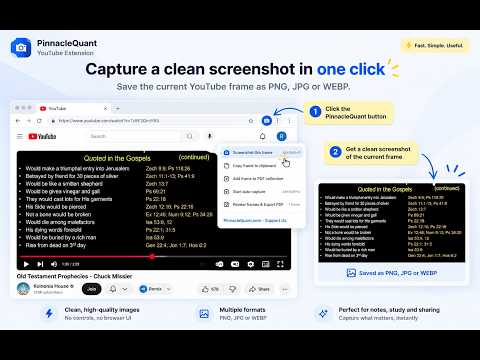
Screenshot any YouTube video or Short in one click. Save PNG/JPG, or collect frames into one PDF with timestamps. Free, no account.
PinnacleQuant.com's screenshot and PDF maker helps you keep the charts, slides, diagrams and demonstrations worth revisiting. Save a single frame as a PNG, JPG or WEBP image, build a PDF collection you can review, reorder, print and share, or automate the whole capture with scene detection. Keep the charts, slides, diagrams and demonstrations you want to revisit. Save an image, put together a document, and return to the original video without searching for the right moment again. 100% FREE to use. No extension account, sign-up or subscription required! SCREENSHOTS WITHOUT THE REST OF YOUR SCREEN Save the current video frame as a PNG, JPG or WEBP image, without browser tabs, player controls or page elements. The extension does not add a watermark to your screenshots. Logos or text already in the video remain part of the image. Capture while the video plays, or pause to choose a particular frame. Image resolution depends on the video quality currently being delivered and your maximum-width setting. HOW TO USE IT 1. Open a YouTube video or Short and let the picture load. 2. Use the PinnacleQuant.com button or its dropdown to choose Screenshot this frame or Add frame to PDF collection. 3. Choose Review frames & Export PDF to open your collection. Drag the page badges to arrange the frames and select the ones you need. 4. Press Export PDF to save your document. On a regular video page, the button reads PinnacleQuant.com YT Screenshot or PinnacleQuant.com YT PDF Maker, depending on your selected action. Compact layouts use shorter wording. In the Button click setting, choose Screenshot, Add frame to PDF collection, or Both. Both saves an image and adds that frame to the collection. Standalone screenshots do not enter the collection unless you choose Both. New installations start in Screenshot mode. Updates preserve your saved button preference. A PDF YOU CAN FIND YOUR WAY AROUND Turn on PDF captions to include the video title, channel, image dimensions and timestamp beneath each frame. Click the timestamp to return to that moment on YouTube. Add an optional contents page, choose a frame-sized layout, Letter or A4, and export selected frames or the whole collection. PDFs include a small "By PinnacleQuant.com" footer below the captured image, not a watermark over it. Use it for lecture slides, trading charts, software settings, code examples, recipes and practical demonstrations. Keep what was on screen without having to recreate it. AUTOMATIC CAPTURE Start auto-capture to add frames to your PDF collection when the picture changes. Adjust how often it checks, how much change triggers a capture, and the minimum time between saves. Review the results before exporting. Automatic capture may miss a slide or include frames you do not need. TRANSCRIPT EXCERPTS With the transcript option and PDF captions enabled, a short excerpt around the captured moment can appear beneath the image. The extension uses a supported YouTube transcript panel only when it can be matched to the correct video. This is not a full-transcript download. When an excerpt is unavailable or cannot be verified, the frame is saved without it. SHORTCUTS AND OTHER OPTIONS Use the dropdown, right-click menu or keyboard shortcuts: Alt+Shift+Y: perform your selected button action. Alt+Shift+U: start or stop auto-capture. Alt+Shift+O: open the PDF collection. Shortcut assignments can be changed at chrome://extensions/shortcuts. Copy a frame to the clipboard when your browser permits it, and adjust image format, quality and maximum width to manage file sizes. The PDF-frame count shows frames in your collection, not the number of standalone screenshots downloaded. PRIVACY AND STORAGE Captures, source details, optional excerpts and settings are processed and stored in your browser. The extension does not upload them to PinnacleQuant.com or another server. There is no background analytics service or cloud sync. Exporting does not clear your collection. Use Delete or Clear all to remove saved frames. Files you have already downloaded remain on your computer. Large collections depend on available browser storage and memory. BEFORE YOU CAPTURE Protected or restricted playback may not be capturable. Subtitles displayed separately by YouTube are not part of the underlying video image; subtitles already embedded in the video are captured with it. Respect the creator's rights when saving or sharing material. Built by Pinnacle Quant, LLC (PinnacleQuant.com). Not affiliated with or endorsed by YouTube or Google.
3.3 out of 59 ratings
Details
- Version3.0.1
- UpdatedSeptember 13, 2026
- Offered byPinnacleQuant
- Size232KiB
- LanguagesEnglish (United States)
- DeveloperPinnacle Quant, LLC
11400 West Olympic Blvd Suite 200 Los Angeles, CA 90064 USEmail
raffi@pinnaclequant.com - Non-traderThis developer has not identified itself as a trader. For consumers in the European Union, please note that consumer rights do not apply to contracts between you and this developer.
Privacy

Screenshot YouTube PDF YouTube has disclosed the following information regarding the collection and usage of your data. More detailed information can be found in the developer's privacy policy.
Screenshot YouTube PDF YouTube handles the following:
This developer declares that your data is
- Not being sold to third parties, outside of the approved use cases
- Not being used or transferred for purposes that are unrelated to the item's core functionality
- Not being used or transferred to determine creditworthiness or for lending purposes
Support
For help with questions, suggestions, or problems, please open this page on your desktop browser