


Overview
Right-click to save any image as PNG, JPG, WebP, GIF or PDF, even ones sites hide. Converted on your device. No personal data.
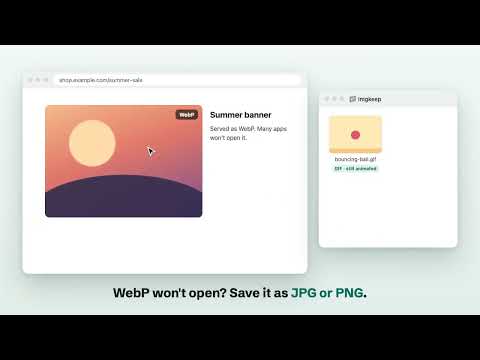
Imgkeep is a free image converter for your right-click menu. Save any image as PNG, JPG, WebP, GIF or PDF, convert WebP and AVIF, and save photos even on sites that hide them from the right-click. Right-click an image → Imgkeep: Save image as → choose your format. It's saved straight to your chosen folder, or copy it as PNG and paste it into another app. Images are converted on your computer: no uploads, no account. WORKS WHERE RIGHT-CLICK DOESN'T On sites like Instagram and Pinterest, a layer over the photo stops the browser's own "Save image as" from reaching it. Right-click over the photo and choose "Imgkeep: Find image here": Imgkeep finds the image behind the layer, at its largest available size. If it isn't sure which image you meant, it shows you the images on screen to pick from. Find image here is off until you turn it on, in Options or the first time you use it. It looks at the current page only when you ask, and never changes it. CONVERT WEBP AND AVIF TO PNG OR JPG Many sites now use WebP and AVIF images, which other apps often can't open. Imgkeep saves them in a format that works wherever you need it. • Standard image files: JPGs are saved as .jpg, not .jfif. SVG and data: images work too. • Keep animations moving: animated WebP, AVIF and APNG become a GIF that keeps its timing and transparency. Animated GIFs are saved unchanged. • Save as PDF: a one-page PDF sized to the image, transparency kept. Useful for receipts, documents and sharing. • Copy as PNG: put the image on your clipboard as a real PNG, transparency kept, and paste it straight into a design or slide tool like Canva or Google Slides. • Save as AVIF: in More options, files often half the size of a JPG that looks the same, transparency kept. • Icons and bitmaps: in More options, save as ICO (16 to 256 px in one file, for desktop shortcuts and favicons) or BMP. • Keep the original: save the image in its original format when you don't need a conversion. RESIZE IMAGES AND CONTROL QUALITY • Resize automatically: set a maximum width in Options. Larger images scale down proportionally; smaller ones are never enlarged. • Preview before saving: More options shows the result's size in pixels and kilobytes. Choose format, width, quality, background and file name for that image. • Adjust quality: JPG and WebP quality sliders, and a background colour for transparent images saved as JPG. CHOOSE YOUR FOLDERS AND FILE NAMES • Save to your folder: choose a folder once, use Chrome's Downloads folder, or ask every time. Organise images into subfolders like Imgkeep/{host}. • Custom file names: build names from {name}, {host}, {date}, {time}, {w} and {h}, e.g. {name}-{w}x{h}. • Never overwrites: if a file with the same name exists, the new one gets a number like " (1)". LOCAL CONVERSION AND ACCESS YOU CONTROL • No uploads: images are converted on your computer. No account. • No background page reading: Imgkeep looks at a page only when you ask it to find an image there, and never changes a page. • Four permissions only: contextMenus, downloads, storage, offscreen. Two more, activeTab and scripting, only if you turn on Find image here. • One anonymous daily summary: usage counts and failures, like "12 saves as JPG, 1 failed", so we know what to improve. Never images, website addresses or file names. One click in Options turns it off. • Open source under the MIT licence, with no build step: the code you read is the code that runs. The one compiled part, the AVIF encoder, is the open-source libavif, unchanged and checked by its fingerprint. • Free, with no limits: no ads, no welcome tabs, and one request for a rating, ever. Every feature available today stays free. WHEN A SITE BLOCKS AN IMAGE A few sites stop other sites from reading their images. Only then, and only after you click to allow it, Imgkeep asks your browser for access to that one site. You can remove it any time in Options. Or choose "Save original format instead". Suggest features and vote on ideas: https://imgkeep.app/ideas.html
5 out of 54 ratings
Details
- Version0.10.1
- UpdatedOctober 18, 2026
- Size1.23MiB
- Languages9 languages
- DeveloperWebsite
Email
helloimgkeep@gmail.com - Non-traderThis developer has not identified itself as a trader. For consumers in the European Union, please note that consumer rights do not apply to contracts between you and this developer.
Privacy

Save image as PNG, JPG, WebP, GIF or PDF — Imgkeep has disclosed the following information regarding the collection and usage of your data. More detailed information can be found in the developer's privacy policy.
Save image as PNG, JPG, WebP, GIF or PDF — Imgkeep handles the following:
This developer declares that your data is
- Not being sold to third parties, outside of the approved use cases
- Not being used or transferred for purposes that are unrelated to the item's core functionality
- Not being used or transferred to determine creditworthiness or for lending purposes
Support
For help with questions, suggestions, or problems, visit the developer's support site