

RosterBlur: Blur Student Names on Screen

Overview
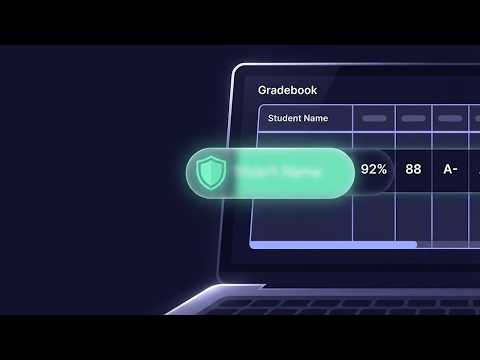
Blur student names before you share your screen. Click to blur anything, auto-blur whole rosters. 100 percent local and private.
Share your screen without showing the whole class list. RosterBlur is a privacy tool for teachers. Before you project a gradebook or record a tutorial, it blurs the student information on the page; the class never sees it, and neither does the recording, the parent on the video call, or whoever ends up watching that video three years from now. FREE: - Click to blur. Turn on the picker and click anything to blur it. Click again to unblur. - Area blur: drag a rectangle over any part of the page. - Blurs are remembered per site. They come back after reloads and navigation. - About to share in a hurry? The panic hotkey (Alt+Shift+H) blurs the entire page at once. - Swap the tab title and favicon for neutral ones when you need to. - Adjustable blur strength. PRO ($15 once, yours forever): - Roster auto-blur. Paste your class rosters once and every visible roster name gets blurred on every page. This holds even on live apps like Google Classroom and PowerSchool, which redraw themselves constantly. - Pseudonymize mode. Instead of a blur, names become numbered stand-ins (Student 1, Student 2...). Recordings look natural and the same student keeps the same number. - Auto-detect emails and phone numbers, plus long ID numbers. Each has its own toggle. - CSV import, plus multiple named rosters with their own on and off switches. One per class period works well. - Meeting mode. When a Google Meet, Zoom, or Teams tab is open, roster blur switches on across all your tabs by itself. Matching is careful on purpose. Case and accents are ignored, so typing Jose still finds the accented spelling. Word boundaries are respected; a student named May never blurs the month of May. Gradebook-style Last, First works too. Names inside URLs and code blocks get left alone. PRIVATE BY DESIGN: Your rosters never leave your computer. They live in local browser storage, and that is the only place they exist. The extension makes zero network requests (no analytics, no server behind it). Even the Pro license key is checked on your device against a built-in public key. One honest caveat: RosterBlur helps you protect student information while you share your screen. It is not a compliance product, and it does not by itself make you or your school FERPA compliant.
0 out of 5No ratings
Details
- Version2.0.7
- UpdatedAugust 9, 2026
- FeaturesOffers in-app purchases
- Offered bySecPlusMastery
- Size80.05KiB
- LanguagesEnglish
- Developer
Email
support@secplusmastery.com - Non-traderThis developer has not identified itself as a trader. For consumers in the European Union, please note that consumer rights do not apply to contracts between you and this developer.
Privacy

RosterBlur: Blur Student Names on Screen has disclosed the following information regarding the collection and usage of your data. More detailed information can be found in the developer's privacy policy.
RosterBlur: Blur Student Names on Screen handles the following:
This developer declares that your data is
- Not being sold to third parties, outside of the approved use cases
- Not being used or transferred for purposes that are unrelated to the item's core functionality
- Not being used or transferred to determine creditworthiness or for lending purposes
Support
For help with questions, suggestions, or problems, please open this page on your desktop browser