

Right Click Text Format
15 ratings
)
Overview
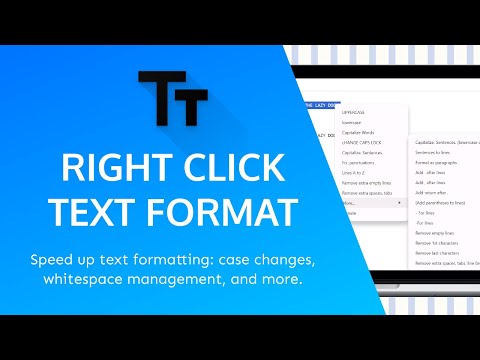
Speed up text formatting with quick case changes, whitespace management, and more.
Right Click Text Format helps you quickly clean up, transform, and reformat selected text directly from Chrome. Highlight text, right click, choose a formatting action, and you're done. You can also pin the extension to the Chrome toolbar and use the popup to format text anywhere. Whether you are cleaning up copied text, fixing capitalization, removing unwanted spaces and line breaks, preparing lists, or formatting text for work, study, writing, social media, or development, Right Click Text Format is designed to save time on repetitive text editing. FEATURES ✅ UPPERCASE ✅ lowercase ✅ Capitalize Words ✅ cHANGE CAPS LOCK ✅ Capitalize. Sentences. ✅ Fix ,punctuations . ✅ Lines A to Z ✅ Remove extra empty lines ✅ Remove extra spaces, tabs ✅ Capitalize. Sentences. (lowercase others) ✅ Sentences to lines ✅ Format as paragraphs ✅ Add . after lines ✅ Add , after lines ✅ Add return after , ✅ (Add parentheses to lines) ✅ - For lines ✅ -For lines ✅ Remove empty lines ✅ Remove 1st characters ✅ Remove last characters ✅ Remove extra spaces, tabs, line breaks HOW IT WORKS Right Click Text Format works best in standard editable text fields such as text inputs and textareas. Select the text you want to change, open the right-click menu, choose Right Click Text Format, then select the formatting action you need. For complex rich text editors and websites that do not use standard browser text fields, direct replacement may not be available. In those cases, the extension opens the popup and formats the selected text there instead. You can use the toolbar popup at any time, on any website. The popup is also useful when you want to paste text, apply several formatting operations one after another, review the result before copying it, or work with text from a source where direct editing is not available. COMMON USE CASES 📄 CLEAN UP TEXT COPIED FROM PDFs Text copied from PDF files often contains unwanted line breaks, extra spaces, tabs, or inconsistent formatting. Right Click Text Format can help clean up this copied text before you paste it into an email, document, note, form, website, or other application. For example, you can: - remove extra spaces and tabs - remove unnecessary empty lines - remove line breaks - convert text to consistent capitalization - fix punctuation spacing - restructure sentences into lines 📝 CLEAN UP TEXT FROM WEBSITES AND DOCUMENTS Copied text can include inconsistent capitalization, unnecessary whitespace, awkward line breaks, or formatting artifacts. Instead of editing everything manually, select the text and use the appropriate formatting command. This can be useful when moving text between: - websites - documents - spreadsheets - note-taking tools - forms - content management systems - emails - chat applications 📋 FORMAT LISTS Right Click Text Format includes several tools for working with lists. You can: - sort lines alphabetically - remove empty lines - add commas after lines - add periods after lines - add dashes before lines - add parentheses to lines - remove the first character from every line - remove the last character from every line - split comma-separated content into separate lines These tools can be useful for preparing lists, tags, names, values, notes, copied data, or simple datasets. ✍️ FIX CAPITALIZATION Quickly switch text between different capitalization styles. Useful for: - headings - titles - copied text - accidentally typed Caps Lock text - inconsistent capitalization - sentence cleanup Available options include: - UPPERCASE - lowercase - Capitalize Words - cHANGE CAPS LOCK - Capitalize. Sentences. - Capitalize. Sentences. (lowercase others) 🔤 FIX WHITESPACE AND PUNCTUATION Text copied from different sources can contain extra spaces, tabs, empty lines, or incorrect punctuation spacing. Right Click Text Format includes tools to quickly normalize these common problems. Use: - Fix ,punctuations . - Remove extra spaces, tabs - Remove extra empty lines - Remove empty lines - Remove extra spaces, tabs, line breaks 💻 USEFUL FOR DEVELOPMENT AND ADMIN WORK Simple text cleanup is often needed when working with: - copied identifiers - lists of values - configuration text - form data - logs - simple datasets - copied database values - issue trackers - documentation - admin interfaces Right Click Text Format is designed for small, repetitive text transformations where opening a separate editor would be unnecessary. 📱 USEFUL FOR WRITING AND SOCIAL MEDIA The extension can also help when preparing: - posts - captions - comments - messages - descriptions - titles - short notes - email text You can quickly clean up formatting before pasting the result into the final editor. EXAMPLES ✅ UPPERCASE Before: "The quick brown fox jumps over the lazy dog." After: "THE QUICK BROWN FOX JUMPS OVER THE LAZY DOG." ✅ lowercase Before: "THE QUICK BROWN FOX JUMPS OVER THE LAZY DOG." After: "the quick brown fox jumps over the lazy dog." ✅ Capitalize Words Before: "the quick brown fox jumps over the lazy dog." After: "The Quick Brown Fox Jumps Over The Lazy Dog." ✅ cHANGE CAPS LOCK Before: "tHE qUICK bROWN fOX jUMPS oVER tHE lAZY dOG." After: "The Quick Brown Fox Jumps Over The Lazy Dog." ✅ Capitalize. Sentences. Before: "the quick brown fox. jumps over the lazy dog? he does!" After: "The quick brown fox. Jumps over the lazy dog? He does!" ✅ Fix ,punctuations . Before: "Hello ,world ! This isn't right:let's fix it." After: "Hello, world! This isn't right: let's fix it." ✅ Lines A to Z Before: banana apple date After: apple banana date ✅ Remove extra empty lines Before: This is the first line. This is the fourth line. After: This is the first line. This is the fourth line. ✅ Remove extra spaces, tabs Before: "This is a sentence with extra spaces and tabs." After: "This is a sentence with extra spaces and tabs." ✅ Capitalize. Sentences. (lowercase others) Before: "the QUICK BROWN fox. JUMPS over the LAZY dog?" After: "The quick brown fox. Jumps over the lazy dog?" ✅ Sentences to lines Before: "The quick brown fox jumps over the lazy dog. It is a sunny day." After: "The quick brown fox jumps over the lazy dog. It is a sunny day." ✅ Format as paragraphs Before: "This is the first line. This is the second line." After: "This is the first line. This is the second line." ✅ Add . after lines Before: "This line lacks a period" After: "This line lacks a period." ✅ Add , after lines Before: "This line should end with a comma" After: "This line should end with a comma," ✅ Add return after , Before: "Apple, orange, banana." After: "Apple, orange, banana." ✅ (Add parentheses to lines) Before: "This line will be enclosed in parentheses." After: "(This line will be enclosed in parentheses.)" ✅ - For lines Before: "This line will have a dash." After: "- This line will have a dash." ✅ -For lines Before: "This line will have a dash." After: "-This line will have a dash." ✅ Remove empty lines Before: "This is the first line. This is the third line." After: "This is the first line. This is the third line." ✅ Remove 1st characters Before: "The quick brown fox jumps over the lazy dog." After: "he quick brown fox jumps over the lazy dog." ✅ Remove last characters Before: "The quick brown fox jumps over the lazy dog." After: "The quick brown fox jumps over the lazy dog" ✅ Remove extra spaces, tabs, line breaks Before: "The quick brown fox jumps over the lazy dog." After: "The quick brown fox jumps over the lazy dog." WHY USE RIGHT CLICK TEXT FORMAT? ⭐ Fast right-click text formatting ⭐ 20+ formatting options ⭐ No keyboard shortcuts to memorize ⭐ Works directly in standard text fields ⭐ Toolbar popup available everywhere ⭐ Useful for copied text, PDFs, lists, notes, forms and documents ⭐ Free and unlimited ⭐ No account required ⭐ No text is sent to a server ⭐ All formatting happens locally in your browser DESIGNED FOR QUICK TEXT CLEANUP Right Click Text Format is not intended to replace a full text editor. Its purpose is to make small, repetitive formatting tasks faster. Instead of copying text into another application, manually editing it, and copying it back, you can perform many common transformations directly from Chrome. This makes the extension especially useful for tasks that only take a few seconds but occur repeatedly throughout the day. KNOWN LIMITATIONS Some websites use complex rich text editors that do not behave like standard browser text fields. Some websites use complex rich text editors that behave differently from standard browser text fields. In these environments, direct in-place text replacement may not be available. When direct replacement is not possible, Right Click Text Format uses the popup instead, so you can still format the selected text and copy it back. Some formatting actions intentionally use simple rules and may not handle every unusual punctuation pattern or sentence structure perfectly. The extension does not provide its own built-in Undo function. PRIVACY Right Click Text Format does not collect, store, sell, or transmit your text or personal data. All text formatting happens locally in your browser. No account is required. Your text is not uploaded to a remote server for formatting. PERMISSIONS activeTab Used to interact with the currently active tab when you invoke the extension. contextMenus Used to add Right Click Text Format to Chrome's right-click menu. scripting Used to interact with supported editable text fields after you invoke the extension. clipboardRead Used to load clipboard text into the popup when there is no selected text available. clipboardWrite Used when you copy formatted text from the popup. storage Used to remember popup text and extension state locally in your browser. SINGLE PURPOSE The sole purpose of Right Click Text Format is to provide quick text formatting tools through Chrome's right-click menu and toolbar popup. No user data is collected or transmitted.
4.3 out of 515 ratings
Details
- Version6.0
- UpdatedSeptember 26, 2026
- Offered byRobert Kapitany
- Size194KiB
- LanguagesEnglish
- Developer
Email
lofiafternoon@gmail.com - Non-traderThis developer has not identified itself as a trader. For consumers in the European Union, please note that consumer rights do not apply to contracts between you and this developer.
Privacy

This developer declares that your data is
- Not being sold to third parties, outside of the approved use cases
- Not being used or transferred for purposes that are unrelated to the item's core functionality
- Not being used or transferred to determine creditworthiness or for lending purposes