

Record and Metadata Comparator for Salesforce
40 оценок
)
Обзор
Compare Record data values and object metadata in Salesforce
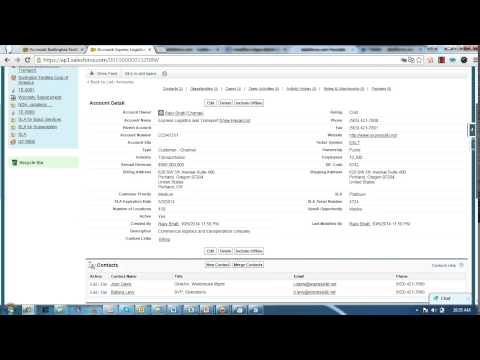
Compare Object Metadata and it's record values in Salesforce (now supports Lightning!) and see all differences in just four clicks! Credits: 1. sorenkrabbe for his extension "salesforce-inspector" available @ https://chrome.google.com/webstore/detail/salesforce-inspector/aodjmnfhjibkcdimpodiifdjnnncaafh I have used the code shared by him to improvise and develop this extension. I would share the code of this extension on github soon. 2. Maninder Singh for enabling the extension to work in Lightning -https://www.linkedin.com/in/mansinghinder/ This extension compares any two objects or its records (could be from same org or different orgs) and highlights all the differences found. It can show you the following - Which fields are missing in target org. - Which fields are missing in source org - which fields have metadata difference (change in formula, datatype , required etc.) - which fields have data value mismatch Please watch the video tutorial available @ http://youtu.be/mkarbbYWveY to understand the exact functionality and its uses. Steps to compare Object Metadata: 1. Open up the custom object definition or it's list view or any of it's record in salesforce. This is your source record. Click on the extension icon and then click on the "Select Source Record" button. 2. After that, open up the custom definition of the same object or it's list view or the record (could be from same org or different org). This is your target record. Click on the extension icon and then click on the "Select Target record" button. 3. The extension would create a popup and in that show you all the differences that were found. Steps to compare Record Values: 1. open any record from a standard/custom object in one org. This is your source record. Click on the extension icon and then click on the "Select Source Record" button. 2. After that, open up any other record for the same object (could be from same org or different org). This is your target record. Click on the extension icon and then click on the "Select Target record" button. 3. The extension would create a popup and in that show you all the differences that were found. Do recommend the extension with you friends and colleagues if you like it. Also, if you like the extension, please don't forget to Rate it on the Chrome Extension Webstore. Feedback/Suggestions/Ideas/Comments most welcome. Thanks again and I hope this extension saves your time and makes you more productive! For any queries: rajivashokbhatt+metadatacomparator@gmail.com
4,7 из 540 оценок
Подробности
- Версия0.0.0.10
- Обновлено11 июня 2025 г.
- Автор:Rajiv Bhatt
- Размер84.64KiB
- ЯзыкиEnglish
- Разработчик
Электронная почта
rajiv.ashok.bhatt@gmail.com - Не продавецРазработчик не указал для себя статус продавца. Просим клиентов из Европейского союза обратить внимание, что на сделки между вами и этим разработчиком не распространяются законы о защите прав потребителей.
Конфиденциальность

Этот разработчик утверждает, что ваши данные:
- Не продаются третьим лицам, за исключением разрешенных вариантов использования
- Не используются и не передаются в целях, не связанных с работой основных функций продукта
- Не используются и не передаются для определения платежеспособности или в целях кредитования
Поддержка
Чтобы сообщить об ошибках в работе продукта, задать вопрос или поделиться идеями, откройте эту страницу в браузере для компьютера.