

Quicken | Retail Purchase Categorization
121 个评分
)
概述
Auto-import and split Amazon orders by item in Quicken, matching transactions for clearer, more accurate spending insights.
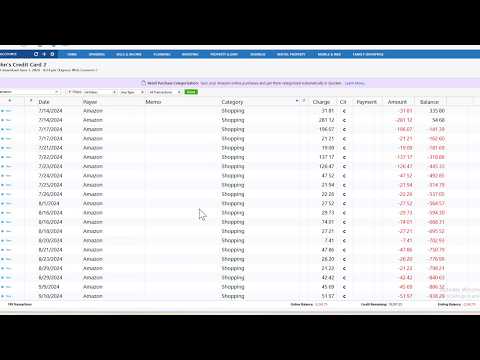
Amazon purchases often include items from multiple spending categories: groceries, household essentials, electronics, and more. But when these purchases appear in your financial accounts, they usually show up as a single "Amazon" charge, often categorized simply as Shopping. This makes it hard to understand where your money went. The Quicken | Retail Order Categorization extension simplifies this process by automatically importing your Amazon order details and bringing them into Quicken at the item level. Key Benefits - See exactly what you bought - Understand your spending better - Save time on manual categorization - Get more accurate budgets and reports - Automatically match purchases to transactions How to Get Started Getting started only takes a few steps: 1. Install the Quicken | Retail Order Categorization extension from the Chrome Web Store. 2. Sign in using your Quicken ID. 3. Connect your Amazon account when prompted. 4. Choose the date range for the orders you want to import. 5. Open Quicken Desktop and update your data to download your Amazon orders. Once set up, your Amazon orders will be securely imported, automatically matched with your transactions, and split into item-level categories in Quicken. How to Pin the Extension Pinning keeps Quicken | Retail Purchase Categorization one click away in your toolbar. Here's how: 1. Click the puzzle piece icon (Extensions) in the top-right corner of Chrome. 2. Find Quicken | Retail Purchase Categorization in the list. 3. Click the pin icon next to it so it turns blue. That's it, the extension icon will now stay visible in your toolbar for quick access. What You’ll See in Quicken Once connected, Quicken enriches your Amazon transactions with detailed insights: 1. Item-level transaction splits - Instead of a single Amazon charge, each purchase is split into individual items, with suggested categories and product details added to the memo. 2. Automatic transaction matching - Amazon orders are automatically matched with existing transactions in your accounts whenever possible. 3. Clearer spending insights - Each item is categorized, making your budgets, reports, and spending analysis more accurate. 4. Amazon orders list - View all imported Amazon orders in one place, along with their suggested categories, within the Quicken | Retail Order Categorization extension page.
1.9 星(5 星制)121 个评分
详情
- 版本1.3.0
- 上次更新日期2026年8月25日
- 提供方Quicken Inc
- 大小2.34MiB
- 语言English (United States)
- 开发者Quicken Inc
3760 Haven Avenue Ste C Menlo Park, CA 94025 US邮箱
info@quicken.com电话
+1 650-460-6699 - 交易者此开发者已根据欧盟的定义将自己标识为交易者,并承诺仅提供符合欧盟法律要求的产品或服务。
- D-U-N-S080078015
隐私权

“Quicken | Retail Purchase Categorization”已就收集和使用用户数据披露了以下信息。 如需了解详情,请查看开发者的privacy policy。
Quicken | Retail Purchase Categorization会处理以下数据:
该开发者已声明,您的数据:
- 不会因未获批准的用途出售给第三方
- 不会为实现与产品核心功能无关的目的而使用或转移
- 不会为确定信用度或放贷目的而使用或转移
支持
若有任何疑问、建议或问题,请访问开发者的支持网站