

Quey: Visual Editing Feel of Figma/Framer
1 rating
)
Overview
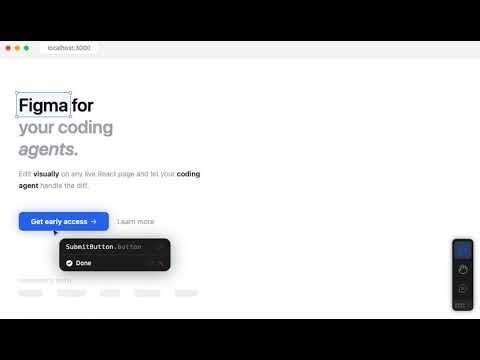
Select on the live page, stream context through MCP, and hand off to Cursor, Claude, or Codex, without leaving your workflow.
Quey toolbar turns your browser into a design surface for AI coding agents. The visual editing feel of Figma or Framer — except you're not editing a design file, you're editing your actual codebase. Quey connects your browser to Cursor, Claude Code, or OpenAI Codex, so pointing at an element and describing a change becomes a real commit to your source. Select a component on your live React app, type what you want ("make this button red", "add a loading spinner"), and the AI modifies the actual source file — not a preview, not a mockup. You see the result instantly via hot reload. No copy-pasting. No context-switching. No explaining which file to open. — HOW IT WORKS — 1. Hover over any element — Quey detects the React component name, file path, and line number automatically 2. Click to select, type your edit in plain English 3. Your coding agent reads the structured context and modifies the source file 3. See the change live on the page. Undo with one click if needed. — FEATURES — VISUAL ELEMENT SELECTION • Click any element to select it. The overlay shows the component name, file path, and tag. • Arrow Up/Down while hovering steps to the parent or child component. • React-aware: extracts component name, props, and source location from the fiber tree. INLINE TEXT EDITING • Double-click any text to edit it directly on the page. • Floating toolbar for font family, size, weight, color, alignment, spacing. • Apply sends the changes to your coding agent to update the source file. MOVE & LAYOUT TOOL • Drag elements between siblings to reorder them visually. • Tab toggles freeform mode for absolute positioning. • Resize handles, rotation, alignment snapping, and pixel grid. • Nudge with arrow keys (1px) or Shift+arrow (10px). • Apply all layout changes at once — your agent writes the CSS. ANNOTATION MODE • Pin comments, bugs, or todos to any element. • Markers persist across page refreshes. • Batch-send annotations to your coding agent for fixes. REGION SCREENSHOT CAPTURE • Draw a rectangle to capture any area of the page. • Screenshot is included with your AI prompt for visual context. AGENT PANEL • Stream agent responses in real time — see what files it reads, edits, and why. • Follow-up in the same session to iterate on changes. • Undo any session with one click (restores file state via git snapshot). • Track file diffs: see exactly which files changed and how many lines were added or removed. — WHO USES QUEY — • Frontend developers making visual tweaks — spacing, color, copy — without hunting for the file or writing the CSS by hand. • Teams pairing with AI coding agents (Cursor, Claude Code, Codex) who want "make this button bigger" to become an actual source change, not a chat message they have to translate. • Designers and PMs reviewing a live build who pin annotations directly on the page instead of writing up a ticket. • Solo builders iterating fast on a Next.js/Vite/React app who want the browser and the codebase to feel like one tool — WORKS WITH — • Cursor • Claude Code • OpenAI Codex • MCP servers — REQUIREMENTS — • React app running in development mode (Next.js, Vite, Create React App, Remix — any React setup) • A supported coding agent running locally • Node 18+ — KEYBOARD SHORTCUTS — • Escape — Cancel current action, or step back through undo/exit layers. • Arrow Up/Down — Navigate parent/child (while hovering, inspect mode) • Arrow keys — Nudge selected element 1px (Shift = 10px). • Tab — Toggle freeform move mode (with an element selected). • Ctrl+Z / Cmd+Z — Undo • Ctrl+Shift+Z / Ctrl+Y / Cmd+Shift+Z — Redo • Ctrl+Enter / Cmd+Enter — Apply inline text edit — PRIVACY — Privacy-first by design. The page content you select — elements, styles, screenshots — never leaves your machine except when you choose to send it to your coding agent. We track basic usage counts (for free-tier limits) and account status through our backend, but never your page data or captured content. — PRICING — Free: 5 AI sessions per day, full feature access. Pro: Unlimited sessions. Learn more at quey.dev
3 out of 51 rating
Details
- Version0.3.0
- UpdatedAugust 3, 2026
- FeaturesOffers in-app purchases
- Offered byddotdev
- Size219KiB
- LanguagesEnglish
- DeveloperAlele Donald Obote
10b waterstone house 13 central hill London SE19 1BG GBEmail
donaldalele@gmail.comPhone
+44 7398 473981 - TraderThis developer has identified itself as a trader per the definition from the European Union and committed to only offer products or services that comply with EU laws.
Privacy

Quey: Visual Editing Feel of Figma/Framer has disclosed the following information regarding the collection and usage of your data. More detailed information can be found in the developer's privacy policy.
Quey: Visual Editing Feel of Figma/Framer handles the following:
This developer declares that your data is
- Not being sold to third parties, outside of the approved use cases
- Not being used or transferred for purposes that are unrelated to the item's core functionality
- Not being used or transferred to determine creditworthiness or for lending purposes
Support
For help with questions, suggestions, or problems, please open this page on your desktop browser