

PrettifyMyWebApi for Microsoft Dataverse
평점 7개
)
개요
Open any row in the Dataverse Web Api and supercharge the output. Press to impress your coworkers!
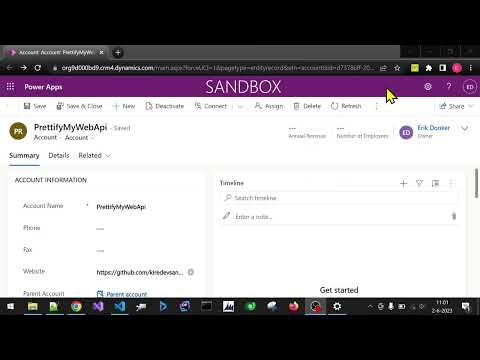
All of your rows can be quickly viewed and edited! Even when fields are not available on any form. Quickly view and edit Power Automate Flow definitions. How to use: - Click the extension button when viewing a form to open the current row in the Dataverse Web Api and prettify the output! - When viewing a 'solution-aware' flow in make.powerautomate.com, use the extension to open it in the Dataverse Web Api. Click the Edit Flow button in the top right to edit your flow definition! This is very convenient for renaming actions/variables or as a last measure for working around bugs, when the default flow UI just doesn't want to cooperate (Power Automate developers will relate to this). - When already viewing a row or query in the Dataverse Web Api, just use the extension to prettify! You no longer need to open your solutions to view the values for your Option Sets/Choices. Simply open the row and prettify the output. Browse to related rows for quick insights using the 'Preview' button on lookup columns. Update columns of a row by using the 'Edit this row' feature. Update text columns, Option Sets, numbers, lookups, etc. Very convenient for modifying data that is not available on a form. You also have the option to impersonate other users, skip custom plugins and skip Power Automate Flows when updating a row. Create new rows by using the 'Create new row' button. Browse related rows by using the 'View relationships' button. When viewing related rows, use the 'Disassociate this row' button to disassociate the row from the parent/related row. Quickly copy the contents of a column to your clipboard by hovering and clicking the copy button. You can prettify single rows, but also the results of your OData and FetchXml queries.
5점 만점에 5점평점 7개
세부정보
- 버전1.1.0.1
- 업데이트됨2025년 1월 9일
- 제공kiredevsandhacks
- 크기1.56MiB
- 언어English
- 개발자
이메일
erik1donker@gmail.com - 비판매자판매자로 식별되지 않은 개발자입니다. 유럽 연합에 거주하는 소비자의 경우, 이 개발자와 체결한 계약에 대해서는 소비자 권리가 적용되지 않을 수 있음을 유의해야 합니다.
개인정보 보호
개발자가 사용자 데이터에 관해 다음과 같이 선언했습니다
- 승인된 사용 사례를 제외하고 서드 파티에 판매하지 않음
- 항목의 핵심 기능과 관련 없는 목적으로 사용하거나 전송하지 않음
- 신용도 판단 또는 대출 목적으로 사용하거나 전송하지 않음
지원
질문, 제안 또는 문제와 관련하여 도움이 필요하면 데스크톱 브라우저에서 이 페이지를 여세요.