

Crispip (PiP Expert) - Picture-in-Picture
2 ratings
)
Overview
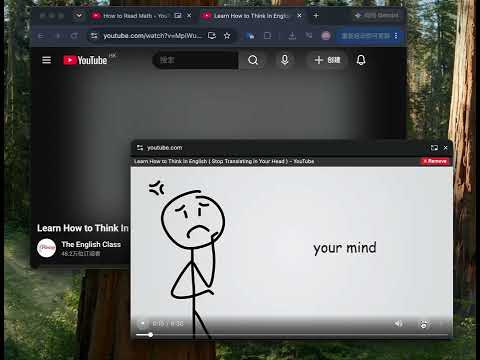
Multi-video PiP: merge videos from several tabs into a floating window for synced playback, plus a smart cross-site watch history.
━━━━━━━━━━━━━━━━━━━━━━━━━━━━━━━━━━━ 📺 Crispip (PiP Expert) · Watch Multiple Videos, Side by Side ━━━━━━━━━━━━━━━━━━━━━━━━━━━━━━━━━━━ Do any of these sound familiar? ▍Scenario 1: Taking an online course while checking the reference video You want to watch both, but you can only switch tabs. Rewind once to take notes, once to review, once to check a timestamp — every switch resets your position. Frustration guaranteed. ▍Scenario 2: A 5-video playlist you want to binge One tab per video, constant switching. Episode 2 auto-plays, but you weren't there to watch it. ▍Scenario 3: Learning a language with video + subtitle analysis side by side Two tabs, screen cut into pieces. You end up shrinking both, or sacrificing one. ▍Scenario 4: Want a floating window for a drama, but the browser allows only one Opening a second video closes the first. You're forced to choose. ━━━━━━━━━━━━━━━━━━━━━━━━━━━━━━━━━━━ ✨ Crispip solves all of this ━━━━━━━━━━━━━━━━━━━━━━━━━━━━━━━━━━━ Just click the extension icon once. The video you're watching gets extracted into a standalone floating window — the page stays open, the video keeps playing, and you can keep adding more. Add a second, a third, a fourth video. They all line up neatly inside the same floating window. Each one has its own play / pause, volume, seek bar, and playback speed controls. ────────────── 🎯 Core Capabilities ────────────── ✓ Merge multiple videos into one floating window Videos from different tabs appear side-by-side in one independent floating window. No more tab hopping. ✓ Four picture-in-picture layouts Arrange the videos however you like — an even grid, a big main picture with the rest along one side (Left L / Right L), or Both Sides with the main video in the middle. Right-click any card to switch; your choice is remembered. ✓ Auto-follow when the site switches to the next video Many online video platforms auto-play the next episode when the current one ends. The floating window follows seamlessly — no interruption, no reopening, no manual reload. ✓ Perfect for document workflows Word / Notion / Obsidian on the left, floating video window on the right. Drag, resize, or go fullscreen at any time. No more "I can't take notes while watching". ✓ Fullscreen Exclusive Mode Click "Fullscreen" on any card — it fills the entire window, and every other video is automatically paused. Exit, and they resume from exactly where they were. Perfect when you want to focus on one video. ✓ Keyboard shortcuts In fullscreen mode: ← / → Rewind or forward 5 seconds ↑ / ↓ Cycle through playing videos Jump between videos without touching the mouse. ✓ Right-click menu On any card, right-click to: · Mute all other videos · Pause all other videos · Remove all other videos Clean up instantly and focus. ✓ Auto mute & hide the source page video The extracted video won't play audio both on the page and in the floating window. No overlapping sound. Clean experience. ✓ Cross-site video history, stored locally Every video you open is remembered — title, link and length — gathered from every site into one searchable list. Filter it by site, jump back to any of them in a click. Kept on your device for 6 months; switch recording off anytime. ✓ Multi-language UI English, Simplified Chinese, Traditional Chinese, and Arabic (with RTL support). ────────────── 🧠 Why it beats the browser's built-in floating window ────────────── Built-in browser floating window: ✗ Only one video at a time ✗ Minimal controls (play/pause only) ✗ Adding a new video replaces the old one Crispip (PiP Expert): ✓ Multiple videos simultaneously ✓ Four picture-in-picture layouts (grid / left L / right L / both sides) ✓ Full custom control bar on every video ✓ Adding a new video stacks, not replaces ✓ Control other videos (mute / pause / remove) ✓ Fullscreen exclusive mode + keyboard shortcuts ────────────── 💡 More Real-World Scenarios ────────────── 📚 Learning · Watch a lecture and a demo video side by side · Grammar explanation + listening examples together · Programming tutorial + live output 🎬 Entertainment · Drama episode + reaction / commentary video · Live match + commentary stream · Binge a playlist without leaving the floating window 💼 Work · Side-by-side with Word / Excel / Notion · Code editor + tutorial video · PowerPoint + demo video 🎨 Creativity · Reference video + editing timeline · Design tutorial + Photoshop workflow · Dance choreography + practice ────────────── 🔒 Privacy & Security ────────────── · All video processing happens locally in your browser · Nothing is uploaded to any server · No account, no tracking, no ads · Only reads <video> elements on the current page — nothing else · Video history stays on your device — never uploaded, never synced ────────────── 🚀 Getting Started ────────────── 1. Open any page with a video 2. Click the "Crispip" icon in the toolbar 3. The video is extracted into a floating window 4. Switch to another tab, click the icon again 5. The second video stacks into the same window 6. Want to focus on one? Click its fullscreen button Looking for a video you watched earlier? Open the History page — every video you've opened, across every site, listed and searchable, stored on your device only. That's it. ━━━━━━━━━━━━━━━━━━━━━━━━━━━━━━━━━━━ Multiple videos. One window. Zero distraction. That's Crispip. ━━━━━━━━━━━━━━━━━━━━━━━━━━━━━━━━━━━
3 out of 52 ratings
Details
- Version2.2
- UpdatedOctober 14, 2026
- FeaturesOffers in-app purchases
- Offered byCrispTalk Dev
- Size228KiB
- Languages51 languages
- Developer
Email
superbabygg@gmail.com - Non-traderThis developer has not identified itself as a trader. For consumers in the European Union, please note that consumer rights do not apply to contracts between you and this developer.
Privacy

This developer declares that your data is
- Not being sold to third parties, outside of the approved use cases
- Not being used or transferred for purposes that are unrelated to the item's core functionality
- Not being used or transferred to determine creditworthiness or for lending purposes
Support
For help with questions, suggestions, or problems, please open this page on your desktop browser