


Overview
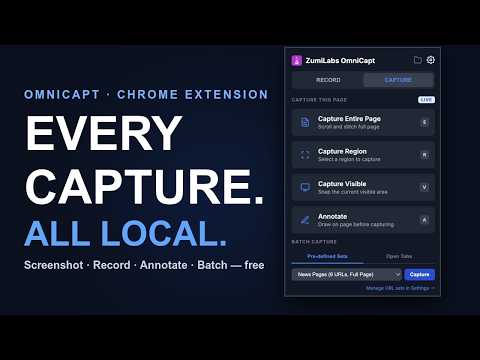
Full page screenshot tool and screen recorder. Annotate, crop, and batch-capture a whole sitemap or open tabs. 100% local & private.
OmniCapt is a local-first browser capture tool for QA engineers, accessibility specialists, developers, agencies, and product teams. Capture a single page — or a whole sitemap — automatically across multiple screen sizes, then organise, search, compare, and share the results. Everything runs locally in your browser and files are saved to your own file system. Complete privacy. KEY FEATURES 📸 Screenshots • Visible area, full-page (scroll-and-stitch), and region capture • Save straight to a local folder — no download prompts 🚀 Capture at Scale • Paste a list of URLs, or import a sitemap.xml • Captures every page automatically, one file per page • Capture all open tabs at once (by window or tab group) without switching focus • Save reusable URL Sets and Resolution Sets 📱 Multi-Resolution Capture • Desktop, tablet, mobile — and custom viewport sizes • Capture every page at every resolution automatically 🏷️ Smart File Naming • Customisable filename templates with dynamic tokens • Slashes auto-create sub-folders — sort captures by domain, path, date • Even name from page content: {{domain}}/{{path}}/{{year}}/{{dom:h1}}.png 🧾 Metadata & Search • Optional JSON sidecar next to every capture (URL, title, resolution, timestamp) • Plus scraped page metadata: description, keywords, author, Open Graph tags • Built-in file browser: thumbnail your whole library and search/filter by metadata 🔍 Image Comparison • Compare any two captures side-by-side, split, or with a slider-wipe • Review design changes between releases by eye 🎥 Screen Recording • Record browser tabs to WebM (tab audio + mic, on-screen timer, click ripples) • Built-in video merger to combine clips ✏️ Annotation Tools • Draw arrows, boxes, text and highlights on the page before capturing • Full undo/redo — create evidence for bug reports and audits 🧹 Pre-Capture Rules • Automatically hide or blur cookie banners, chat widgets and overlays • Blur sensitive data before the shot for cleaner, safer screenshots 📁 Local-First • No account, no external servers, no telemetry • Files stay on your machine — fast local processing 🔗 Optional Cloud Send • Push selected captures to your own endpoint (Jira, Slack, GitHub, S3, Drive…) • Off by default and hidden until you configure it; hosted option coming soon PERFECT FOR • Website QA and bug reporting • Responsive design reviews • Accessibility audits • Site migrations and SEO/metadata audits • Before-and-after visual spot-checks • Client deliverables, documentation and evidence packs Local first. Connected when you need it. HOW TO USE IT 1. Install the extension and pin it to your Chrome toolbar. 2. Click the OmniCapt icon or press Option+Shift+Q (Mac) / Alt+Shift+Q (Windows) to open the control panel. 3. Choose a capture mode (Entire Page, Visible, Region) or open Settings to configure URL Sets, Resolution Sets, and local folder sync. 4. Press Option+Shift+A (Mac) / Alt+Shift+A (Windows) at any time to open the drawing and annotation toolbar on the current page. PRIVACY & DATA DISCLOSURE Your data belongs to you. ZumiLabs OmniCapt runs entirely locally on your device. Your screenshots, video recordings, and configuration settings never leave your browser, are never uploaded to any servers, and are never sold to third parties. SUPPORT & FEEDBACK Found a bug or have a feature suggestion? Contact support at support@zumilabs.com or view the source repository at github.com/zumilabs/zumilabs-tools.
5 out of 54 ratings
Details
- Version4.5
- UpdatedJuly 14, 2026
- Size687KiB
- LanguagesEnglish (United Kingdom)
- DeveloperWebsite
Email
support@zumilabs.com - Non-traderThis developer has not identified itself as a trader. For consumers in the European Union, please note that consumer rights do not apply to contracts between you and this developer.
Privacy

This developer declares that your data is
- Not being sold to third parties, outside of the approved use cases
- Not being used or transferred for purposes that are unrelated to the item's core functionality
- Not being used or transferred to determine creditworthiness or for lending purposes
Support
For help with questions, suggestions, or problems, please open this page on your desktop browser