


Overview
Crop any photo to run a reverse image and face search — find a person by picture, or find where a photo was taken.
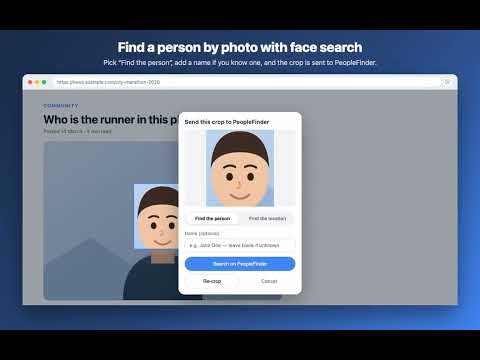
See a photo and want to know who is in it, or where it was taken? PeopleFinder lets you draw a box around any part of a web page and send just that crop to a search — without saving files or re-uploading anything by hand. Reverse image search, face search and photo location lookup, from wherever the picture already is. Two destinations, you choose on the preview card: • Find the person — face search in the PeopleFinder web app. • Find the location — the PeopleFinder photo location finder works out where the shot was taken. How to use it 1. Open any page with a photo. 2. Click the PeopleFinder icon, press Alt+Shift+S, or right-click the image and choose "PeopleFinder: find this person or where it was taken". 3. Drag a box around the face (or the scene) and review the crop. 4. Pick "Find the person" or "Find the location" — PeopleFinder opens and your crop is attached automatically. You stay in control: you start the search yourself. The extension only acts when you ask it to. It does not read pages in the background, does not run on sites until you trigger a crop, and never submits a search for you. A PeopleFinder account is used for the search itself at peoplefinder.app.
5 out of 51 rating
Details
- Version1.0.0
- UpdatedNovember 4, 2026
- Size25.46KiB
- LanguagesEnglish
- DeveloperDynatech Hub IncWebsite
350-889 Harbourside Dr, North Vancouver, BC V7P 3S1 CAEmail
dev@dynatechhub.ca - TraderThis developer has identified itself as a trader per the definition from the European Union and committed to only offer products or services that comply with EU laws.
- D-U-N-S243356739
Privacy

PeopleFinder: Face & Photo Location Search has disclosed the following information regarding the collection and usage of your data. More detailed information can be found in the developer's privacy policy.
PeopleFinder: Face & Photo Location Search handles the following:
This developer declares that your data is
- Not being sold to third parties, outside of the approved use cases
- Not being used or transferred for purposes that are unrelated to the item's core functionality
- Not being used or transferred to determine creditworthiness or for lending purposes
Support
For help with questions, suggestions, or problems, visit the developer's support site