


개요
Easily edit, annotate, eSign and transform any PDF from Google Drive into a fillable PDF form.
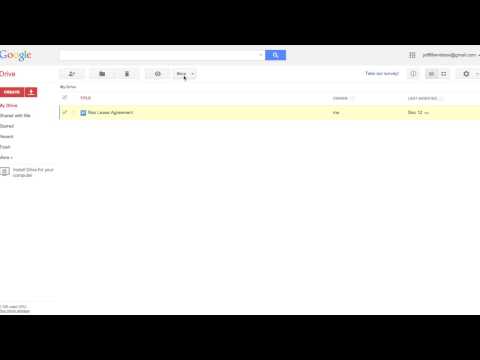
Save time, reduce processing costs and eliminate errors with the PDFfiller Google Drive add-on. Instantly edit, e-sign, share, fill out or convert any PDF or other document stored in Google Drive. Want to try PDFfiller for FREE? Get a 30-day free trial right now! With the PDFfiller add-on you can: - Edit, annotate and rewrite text, images and graphics in any native or scanned PDF from Google Drive - Blackout and erase sensitive information in a PDF - Merge multiple PDFs from Google Drive into a single document - Convert any PDF from Google Drive into Word, Excel or Powerpoint - Turn any document from Google Drive into an online fillable PDF form with smart fillable fields - Share a fillable PDF form via email, direct link, QR code or host it on your website to easily collect client data - Add your signature to any PDF from Google Drive - Send any PDF from Google Drive to be signed individually or by a group on any desktop or mobile device How to use: 1. After installing the add-on, you will be able to open documents in Google Drive. Right-click any supported file and select ‘Open with’ > ‘PDFfiller’ 2. Create a PDF document right from your Google cloud storage. Just click the ‘✚ New’ button, go to ‘More’ options, and select the PDFfiller app. The editor will then be opened. Once you've finished editing, click ‘Done’ and a newly-created PDF document will appear in your Google Drive. Files Supported: • PDF (.pdf) • Documents (Microsoft Word, Google Docs, RTF, TXT) • Powerpoint (Microsoft Powerpoint, Google Slides) ***Please note that you must register for a free PDFfiller account to save your edited PDF document. A paid subscription plan is required to use some PDFfiller features.*** It’s easy to edit, e-sign, convert, print and fax PDFs while on the go with the PDFfiller app for iPhone and Android devices. For support, visit https://www.pdffiller.com/en/support.htm Subscribe to our blog https://blog.pdffiller.com/ Follow us on Twitter: @pdf_filler Like us on Facebook: facebook.com/pdffiller
5점 만점에 1.7점평점 2.2천개
세부정보
개인정보 보호
지원
질문, 제안 또는 문제와 관련하여 도움이 필요하면 데스크톱 브라우저에서 이 페이지를 여세요.