

ShikshaSetu: Clipper, Autofiller and AI

Overview
ShikshaSetu: Clipper, Autofiller and AI assistance
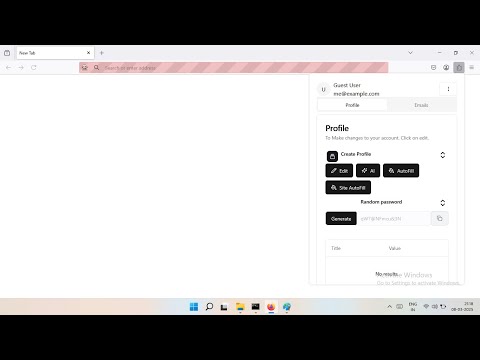
https://youtu.be/JO8xzBurD2U Shikshasetu: Autofill & Clipper The Shikshasetu: Autofill & Clipper Web Extension is a powerful and easy-to-use tool for managing your form autofill data across multiple browsers and devices. With this extension, you can save, edit, fill, and sync your autofill information seamlessly in both Chrome and Firefox browsers. Features Save Autofill Data: Automatically save form data like addresses, emails, payment details, and more. Edit Autofill Entries: Easily manage and update saved form data directly within the extension. Fill Forms Automatically: Autofill forms with your saved data across websites and online services. Cross-Browser Sync: Sync your autofill data between Chrome and Firefox browsers across all your devices. Device Sync: Sync autofill information between devices to keep your data consistent everywhere. Build from Source Requirements Node version: v20.13.1 npm version: 10.5.2 Operating System: Windows 11 Steps Install node_modules npm install Build for Firefox npm run build:firefox Firefox extension is in build directory Installation Chrome Desktop and Kiwi Browser Method 1 Open the Chrome Web Store in your browser. Search for Shikshasetu: Autofill & Clipper. Click Add to Chrome. Confirm the installation by clicking Add Extension. Once installed, the extension icon will appear in your browser’s toolbar. Method 2 Download the chrome extension zip file from releases section. Extract the zip file Open Chrome Browser and navigate to chrome://extensions Enable the developer mode Click on Load Unpacked Choose the extracted extension zip file Firefox Desktop and Firefox Mobile Open the Firefox Add-ons page. Search for Shikshasetu: Autofill & Clipper. Click Add to Firefox. Follow the prompts to install the extension. Once installed, the extension icon will appear in your browser’s toolbar. Setup & Usage Sync Across Devices Sign In: After installation, sign in with your account (create a new one if necessary). Enable Sync: Go to the extension settings and enable sync. This will allow your autofill data to be synced across all your devices and browsers. Sync Autofill Data: Your saved autofill data will automatically sync and be available across all devices where the extension is installed. Saving Autofill Data Save New Data: When you fill out a form, the extension will prompt you to save the information for future use. Edit Saved Data: To edit or update saved entries, click the extension icon, navigate to Saved Data, and make the necessary changes. Autofill Forms Fill Forms: When visiting a website with saved form fields, the extension will automatically suggest autofilling the fields. You can choose to autofill or fill them manually. Custom Autofill Settings: Customize the fields to be filled by accessing the extension settings. You can choose to autofill specific fields like names, emails, addresses, etc. Troubleshooting Sync Issues: If sync is not working, ensure you're signed into the same account across all devices. Check your internet connection and ensure the sync option is enabled in the settings. Form Not Autofilling: If autofill is not working as expected, check that the form fields match the saved data. Manually editing the saved data may help resolve any issues. License Shikshasetu: Autofill & Clipper Web Extension is licensed under the MIT License. This extension is also available for Edge Browser https://microsoftedge.microsoft.com/addons/detail/shikshasetu-clipper-aut/imimkhefmjccadhfifdnjakednbdendm
0 out of 5No ratings
Details
- Version1.1.0
- UpdatedNovember 16, 2026
- Offered byChitranjan Kumar Gupta
- Size745KiB
- Languages4 languages
- Developer
Email
chitranjankumargupta123@gmail.com - Non-traderThis developer has not identified itself as a trader. For consumers in the European Union, please note that consumer rights do not apply to contracts between you and this developer.
Privacy

This developer declares that your data is
- Not being sold to third parties, outside of the approved use cases
- Not being used or transferred for purposes that are unrelated to the item's core functionality
- Not being used or transferred to determine creditworthiness or for lending purposes