

PaperPod — AI Podcast for Research
1 rating
)
Overview
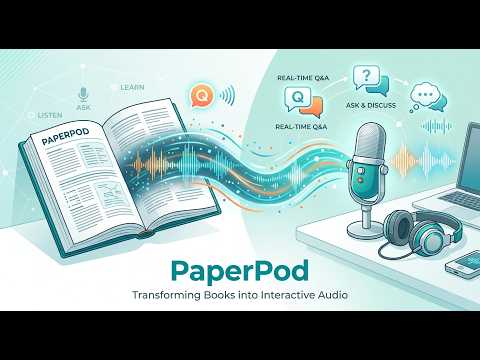
Convert PDFs, images, and webpages into AI-generated podcasts. Right-click to upload, listen, and ask follow-up questions.
Turn anything you read into a podcast PaperPod converts the webpage, PDF, image, or text in front of you into a natural, two-host audio conversation that explains the key points — so you can absorb dense material while commuting, walking, or resting your eyes. The problem it solves: Research papers, reports, and long articles pile up faster than you can read them. PaperPod lets you listen to them instead — as an engaging back-and-forth discussion, not a robotic text-to-speech readout — and ask questions when something isn't clear. What it does: Right-click a page (or open the popup to upload a PDF/image/text) and PaperPod generates a podcast episode where two AI hosts discuss and explain the content. Listen in your browser, download the audio, or open the built-in Q&A to ask follow-up questions about what you just heard. How to use: 1. Click the PaperPod icon in your toolbar to open the app 2. Upload a PDF, image, or paste text 3. Wait a few moments while AI generates the podcast 4. Listen, download, or ask follow-up questions in the built-in Q&A chat panel Right-click anywhere on the web: • Right-click any image → "Upload image to PaperPod" • Highlight text, right-click → "Create podcast from selected text" • Right-click a file link → "Upload file to PaperPod" • Right-click on any page → "Create podcast from this page" to extract page text What makes it different: • Two-host conversation, not flat text-to-speech — the content is explained, discussed, and made engaging • Send content in one right-click from any page — no copy-pasting into a separate app • Built-in Q&A: ask follow-up questions about the document after listening • No signup or login required — just upload and go • Supports PDFs, images (with OCR), pasted text, and direct file links Use cases: • Students listening to research papers while commuting • Professionals reviewing reports during travel • Researchers converting long articles into digestible audio • Anyone who prefers audio over reading
5 out of 51 rating
Details
- Version1.2.0
- UpdatedAugust 25, 2026
- Offered byPushkal Shukla
- Size35.19KiB
- LanguagesEnglish (United States)
- DeveloperPushkal Shukla
HSR Layout Bangalore, Karnataka 560102 INEmail
pushkalshuk@gmail.com - Non-traderThis developer has not identified itself as a trader. For consumers in the European Union, please note that consumer rights do not apply to contracts between you and this developer.
Privacy

PaperPod — AI Podcast for Research has disclosed the following information regarding the collection and usage of your data. More detailed information can be found in the developer's privacy policy.
PaperPod — AI Podcast for Research handles the following:
This developer declares that your data is
- Not being sold to third parties, outside of the approved use cases
- Not being used or transferred for purposes that are unrelated to the item's core functionality
- Not being used or transferred to determine creditworthiness or for lending purposes
Support
For help with questions, suggestions, or problems, please open this page on your desktop browser