

Ollama Lens
Overview
AI browser assistant using local Ollama models to analyze and answer questions about webpage text, images, charts, and diagrams
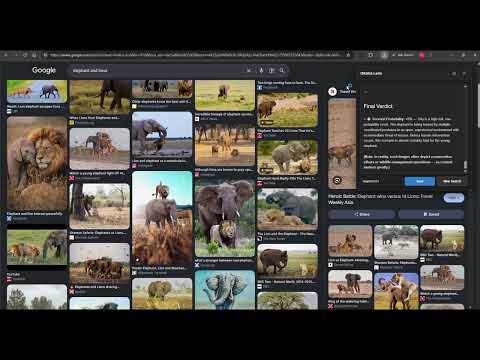
Ollama Lens – Your Local AI Browser Assistant See it. Select it. Understand it. Ollama Lens brings the power of local AI directly into your browser. It allows you to select webpage content, capture areas of a page, and ask questions about what you see using AI models running locally through Ollama. Unlike browser assistants that depend on cloud-based AI services, Ollama Lens is designed to work with your own local models. This makes it ideal if you want to experiment with smaller language and vision models (approximate 0.8–4 GB range), while fully supporting larger models if your hardware allows. You choose the model. You control the setup. Your AI runs locally. ✨ Key Features Local AI Integration: Powered entirely by your local Ollama setup with zero cloud dependencies for inference. Text Analysis: Select any webpage text to explain, summarize, translate, or extract key facts. Visual Capture & Analysis: Capture a region of any webpage to examine objects, scenes, and details with a local vision model. Charts, Tables & Diagrams: Investigate data points, trends, and technical illustrations directly in your browser. Multilingual Support: Translate foreign text, idioms, and cultural expressions. Custom Prompts: Go beyond presets and give your model custom instructions for any task. 🚀 What Can You Do With Ollama Lens? 1. Ask Questions About Webpage Text Select text on any webpage to: Explain difficult or unfamiliar information. Summarize articles, documents, and passages. Answer questions and extract key points. Clarify technical terminology or simplify complex explanations. 2. Capture and Understand Images Capture any region of a webpage and ask your local vision model about it: Describe what appears in an image and identify visible objects. Interpret diagrams, illustrations, and visual situations. Discuss possible details or context based on what is visible. 3. Analyze Charts, Tables, and Diagrams Investigate data visually: Find highest or lowest values and observe trends in charts. Explain information packed inside data tables. Break down components of flowcharts and technical illustrations. 4. Translate and Interpret Foreign Content Translate foreign-language text seamlessly. Interpret proverbs, idioms, and cultural references with added context. 🛠️ Getting Started Step 1 – Install Ollama Make sure Ollama is installed and running on your computer. Download it from the official website and grab a model that supports your tasks (including a vision model for screenshots). Step 2 – Connect Ollama to Ollama Lens Your browser extension needs permission to communicate with your local Ollama API. Recommended (Easy): Use Ollama Local Bridge <https://payhip.com/b/HlqFf> to configure the connection automatically. Manual Setup: If you prefer not to use the bridge, open Windows PowerShell and start Ollama with allowed origins: PowerShell $env:OLLAMA_ORIGINS="chrome-extension://<extension id>" ollama serve (Keep the PowerShell window open while using the extension). Step 3 – Start Using Ollama Lens Open Chrome, select the extension, highlight text or capture a screen area, enter your prompt, and let your local model do the rest! 🔒 Privacy & Local Processing Your selected model processes requests locally on your computer rather than sending data to a cloud AI service, giving you complete control over your environment and data privacy. 📋 Requirements Google Chrome or a compatible Chromium-based browser Ollama installed and running locally A compatible Ollama model (plus a vision model for screenshot analysis) Ollama configured to accept requests from the browser extension
0 out of 5No ratings
Details
- Version0.0.0.2
- UpdatedNovember 8, 2026
- Offered byOshxo Dev
- Size35.61KiB
- LanguagesEnglish (United Kingdom)
- Developer
Email
oshxo.dev@gmail.com - Non-traderThis developer has not identified itself as a trader. For consumers in the European Union, please note that consumer rights do not apply to contracts between you and this developer.
Privacy

This developer declares that your data is
- Not being sold to third parties, outside of the approved use cases
- Not being used or transferred for purposes that are unrelated to the item's core functionality
- Not being used or transferred to determine creditworthiness or for lending purposes