

Slides Hotkeys

Overview
Draw and format in Google Slides with simple keyboard shortcuts.
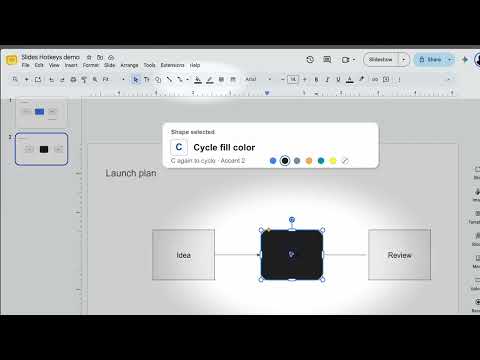
Place shapes and change their colors without ever touching the toolbar. Press R for a rectangle, T for a text box, or A for an arrow. Press again to cycle between modes, such as rectangle → rounded rectangle. A small hint beside the pointer shows what you will draw. Shortcuts are configurable! Select an object and press C to cycle through the presentation's theme fills, including no fill. B cycles border colors, including no border; W and D cycle border weight and dash style. New shapes reuse the styles you chose for that drawing mode, even after you reload the presentation. When text is selected, F changes font color, H cycles theme fonts, and S changes font size. Other keys cover ovals, lines, geometric shapes, and arrow ends. Press ? for the shortcut guide inside Slides. The settings page lets you change keys, turn pointer hints or single-key shortcuts on or off, and clear saved drawing styles. Letter shortcuts pause while you type in a text box or speaker notes. While editing slide text, hold Option on Mac or Alt on Windows to use font shortcuts. Slides Hotkeys works in Chromium browsers, including Arc, and currently expects Google Slides' English controls. It stores settings in your browser and does not send slide content to a developer server.
0 out of 5No ratings
Details
- Version0.11.6
- UpdatedSeptember 30, 2026
- Size46.61KiB
- LanguagesEnglish
- Developer
Email
danielappsupport@gmail.com - Non-traderThis developer has not identified itself as a trader. For consumers in the European Union, please note that consumer rights do not apply to contracts between you and this developer.
Privacy

This developer declares that your data is
- Not being sold to third parties, outside of the approved use cases
- Not being used or transferred for purposes that are unrelated to the item's core functionality
- Not being used or transferred to determine creditworthiness or for lending purposes