


Overview
Chat with PDFs & get AI summaries. Edit, merge, split, compress, convert JPG to PDF, sign, protect & redact. Free, nothing uploaded.
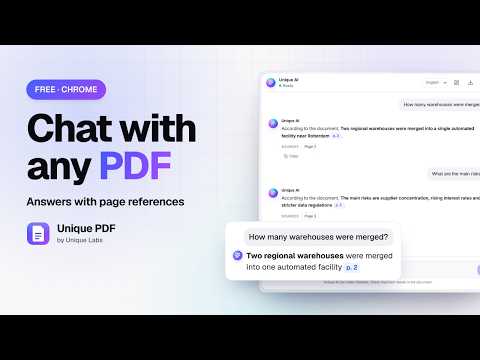
Unique PDF is a free PDF editor for Chrome that works entirely in your browser. Chat with your documents using Unique AI, get a clear summary of a long report in seconds, and handle everyday PDF jobs in one place: combine files, split them apart, shrink large documents, add your signature, protect files with a password and permanently black out private information. Your files are never uploaded, there is no account to create, and nothing is added to your documents. WHY PEOPLE CHOOSE UNIQUE PDF Most online PDF services ask you to upload your files to someone else's server, limit how many tasks you can run each day, or stamp a watermark on the result unless you pay. Unique PDF takes a different approach. Every tool runs inside your own browser tab, so your contracts, bank statements, medical letters and school work stay on your computer. It keeps working when you are offline, it has no daily limits, and every feature is free. • Private by design: documents are processed on your computer and never sent anywhere. • Free for real: no subscription, no sign-up, no watermarks and no daily task limits. • Works offline: once installed, the tools work without an internet connection. • Fast: files open instantly, and documents with hundreds of pages are handled smoothly. • Simple: drag a file onto the window and Unique PDF suggests the right tool. CHAT WITH YOUR PDF USING UNIQUE AI Ask a question in plain language and Unique AI reads the document and answers in seconds. Every answer shows the page it comes from, so you can click the page reference and check the original text for yourself. Ask follow-up questions and the conversation keeps its context. If you are not sure where to start, pick one of the suggested questions, which adapt to the kind of document you opened, such as a contract, a report or a research paper. You can stop an answer, ask for a new one, copy it, or export the whole conversation as a text file. Replies can be written in English, Spanish or Japanese. Long documents work too: Unique AI looks for the passages that best match your question and answers from those. AI SUMMARY IN SECONDS Turn a long report, paper or manual into something you can read in a minute. Choose the style you need: key points, a short overview, a teaser or a one-line headline. Pick a length, choose the language, and optionally tell Unique AI what matters to you, for example deadlines, costs or risks. You can summarize the whole document or only some pages, then copy the result or save it. TOOLS FOR EVERYDAY PDF WORK Unique PDF brings 20 tools together in one tab, grouped so you can find what you need quickly. Organize your pages • Merge several files into one and arrange them in the order you want. • Split a document into single pages, custom ranges, equal parts or new files that start at the pages you pick. Several results download together as one archive. • Organize pages from several documents in one workspace: drag pages into a new order, rotate them, delete the ones you do not need and save a single new file. • Rotate, reorder, delete or extract pages with dedicated tools when you only need one quick change. Convert and compress • Compress large documents to make them easier to email and share. Images inside the file are optimized while text stays sharp and searchable. • Turn photos, scans and screenshots into a tidy PDF with the page size and margins you choose. Phone photos are rotated the right way automatically. • Save the pages of a document as images at the resolution you need. Edit and sign • Add text, freehand drawings, highlights, shapes, arrows and pictures, with undo and redo. • Sign documents by drawing your signature once and placing it on any page. • Add a watermark made of text or an image, with control over transparency, angle, position and repetition. • Number your pages in several styles, choose where the numbers appear and which number to start from. Protect and clean up • Protect a document with strong password encryption and decide whether others may print, copy or change it. • Remove a password from a document when you know the password. • Redact sensitive information for good. Search for names, numbers or any word, or draw boxes over areas by hand. The covered content is removed from the file, not just hidden, and Unique PDF checks the result for you. • View, edit or remove document details such as title, author and subject. WHO IT IS FOR • Students and researchers who want the main points of a long paper, or quick answers about a chapter, before a deadline. • Professionals who review contracts, reports and proposals and need to find a clause, a number or a date without reading every page. • Anyone handling personal paperwork, such as tax forms, rental agreements or medical letters, who would rather not upload private files to a website. • Teams and freelancers who regularly combine, sign, compress and send documents and want one reliable tool for all of it. PRIVACY IN DETAIL Unique PDF asks Chrome for a single permission: storing your settings on your computer. It has no access to the websites you visit, your browsing history or your other tabs. The extension contains all of its code, so nothing is downloaded while you work, and there is no analytics or tracking of any kind. Passwords you type are used only for the task at hand and are never saved. HOW TO USE UNIQUE PDF 1. Add Unique PDF to Chrome and pin it to the toolbar so it is always one click away. 2. Click the Unique PDF icon and choose Open Unique PDF, pick a tool from the quick menu, or press Alt+Shift+P. 3. Choose a tool, then drag your files onto the page or click Choose files. 4. Adjust the options on the right. A preview shows what you will get wherever it helps. 5. Click the main button, then download the new file. Your original file is never changed. Tip: drop files anywhere on the home screen and Unique PDF suggests the tools that fit, or drop them straight onto a tool card. Press Ctrl+K (Cmd+K on Mac) to search for any tool by name. How to chat with a PDF 1. Open Chat with PDF and add your document. 2. Type a question, or click one of the suggested questions. 3. Read the answer and click a page reference to see that page next to the chat. 4. Ask follow-up questions, or export the conversation when you are done. How to summarize a PDF 1. Open AI Summary and add your document. 2. Choose a style, a length and a language. Add a focus if you want. 3. Click Summarize with AI, then copy or download the summary. How to merge PDF files 1. Open Merge PDF and add two or more files. 2. Drag the files into the order you want, or use the arrow buttons. 3. Click the Merge button and download the combined document. How to make a PDF smaller 1. Open Compress PDF and add your document. 2. Choose a compression level. Balanced is recommended for most files. 3. Click Compress PDF and see how much space you saved before you download. How to sign a PDF 1. Open Sign PDF and add your document. 2. Draw your signature on the pad. 3. Drag it into place, resize it, and click Save PDF to download the signed copy. How to redact a PDF 1. Open Redact PDF and add your document. 2. Search for the words you want to remove, or draw boxes over areas. 3. Review the marked areas, click Redact and confirm. Unique PDF then verifies that the text is gone. FREQUENTLY ASKED QUESTIONS Is Unique PDF really free? Yes. Every tool is free, with no trial period, no paid plan, no daily limits and no watermark on your files. If you would like to support development, there is an optional donation page. Are my files uploaded anywhere? No. Your documents are processed inside your browser on your own computer. They are never sent to Unique Labs or to any other server, and the extension is built so that the browser blocks any attempt to send data out. Does Unique PDF work offline? Yes. After installation, all the PDF tools work without an internet connection. What do I need for Unique AI? Chat with PDF and AI Summary use the AI built into Chrome. They need desktop Chrome 138 or newer on a computer that Chrome supports for its built-in AI. The first time, Chrome may need to set up its AI model, and Unique PDF shows the progress. On other computers, chat works as a clearly labelled text search that points you to the right pages, and a quick summary without AI picks out the most important sentences. Can Unique AI make mistakes? Yes, like any AI. That is why every answer shows its page references. Please check important details against the document. Can I change the existing text in a PDF? The editor adds new content on top of the page, such as text, drawings, shapes and images. It does not rewrite text that is already in the document. To replace a word, you can cover it with a white rectangle and type the new text on top. Can I open password-protected PDFs? Yes, when you know the password. Unique PDF asks for it and then lets you use the document in any tool. It never tries to guess or bypass passwords. Is redaction permanent? Yes. Redacted areas are removed from the file rather than covered with a black box, so they cannot be copied, searched or recovered. Unique PDF also removes hidden information such as document details, and checks the result after redacting. Does Unique PDF work with scanned documents? You can merge, split, compress, sign and protect scanned documents like any other. Chat and summaries need selectable text, so they cannot read pages that are only scanned pictures yet. Text recognition is on our roadmap. Will compressing a file reduce its quality? Compression mainly makes large images inside the file smaller, while text and line drawings stay sharp. You can choose a gentler level to keep more image detail. The strongest setting turns pages into images for the smallest possible file and tells you clearly before you use it. Does Unique PDF change my original files? No. Every tool creates a new file, and your originals are only read. Where are my files saved? In your Downloads folder, or wherever you choose if you turn on "Ask where to save each file" in Settings. What does Unique PDF store on my computer? Only your settings and, if you leave it switched on, a short list of recent file names and sizes, never their contents. You can clear everything in Settings at any time. Which permissions does it need? Only permission to store your settings on your computer. Unique PDF cannot read or change the websites you visit. Can I work with several files at once? Yes. Merge and Organize accept several documents at once, and you can turn many photos into one PDF in a single step. Split results are delivered together in one download. Does it work on Windows, Mac, Linux and Chromebook? Yes. Unique PDF works wherever desktop Chrome runs. Unique AI depends on whether Chrome offers its built-in AI on your computer. Is there a file size limit? Unique PDF sets no limit of its own. Very large documents depend on your computer's memory, and documents with hundreds of pages are handled comfortably. Are there keyboard shortcuts? Yes. Alt+Shift+P opens Unique PDF in a tab, Alt+Shift+U opens the quick menu, and Ctrl+K (Cmd+K on Mac) searches for any tool. You can change the extension shortcuts in Chrome's settings. Does it support dark mode? Yes. Choose light, dark or match your system, from the sidebar, the toolbar popup or Settings. How do I report a problem or suggest a feature? Use the links on the About page or the Donate page to reach the developer. Suggestions are always welcome. ABOUT Unique PDF is made by Unique Labs and developed by Shahriar Ahmed (www.shahriarahmed.net). Our goal is simple: useful technology that is accessible to everyone. If Unique PDF saves you time, a review on the Chrome Web Store helps other people find it.
0 out of 5No ratings
Details
- Version1.2.0
- UpdatedNovember 8, 2026
- Size2.86MiB
- LanguagesEnglish
- DeveloperUnique LabsWebsite
#942, Shakila Tower Ashkona (Uchartek Water Pump Road), Dakshinkhan Dhaka 1230 BDEmail
shahriar.bmb@gmail.com - Non-traderThis developer has not identified itself as a trader. For consumers in the European Union, please note that consumer rights do not apply to contracts between you and this developer.
Privacy

This developer declares that your data is
- Not being sold to third parties, outside of the approved use cases
- Not being used or transferred for purposes that are unrelated to the item's core functionality
- Not being used or transferred to determine creditworthiness or for lending purposes
Support
For help with questions, suggestions, or problems, please open this page on your desktop browser