

ElementShot — Element Screenshot Tool

Overview
Pick any UI element on any site. Pixel-perfect PNG export, copy, and download. 100% local.
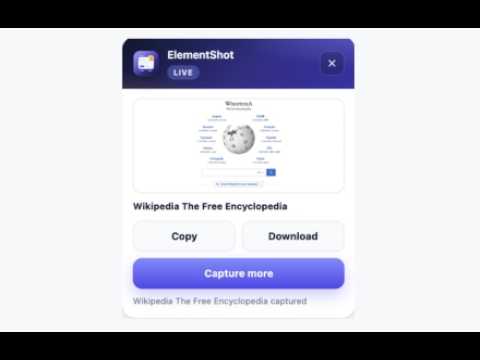
ElementShot - Capture Any Webpage Element into a PNG transparent image. Capture individual UI elements directly from your browser with ElementShot. Select a button, card, modal, navigation bar, dashboard panel, or any other page element and save it as a PNG. ElementShot captures the rendered appearance of your website, helping you create accurate screenshots without manually cropping full-page captures or rebuilding interfaces in design tools. Key Features -Capture Individual Elements Hover over a webpage and select the element you want to capture. Use keyboard shortcuts to refine your selection and target parent or child elements. -Instant Preview View your captured element immediately. Each screenshot is automatically named, so you can keep working without interrupting your workflow with unnecessary dialogs. -Copy and Download Copy screenshots to your clipboard or download them as PNG files. Capture multiple elements from the same panel and download several screenshots together as a ZIP archive. -Accurate Visual Capture Capture the browser-rendered appearance of your interface, including its fonts, colors, gradients, spacing, and layout. -Iframe Support Select the browser frame or embedded iframe you want to capture. This is particularly useful for embedded applications, dashboards, and other interfaces displayed inside webpages. -Local Processing and Privacy ElementShot processes captures locally in your browser. Screenshots are not uploaded to an ElementShot server, and the extension does not require an account. Who Is ElementShot For? -Developers and Agencies Capture individual components from embedded applications, or top frames, create product visuals without recreating the interface in design software. -SaaS Founders and Product Teams Capture interface components from staging or production environments for landing pages, product updates, release announcements, and internal documentation. -Technical Writers and Developer Advocates Create consistent screenshots of dashboards, developer tools, API consoles, and other interfaces for documentation, tutorials, and README files. -Customer Support Teams Prepare visual instructions and troubleshooting guides using screenshots of the actual interface. -Designers and Freelancers Collect UI references, document interface details, and capture individual components during design reviews and website audits. Why Use ElementShot? Traditional screenshots often include unnecessary content that must be cropped manually. ElementShot lets you select the specific interface element you need and export it directly. The result is a faster workflow for creating focused, reusable screenshots of real webpages. Getting Started 1. Install ElementShot and pin it to your Chrome toolbar. 2. Open the website you want to capture. 3. Click the ElementShot icon. If multiple frames are available, select the relevant page or iframe. 4. Hover over the interface and select the element you want to capture. 5. Preview the result, then copy it or download it as a PNG. 6. Repeat the process to capture additional elements or download multiple screenshots together. Frequently Asked Questions Does ElementShot upload my screenshots? No. Screenshots are processed locally in your browser and are not uploaded to an ElementShot server. Can I capture a specific div, card, or section? Yes. Select an element directly on the webpage and refine your selection to target the appropriate parent or child element. Can I capture content inside an iframe? Yes. Use the frame selector to choose a supported embedded frame before selecting an element to capture. Does ElementShot work only with some embedded iframes? No. ElementShot is designed for websites and web applications generally. Embedded applications are one of its supported use cases. How can I save a screenshot? You can copy the captured image to your clipboard, download it as a PNG, or download multiple captures together as a ZIP archive. Privacy ElementShot processes screenshots locally and does not operate a screenshot hosting service. For information about the extension’s permissions and data handling, please refer to the privacy policy linked in this listing. Support For assistance or feedback, use the support contact provided on this listing.
0 out of 5No ratings
Details
- Version1.0.0
- UpdatedOctober 30, 2026
- Offered byMultiflyTech Pvt. Ltd.
- Size120KiB
- LanguagesEnglish
- Developer
Email
shubu.techdev@gmail.com - Non-traderThis developer has not identified itself as a trader. For consumers in the European Union, please note that consumer rights do not apply to contracts between you and this developer.
Privacy

ElementShot — Element Screenshot Tool has disclosed the following information regarding the collection and usage of your data. More detailed information can be found in the developer's privacy policy.
ElementShot — Element Screenshot Tool handles the following:
This developer declares that your data is
- Not being sold to third parties, outside of the approved use cases
- Not being used or transferred for purposes that are unrelated to the item's core functionality
- Not being used or transferred to determine creditworthiness or for lending purposes
Support
For help with questions, suggestions, or problems, please open this page on your desktop browser