


Overview
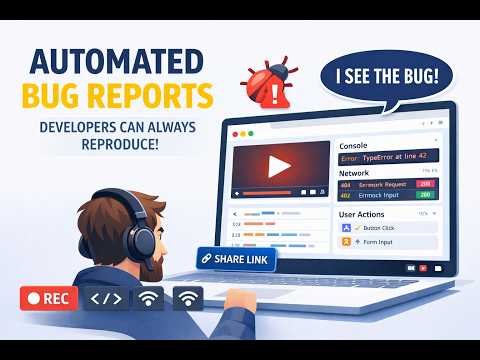
Every bug report includes a screen recording, console errors, network requests, and user actions — all synced in one shareable link.
Record a bug. Send a link. No "can't reproduce" ever again. Every bug report includes a screen recording, console errors, network requests, and user actions — all synced in one shareable link. WHAT IT IS PlayLog is a Chrome extension that records your browser session and captures everything needed to reproduce a bug: - Screen video of the tab or full desktop - All network requests with full request and response bodies - Console errors and warnings with stack traces - A timestamped log of every click, input, and page navigation When recording ends, you get one shareable link. The recipient opens an interactive session replay — video synced with all debug data — without needing an account. No code changes to your app. No SDK. Works on any website including localhost. THE PROBLEM IT SOLVES You spend more time reproducing bugs than fixing them. A teammate sends a screenshot and writes "it's broken." You ask which endpoint failed. They don't know. You ask what the server responded. They closed the tab. You ask what was in the console. Gone. PlayLog eliminates that loop. Instead of a screenshot and a conversation, you get one link with: - The exact HTTP response that caused the error - The console stack trace with file and line number - The sequence of actions that led there - A video of the whole thing, synchronized to the event timeline WHAT GETS CAPTURED IN EVERY RECORDING Video - Screen capture of the active browser tab or full desktop - Optional microphone audio - Stays in sync with all captured events during replay Network requests - Every fetch and XHR call: URL, method, HTTP status, timing - Full request headers and request body - Full response headers and response body - Background requests from service workers that are invisible in the page's own DevTools Console output - All JavaScript errors, warnings, and logs - Full message text, stack trace, file name, and line number for each entry User actions - Every click with the CSS selector and text of the element clicked - Every input field change with the field label and value - Every scroll event - Every page navigation and SPA route change with the destination URL Session context - Page URL, viewport size, browser version, OS, recording timestamp ONE THING CHROME DEVTOOLS CANNOT DO In Chrome's Network tab you can right-click a request and select "Copy as cURL." That copies the request. It does not include the response body. PlayLog records both during the session. In the replay viewer you can copy any network request as: - cURL command only - cURL command + request body - cURL command + response body - cURL command + request body + response body One click. The complete round-trip is ready to paste into a terminal, a GitHub issue, or an AI assistant. This matters most when debugging a 500 error or a malformed API response - you do not need to reproduce the call manually because the response is already there. THE DEBUG REPORT Every session has a "Copy for debug" button. It generates a complete plain-text report: 1. Each user action as a numbered step with a timestamp 2. Network requests and console errors grouped under the action they followed, within a 3-second window 3. The full cURL command for every request, with request and response bodies formatted as JSON The output is ready to paste directly into a GitHub issue, a Jira ticket, a Linear issue, or an AI chat. No reformatting needed - whoever reads it has complete context to understand and fix the bug without asking follow-up questions. Sessions also get an automatically generated title that summarizes what happened, so you can find them later without watching the video. HOW IT WORKS 1. Click the PlayLog icon in the Chrome toolbar. 2. Choose recording area: current tab (silent, no system UI captured) or full desktop. 3. Press Start Recording. A 3-second countdown appears on the page. 4. Recording runs in the background. The popup can be closed. A small overlay bar stays on the page. 5. Use the overlay bar to pause, annotate the screen, blur sensitive fields, or stop recording. 6. When you stop, a review panel opens. Add a comment, select a project, and click Create. 7. The shareable link is copied to your clipboard automatically. Paste it wherever you report bugs. TOOLS AVAILABLE DURING RECORDING Annotation - Draw directly on the screen to mark where the bug is visible - Freehand drawing with smooth pen feel and a 12-color palette - Annotations appear in the video recording Blur - Hover over any page element and click to blur it before or during recording - Useful for hiding passwords, personal data, or internal information before sharing the link - Click again to unblur Pause and resume - Freeze the video capture without ending the session - Useful for navigating to a different state before continuing the recording SESSION REPLAY VIEWER The viewer shows video on the left and a synchronized panel on the right with four tabs. Network tab - All requests listed with method, URL, status code, and timing - Click any request to see full headers, request body, and response body - Filter by type: XHR, fetch, JavaScript, CSS, images, media, fonts, documents - Copy any request as cURL with or without request and response bodies Console tab - All errors, warnings, and logs with timestamps - Filter by severity: errors only, warnings, all - Click any entry to jump to that moment in the video Actions tab - Step-by-step timeline of every click, navigation, and input - Related network requests and console errors shown under each step - Click any step to seek the video to that point Info tab - Page URL, browser, operating system, viewport size, timestamp TEAMS AND PROJECTS - Sessions are organized into projects - Invite team members with Owner, Admin, or Member roles - Each project has an API key for programmatic session creation - Session visibility control: public, link-only, or private - Free plan includes a set number of recordings per month (kept for 3 days) - Pro and Team plans extend duration limits, session count, and retention NO INSTALLATION IN YOUR APP REQUIRED PlayLog works on any website without touching your codebase. No script tags. No SDK. No configuration file. Install the extension, allow recording on the sites you work on, and start. This means it also works on staging environments, third-party tools, and production sites you do not control. PERMISSIONS USED AND WHY - tabCapture and desktopCapture: record video from the browser tab or screen - scripting: inject the capture scripts that collect console and network data from the page - webRequest: observe network requests including those made by service workers - activeTab: access the current tab when you start recording - tabs: read the tab URL and title for session metadata - cookies: detect when you sign in or out of PlayLog - storage: save preferences and temporary recording state - offscreen: required by Chrome Manifest V3 to run the video recorder in a background context - alarms: restore recording state if Chrome restarts the service worker USE CASES - Report a frontend bug with the exact API response and JavaScript error that caused it, without asking anyone to reproduce it - Replace "can't reproduce" back-and-forth with a single link containing everything needed to diagnose the issue - Share a reproduction video with a synchronized network and console log so the developer can jump straight to the failing request - Use the debug report as a structured error tracking entry — paste it into a GitHub issue, Linear ticket, or AI assistant and get a fix without reformatting - Record a UX issue with annotation to mark the exact element, then blur any sensitive data before sharing
5 out of 58 ratings
Details
- Version1.0.3
- UpdatedMay 8, 2026
- FeaturesOffers in-app purchases
- Size78.63KiB
- LanguagesEnglish (United States)
- DeveloperMaxim RusakovicWebsite
Ordynacka 14/11 Warszawa 00-358 PLEmail
max@playlog.devPhone
+48 579 197 730 - TraderThis developer has identified itself as a trader per the definition from the European Union and committed to only offer products or services that comply with EU laws.
Privacy

PlayLog - Screen Recorder & Bug Reporter has disclosed the following information regarding the collection and usage of your data. More detailed information can be found in the developer's privacy policy.
PlayLog - Screen Recorder & Bug Reporter handles the following:
This developer declares that your data is
- Not being sold to third parties, outside of the approved use cases
- Not being used or transferred for purposes that are unrelated to the item's core functionality
- Not being used or transferred to determine creditworthiness or for lending purposes
Support
For help with questions, suggestions, or problems, please open this page on your desktop browser