

Mic Drop: Mute Google Meet from your Mac

Overview
Mute in Mic Drop, and Google Meet shows everyone you’re muted. Requires Mic Drop for Mac, free on the Mac App Store.
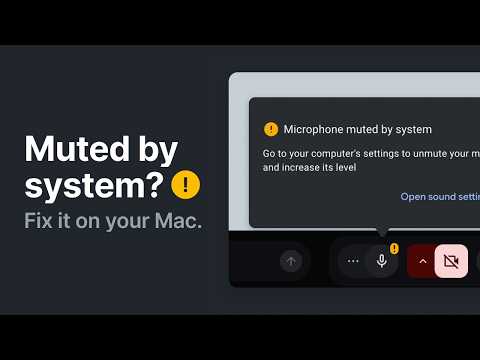
Mute in Mic Drop, and Google Meet shows everyone you’re muted. Mic Drop is the Mac app that mutes your mic in every app. This extension connects Google Meet: mute in Mic Drop, and you’re instantly shown as muted in Meet. Mute in Meet, and Mic Drop updates to match. It just works. Requires Mic Drop 3.2 or later on macOS 14 or later. Mic Drop is free on the Mac App Store: https://getmicdrop.com/google-meet ## No more “Microphone muted by system” Without this extension, Google Meet doesn’t know you’ve muted with Mic Drop. Everyone on the call still sees you as unmuted, and Meet covers your call with a “Microphone muted by system” warning. You can’t just close it, either. Closing the warning mutes you in Meet, so when you unmute in Mic Drop, nobody can hear you. With the extension, Meet knows you’re muted, the warning never appears, and everything just works. ## Mute any way you want Want to use push-to-talk in Google Meet? With Mic Drop and this extension, you can! Enable push-to-talk in Mic Drop’s settings and Google Meet will support it using your Mic Drop keyboard shortcut. - Press ⇧⌘M, or your own shortcut, from any app - Press the force sensor on your AirPods - Use your Stream Deck as a physical mute button - Click Mic Drop’s icon in your menu bar - Click anywhere on the Mic Check window - Mute from Shortcuts, scripts, and your other apps Menu bar muting is free forever. Custom keyboard shortcuts, AirPods controls, scripting, and more come with Mic Drop Super Pro, a one-time purchase with a free 30-day trial. ## Private, like always - Only runs on Google Meet (meet.google.com) - Can’t see your other tabs, your browsing history, or any other data in your browser - Connects to Mic Drop locally on your Mac, and only shares your mute status - Never listens to, records, or sends your audio anywhere Mic Drop is private by design. We’re not interested in snooping on you. ## Get started 1. Get Mic Drop for free on the Mac App Store. 2. Add this extension to Chrome. 3. Launch Mic Drop, join a Google Meet call, and start muting! Need a hand? Visit https://getmicdrop.com/help/chrome-extension or email hi@getmicdrop.com. We answer every support email personally.
5 out of 52 ratings
Details
- Version3.2.2
- UpdatedNovember 11, 2026
- Size72.02KiB
- Languages12 languages
- DeveloperOctopus Think Ltd.Website
The Old Bakery, 90 Camden Road Tunbridge Wells TN1 2QP GBEmail
hi@octopusthink.comPhone
+44 7480 977667 - TraderThis developer has identified itself as a trader per the definition from the European Union and committed to only offer products or services that comply with EU laws.
- D-U-N-S224611415
Privacy

This developer declares that your data is
- Not being sold to third parties, outside of the approved use cases
- Not being used or transferred for purposes that are unrelated to the item's core functionality
- Not being used or transferred to determine creditworthiness or for lending purposes
Support
For help with questions, suggestions, or problems, please open this page on your desktop browser