

Marky: Easy Bookmarking

Overview
Save pages to Chrome bookmarks in just a few steps, with a click or your keyboard.
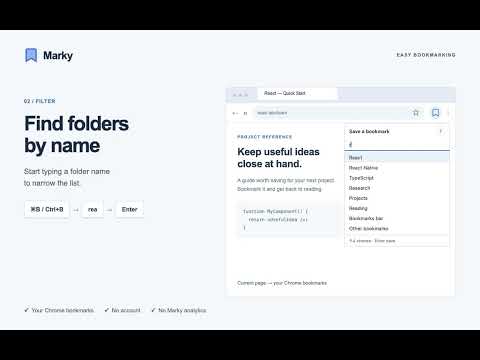
Marky makes saving Chrome bookmarks easy. Open Marky and click a folder — your page is saved. Prefer the keyboard? Choose a folder with the arrow keys and press Enter. Just a few steps to keep a useful page and get back to reading. Have lots of folders? Start typing a name to narrow the list. Recently modified folders stay within easy reach at the top. WHAT YOU CAN DO • Save the current page quickly by clicking a folder or pressing Enter. • Filter folders by name instead of browsing a folder tree. • Use Up / Down and Enter to select a folder; Esc closes Marky. • See recently modified folders at the top of the list. • Create a folder when there are no matching folders: type its name and select “Create folder …”. Marky creates it in the Bookmarks bar and saves the current page there in the same step. • Move an already-bookmarked page to another folder. Choosing a different folder moves the existing bookmark instead of creating another copy. • Check the toolbar icon: it is filled when the current page is already bookmarked. • Use a light or dark theme that follows your system settings. GET STARTED 1. Pin Marky to the Chrome toolbar, or use its keyboard shortcut. 2. Open a page you want to keep. 3. Open Marky and click a folder, or choose one with the arrow keys and press Enter. Search by name if you have lots of folders. Suggested shortcut: Command+B on macOS; Ctrl+B on Windows and Linux. If it isn't assigned or conflicts with another shortcut, set it at chrome://extensions/shortcuts. YOUR BOOKMARKS, YOUR BROWSER No separate account. No import. Marky works directly with your Chrome bookmarks. Marky does not collect personal data or use analytics. It processes bookmarks and tab information on your device, without sending them to Marky servers. Chrome's own bookmark sync settings remain under your control. PERMISSIONS Bookmarks: read folders, create folders, and save or move bookmarks. Tabs: read the current page's title and URL, and update the toolbar icon when a page is bookmarked. English and Russian interface. Source code and support: https://github.com/lelderbe/marky-chrome-extension
0 out of 5No ratings
Details
- Version1.2.1
- UpdatedOctober 13, 2026
- Size84.54KiB
- Languages2 languages
- Developer
Email
valvarder@gmail.com - Non-traderThis developer has not identified itself as a trader. For consumers in the European Union, please note that consumer rights do not apply to contracts between you and this developer.
Privacy

This developer declares that your data is
- Not being sold to third parties, outside of the approved use cases
- Not being used or transferred for purposes that are unrelated to the item's core functionality
- Not being used or transferred to determine creditworthiness or for lending purposes
Support
For help with questions, suggestions, or problems, visit the developer's support site