

LinkSlope — Broken Link Checker

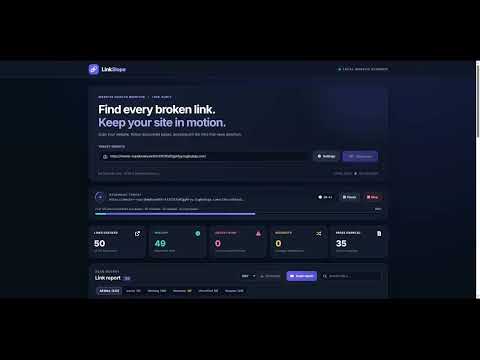
Overview
Scan a website for broken links and see which pages link to them.
🔗 LinkSlope — Broken Link Checker Find broken links, detect 404 errors, and inspect 301 and 302 redirects directly from Chrome. LinkSlope helps website owners, SEO professionals, developers, and content editors check website link health during technical SEO audits and routine maintenance. Scan your website, trace broken URLs back to their source pages, and export a detailed report to organize fixes. 🔍 Broken Link Checking & SEO Audits: • Find 404 Not Found errors, missing pages, and other broken links. • Identify 5xx server errors that affect access to linked pages. • Inspect 301 permanent redirects and 302 temporary redirects, including their final destinations. • Check internal links and optionally external links for website link audits. • Discover URLs through HTML links, XML sitemaps, and sitemap references in robots.txt. • Review link issues during website migrations, content updates, and technical SEO checks. • Distinguish broken links from skipped URLs, access restrictions, and inconclusive requests. 🛠️ Locate Issues & Verify Fixes: • See which source pages link to a broken URL. • Inspect captured HTML to locate the link you need to update. • Re-test individual URLs after making changes. • Search URLs and filter results by issues, working links, redirects, and more. • Optionally check for broken images and unavailable CSS or JavaScript files referenced in HTML. • Check fetched pages for required or unwanted text and HTML. 📊 Website Link Reports: • Track checked links, healthy links, issues, redirects, and crawled pages. • Export complete CSV or JSON reports for spreadsheet analysis and sharing. • Include HTTP status codes, final destinations, source pages, and request timing. • Optionally email scan summaries through your configured email service. ⚙️ Flexible Website Crawling: • Check a single page’s links or crawl multiple pages. • Set crawl depth, page limits, request speed, and timeouts. • Include additional hosts or exclude specific paths. • Pause a scan, adjust settings, and resume. • Use existing browser logins or HTTP authentication when needed. 🚀 How to Use: 1. Open LinkSlope from Chrome’s extensions menu. 2. Enter the website URL you want to check. 3. Adjust settings and click Start scan. 4. Review broken links, HTTP errors, and redirects. 5. Fix issues, re-test URLs, and download your report. 🔒 Permissions Requested: 1. Access to HTTP and HTTPS websites: Fetches pages, checks links and resources, reads sitemaps, and sends optional email summaries to your configured service. 2. webRequest: Inspects scanner redirects so excluded destinations can be identified before following them. 3. declarativeNetRequestWithHostAccess: Adjusts a request header on the extension’s email requests to support optional email delivery. 💻 Runs on Your Device: Scanning runs in a dedicated Chrome tab on your device. No LinkSlope account is required. Optional email reporting sends a scan summary through the email service you configure. 📝 Before You Scan: Keep the scanner tab open while scanning. Closing or reloading it clears the current scan. LinkSlope reads HTML without executing website JavaScript, so links generated only by JavaScript are not discovered. 🤝 Contribute or Report Issues: 👉 https://github.com/arunelias/linkslope 🛡️ Extension Safety: Always review an extension’s permissions and privacy practices before installing. Learn more: [Google’s guide to staying safe with Chrome extensions](https://security.googleblog.com/2024/06/staying-safe-with-chrome-extensions.html)
0 out of 5No ratings
Details
- Version1.0
- UpdatedOctober 1, 2026
- Offered byArun
- Size464KiB
- LanguagesEnglish
- Developer
Email
arun.elias3@gmail.com - Non-traderThis developer has not identified itself as a trader. For consumers in the European Union, please note that consumer rights do not apply to contracts between you and this developer.
Privacy

This developer declares that your data is
- Not being sold to third parties, outside of the approved use cases
- Not being used or transferred for purposes that are unrelated to the item's core functionality
- Not being used or transferred to determine creditworthiness or for lending purposes
Support
For help with questions, suggestions, or problems, please open this page on your desktop browser