


Overview
Save webpages as PDF. Convert links, customize PDF layouts, and edit page elements before exporting in your browser.
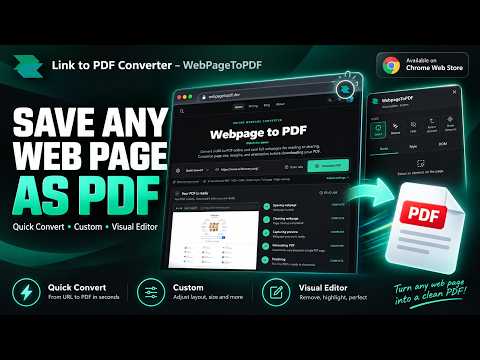
Link to PDF Converter – WebPageToPDF Save webpages as PDF for offline reading. Capture full pages, customize print layouts, or select content to export. Turn the page you are reading into a PDF you can keep, share or read offline. WebPageToPDF works with the webpage already open in Chrome, so you can save an article, archive a product page or keep a copy of online documentation without copying the content into another app. Choose how to save your webpage • Quick: capture the full page Save a webpage as one continuous, image-based PDF, including content below the fold. Choose a desktop, tablet or mobile viewport. Long pages are captured in sections and placed into the PDF; oversized results are scaled proportionally. This mode keeps the page’s visual appearance. Text in a Quick PDF is an image and cannot be selected or copied as text. • Custom: create a PDF for reading or printing Choose paper size, orientation and margins to convert a webpage into a paginated document. Use Screen styling for the regular page appearance or Print styling for the website’s print layout. Browser PDF output can preserve ordinary text and supported links. Add headers, footers, watermarks, document metadata and password protection. • Visual: choose what goes into the PDF Select page elements, hide unwanted sections and adjust supported styles before exporting. Save the whole page or export a selected article, table or component as a standalone PDF. The selected area is laid out as a separate document, so check the preview before downloading. Visual requires sign-in and Pro or extension access. Quick and Custom do not require Visual access. From browser tab to downloaded file 1. Open the webpage you want to save and expand any content you need. 2. Click WebPageToPDF in the toolbar, or choose a mode from the webpage’s right-click menu. 3. Follow progress, preview the PDF and download it in the side panel. Each mode remembers its own settings. The optional right-click menu gives you a shortcut to conversion, and the interface can follow your browser language or use a language you choose. A link to PDF converter for pages you already have open Save research articles for offline reading, keep reference copies of help pages, document responsive designs or prepare web content for printing. Local conversion uses your current tab, including pages you have signed in to view. Complete any login or website verification yourself before converting. Page rendering and PDF generation for local conversion take place in your browser. Account features still make network requests. The website’s optional URL to PDF cloud service uses a separate browser and its own allowance; extension local conversion does not use that cloud conversion time. Before you convert • Browser settings pages, extension pages, file:// URLs and other protected pages are not supported. • Website layout, lazy loading and print styles can affect the result. • Chrome displays a debugging banner during local conversion. Leave it open until the task finishes; use the extension’s Cancel control if you need to stop. Help: https://webpagetopdf.dev/docs/browser-extension Privacy: https://webpagetopdf.dev/privacy
5 out of 51 rating
Details
- Version0.1.0
- UpdatedSeptember 29, 2026
- Size28.47MiB
- Languages12 languages
- DeveloperEDGEAPI LLCWebsite
1111B S Governors Ave STE 25168 Dover, DE 19904-6903 USEmail
admin@edgeapi.devPhone
+1 631-209-7773 - TraderThis developer has identified itself as a trader per the definition from the European Union and committed to only offer products or services that comply with EU laws.
- D-U-N-S149918429
Privacy

Link to PDF Converter – WebPageToPDF has disclosed the following information regarding the collection and usage of your data. More detailed information can be found in the developer's privacy policy.
Link to PDF Converter – WebPageToPDF handles the following:
This developer declares that your data is
- Not being sold to third parties, outside of the approved use cases
- Not being used or transferred for purposes that are unrelated to the item's core functionality
- Not being used or transferred to determine creditworthiness or for lending purposes
Support
For help with questions, suggestions, or problems, visit the developer's support site