

Automator for RunwayML

Overview
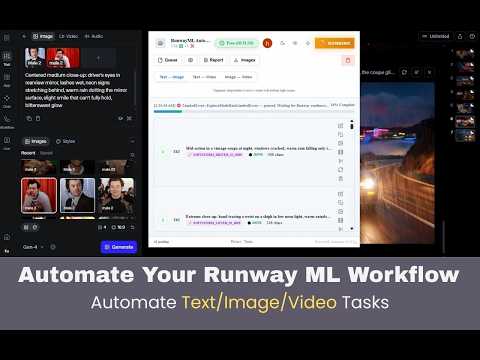
Automate RunwayML tasks from a floating panel. Queue Text-to-Image, Text-to-Video, and Image-to-Video jobs on app.runwayml.com.
Automator for RunwayML adds a floating control panel directly inside app.runwayml.com that lets you queue, run, and download multiple AI generation tasks automatically — without clicking through each one manually. ── WHAT IT DOES ── Instead of waiting for each RunwayML generation to finish before starting the next, Automator lets you line up as many tasks as you want and walk away. The panel runs them one after another and notifies you when everything is done. ── SUPPORTED MODES ── • Text → Image: Queue multiple text prompts. The extension submits each one automatically and waits for the result before moving to the next. • Text → Video: Same as above — queue text prompts for video generation and let the extension handle the waiting and clicking. • Image → Video: Add one or more reference images with a custom prompt per task. Each task can have multiple reference images. Tasks are saved locally so they survive a page refresh. ── KEY FEATURES ── • Floating panel: Opens directly on app.runwayml.com. No separate tab or window needed. • Multi-task queue: Add as many generation tasks as you want before starting. • Auto-run: Starts the next task automatically when the current one finishes. • Bulk download: Download all generated images or videos in one click when the queue is done. • Persistent tasks: Image-to-Video tasks (images + prompts) are saved locally and restored if you refresh the page. • Custom prompts per task: Each task in the queue can have its own prompt and reference images. • Status tracking: See live status (pending, running, done, error) for every task in the queue. ── HOW TO USE ── 1. Install the extension. 2. Go to https://app.runwayml.com and log in to your RunwayML account. 3. The Automator panel appears automatically as a floating panel on the page. 4. Select a mode (Text→Image, Text→Video, or Image→Video) from the panel. 5. Add your tasks using the "+ Add" button. 6. Press Start — the extension will submit and manage each generation automatically. 7. When finished, use the Download button to save all results. ── REQUIREMENTS ── • A RunwayML account (free or paid) at app.runwayml.com. • The extension only activates on app.runwayml.com. It does not run on any other website. ── PRIVACY ── This extension does not collect, transmit, or store any personal data on external servers. All task data (images, prompts, queue state) is stored locally in your browser only. The extension communicates only with app.runwayml.com to perform actions on your behalf. ── DISCLAIMER ── This is an unofficial third-party extension. It is not affiliated with, endorsed by, or supported by Runway AI, Inc. RunwayML is a trademark of Runway AI, Inc.
0 out of 5No ratings
Details
- Version2.0.1
- UpdatedJune 8, 2026
- FeaturesOffers in-app purchases
- Offered byMehedi Hasan Moon
- Size628KiB
- LanguagesEnglish
- Developer
Email
mehedihasanmoon2021@gmail.com - Non-traderThis developer has not identified itself as a trader. For consumers in the European Union, please note that consumer rights do not apply to contracts between you and this developer.
Privacy

Automator for RunwayML has disclosed the following information regarding the collection and usage of your data. More detailed information can be found in the developer's privacy policy.
Automator for RunwayML handles the following:
This developer declares that your data is
- Not being sold to third parties, outside of the approved use cases
- Not being used or transferred for purposes that are unrelated to the item's core functionality
- Not being used or transferred to determine creditworthiness or for lending purposes
Support
For help with questions, suggestions, or problems, visit the developer's support site