

MarkShot - Screenshot Editor, Screen Recorder & Step Guide

Overview
Capture screenshots, mark privacy-safe annotations, record screens, create step guides, and export bug reports locally.
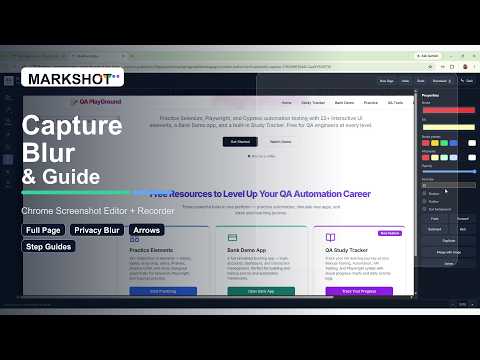
MarkShot is an all-in-one Chrome screenshot, annotation, screen recording, step guide, and bug report extension. It helps you capture anything on your screen, explain it clearly with visual tools, protect private details, and export the final result as an image, PDF, guide, or bug report. MarkShot is built for product teams, QA testers, developers, designers, support teams, teachers, students, and anyone who needs to explain something visually. CAPTURE OPTIONS New Empty Page Start with a clean blank canvas when you do not want to capture an existing webpage. This is useful for creating quick visual notes, mockups, diagrams, labels, or instruction boards. Capture Visible Area Capture the currently visible part of the active tab. Use this for quick screenshots of what is on screen right now. Capture Selected Area Drag to select a specific region of the page. This is useful when you only need one section, form, card, button, table, error message, or UI component. Capture Full Page Capture the entire webpage, including the content below the fold. This is useful for landing pages, documentation, long dashboards, reports, articles, and full-page reviews. Auto Scroll Capture Capture content while scrolling automatically. This helps when the important area is longer than the current viewport. Select & Scroll Select a region and capture while scrolling through it. This is useful for scrollable containers, panels, tables, chat windows, sidebars, and embedded content. Capture Window / Screen Capture a browser window, application window, or full screen. This is useful for desktop workflows, browser comparisons, app demos, and cross-application bug reports. Start Screen Recording Record your screen for demos, tutorials, walkthroughs, QA reports, or issue reproduction. Start Tab Recording Record the current browser tab. This is useful for focused demos and browser-only walkthroughs. Create Step Guide Record user actions as step-by-step instructions. MarkShot can help turn clicks and screenshots into a guide that is easier to follow. Bug Report Mode Capture a screenshot and collect supporting details for a clear bug report. EDITOR TOOLS Draw > Pen The default editor tool. Use Pen to draw freehand marks, circles, underlines, check marks, and quick annotations. Draw > Marker Use Marker for stronger freehand emphasis. It is helpful when you want a thicker, more visible drawing style. Draw > Highlighter Use Highlighter to visually highlight important areas without fully covering the content beneath. Arrow Tool Add arrows to point at important interface elements, bugs, buttons, text, or visual details. Arrow Types Straight Arrow: A simple direct arrow for pointing to one item. Curved Arrow: A softer arrow for guiding attention around other content. Bent Arrow: A right-angle style arrow for structured UI callouts. Double Arrow: Points in both directions, useful for comparisons or spacing. Dashed Arrow: Indicates a suggested direction, optional step, or conceptual movement. Dotted Arrow: Useful for subtle guidance or secondary relationships. Numbered Arrow: Combines an arrow with a number for ordered instructions. Text Arrow: Adds text to an arrow so you can explain what it points to. Free Draw Arrow: Draw an arrow freely for organic annotations. Shapes Use shapes to frame, highlight, separate, or explain content. Rectangle Draw a rectangular outline around buttons, fields, images, sections, or errors. Rounded Rectangle Use a softer rectangle style for modern UI annotations. Circle Circle a small object, icon, status, badge, avatar, or control. Ellipse Highlight wider or oval-shaped content. Diamond Use for decisions, warnings, or flow-style diagrams. Triangle Use for alerts, directional emphasis, or visual callouts. Line Draw a simple line to underline, divide, connect, or indicate alignment. Speech Bubble Add a speech-style bubble to explain something in a conversational way. Callout Box Add a callout-style box with a pointer for comments and notes. Text Tools Plain Text Add simple text directly on the screenshot. Text Box Add text inside a box for more readable explanations. Callout Text Add editable callout text. It behaves like a text box and can be edited inline. The callout keeps its original design while editing, and it can expand in width and height as the text grows. Number Badge Add a numbered badge for steps, ordered instructions, or visual references. Label Tag Add a tag-style label for categories, statuses, names, or quick identifiers. Highlight Text Add text with a highlight background for emphasis. Sticky Note Add a sticky-note style annotation for comments, reminders, review notes, or feedback. Code Text Add code-style text using a monospace style. Useful for variables, commands, errors, snippets, keys, and technical notes. Watermark Add watermark-style text to brand, identify, or label an image. Eraser Remove annotations from the canvas. The eraser can be used to clean up drawings or remove unwanted objects. Crop Crop the screenshot to the important area. Use this to remove unnecessary browser content, whitespace, or unrelated page sections. Zoom Area Create a zoomed-in area so small details are easier to inspect. Blur Blur sensitive or private information such as emails, names, tokens, addresses, customer data, or internal details. Pixelate Pixelate private information while keeping the general layout visible. Redact Cover sensitive content completely with a solid block. Number Badge Tool Number badges are available under Text > Number Badge, keeping step markers organized inside the Text menu. EDITOR PROPERTIES Stroke Color Change the outline or drawing color. Useful for matching brand colors or using red, blue, green, or other emphasis colors. Fill Color Change the background fill for shapes, text boxes, callouts, labels, highlights, and badges. No Fill Disable fill for shape-style annotations when you only want an outline. Stroke Width Control line thickness for drawings, arrows, shapes, and outlines. Opacity Adjust transparency so annotations can be subtle or bold. Font Size Change the size of text, labels, badges, callouts, and text-based objects. Shadow Add depth to annotations with a shadow effect. Shadow Blur Control how soft or strong the shadow appears. Shadow Offset Control the position and distance of the shadow. Outline Add an outline effect for stronger contrast, especially on busy screenshots. Text Background Add or remove background styling for text objects. Arrow Properties Customize arrow type, line style, arrow head size, arrow head direction, and numbered arrow values. Step / Number Properties Control number badge values and badge shape where applicable. Blur Strength Adjust how strong the blur effect is. Pixel Size Control the size of pixel blocks for pixelation. Zoom Scale Control the magnification level of zoomed areas. Eraser Size Adjust eraser radius for more precise or broader cleanup. Object Editing Select objects after placing them, move them, resize them, duplicate them, delete them, arrange them, or merge them into the image when needed. Inline Text Editing Double click supported text objects to edit directly on the canvas. Text boxes, callouts, labels, sticky notes, and other text styles keep their original design while editing. Undo and Redo Reverse or restore recent editing actions. New Page Create a new empty editor page at any time. Download Menu Export your work using the Download button. PNG Export Download a high-quality PNG image. JPG Export Download a JPG image. PDF Export Export the edited screenshot as a PDF document. Copy Image Copy the final image to the clipboard for pasting into chat, email, documents, tickets, or design tools. SCREEN RECORDING Screen Recording Record your screen for tutorials, bug reports, product demos, onboarding, or visual explanations. Tab Recording Record the current browser tab for focused browser walkthroughs. Stop Sharing Return When screen sharing stops, MarkShot can bring the recorder page back into view so the workflow continues smoothly. STEP GUIDE FEATURES Create Step Guide Capture user actions and turn them into step-by-step documentation. Numbered Steps Use numbered visual markers to show the order of actions. Guide-Friendly Screenshots Create clear visual instructions for support articles, SOPs, QA documentation, onboarding, training, or internal process guides. BUG REPORT FEATURES Bug Report Mode Prepare a structured bug report with screenshot evidence. Screenshot Evidence Capture the current screen or page state as proof of the issue. Steps to Reproduce Document the exact actions needed to reproduce the problem. Expected Result Describe what should have happened. Actual Result Describe what actually happened. Technical Details Collect helpful browser and environment details for debugging. Local Draft Workflow Prepare bug report content locally before sharing it with your team, issue tracker, or support channel. PRIVACY AND LOCAL WORKFLOW MarkShot is designed around a privacy-first local workflow. Screenshots, edits, annotations, guides, and bug report drafts are handled locally unless you choose to export, copy, upload, or share them. Use blur, pixelate, and redact tools before sharing screenshots externally. COMMON USE CASES Create annotated screenshots for bug reports. Record product demos. Build step-by-step guides. Explain UI feedback. Prepare support documentation. Highlight issues for developers. Share design review notes. Create training material. Capture full-page webpages. Hide sensitive information before sharing. Export screenshots as PNG, JPG, PDF, or copied image. WHY USE MARKSHOT Fast capture options. Rich editor tools. Editable styled text. Expandable callout text. Default Pen tool for quick markup. Multiple arrow styles. Text, labels, badges, sticky notes, and watermarks. Blur, pixelate, and redact privacy tools. Screen and tab recording. Step guide creation. Bug report workflow. Download as PNG, JPG, PDF, or copy to clipboard. Clean local-first workflow. MarkShot helps you turn screenshots and recordings into clear visual communication.
0 out of 5No ratings
Details
- Version1.0.2
- UpdatedAugust 7, 2026
- Size255KiB
- LanguagesEnglish (United States)
- DeveloperCODEPLAY TECHNOLOGYWebsite
5/64/5, 5, ST-111, Attakachi Vilai Mulagumoodu, Mulagumudu Kanyakumari, Tamil Nadu 629167 INEmail
merbin2010@gmail.comPhone
+91 99445 90607 - TraderThis developer has identified itself as a trader per the definition from the European Union and committed to only offer products or services that comply with EU laws.
- D-U-N-S955481327
Privacy

MarkShot - Screenshot Editor, Screen Recorder & Step Guide has disclosed the following information regarding the collection and usage of your data. More detailed information can be found in the developer's privacy policy.
MarkShot - Screenshot Editor, Screen Recorder & Step Guide handles the following:
This developer declares that your data is
- Not being sold to third parties, outside of the approved use cases
- Not being used or transferred for purposes that are unrelated to the item's core functionality
- Not being used or transferred to determine creditworthiness or for lending purposes
Support
For help with questions, suggestions, or problems, visit the developer's support site