

Anki AI Assistant
14 ratings
)
Overview
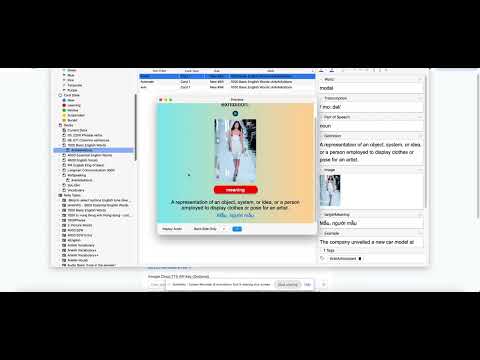
Easily add words to your Anki decks with AI-generated sentences, IPA, translations, and images.
Anki AI Assistant is a Chrome extension that supercharges your Anki vocabulary learning workflow. Instead of spending 3–5 minutes manually creating each flashcard, simply highlight a word on any webpage or type it in, and the AI generates a complete card with definition, IPA pronunciation, example sentence, image, and audio — all in one click. ✨ Key Features: 🤖 AI-Powered Card Generation — Automatically generates definitions, IPA transcription, example sentences, and translations using Google Gemini, OpenAI, or any OpenAI-compatible API (Ollama, LM Studio, Azure, etc.) 🎯 Any Target Language — Create flashcards for any language you're learning — English, Japanese, Korean, French, German, and more. The AI adapts definitions, examples, and translations to your chosen language pair 🌐 Webpage Context Awareness — Highlight a word on any webpage, and the AI uses the surrounding context to generate a more accurate, contextual definition 📦 Bulk Import — Paste a list of 50+ words and generate all flashcards at once with batch AI processing 🔗 Direct Anki Sync — Sync cards directly to Anki Desktop via AnkiConnect — no file exports needed 🖼️ Auto Image & Audio — Fetches relevant images from Pexels (with Wikipedia fallback) and pronunciation audio automatically 🗂️ Smart Field Mapping — AI-powered field detection that maps your card data to any existing Anki deck template automatically 🌍 Multi-language Support — Generates translations in your target language alongside English definitions 🛡️ Duplicate Prevention — Multi-layered duplicate detection prevents redundant cards 🚀 Getting Started 1. Configure Your AI Provider Click the extension icon → go to Settings (or right-click → Options) - Choose your AI Provider - Optional provider: (Optional) Add a Pexels API key for higher quality images → Get one here (Optional) Select your Target Language for translations (e.g., Vietnamese, Japanese, Spanish) 2. Set Up AnkiConnect (Sync to Anki Desktop) To sync cards directly to your Anki Desktop app, you need the AnkiConnect add-on: Open Anki Desktop Go to Tools → Add-ons → Get Add-ons... Enter add-on code: 2055492159 → Click OK Restart Anki Desktop AnkiConnect will now be running at http://localhost:8765 Note: Anki Desktop must be open and running whenever you want to sync cards. AnkiConnect only works while Anki is active. Verifying the Connection Back in the extension Settings: The AnkiConnect URL should be http://localhost:8765 (default) Click the extension popup → If you see your deck list, the connection is workin
5 out of 514 ratings
Details
- Version1.0.0
- UpdatedMarch 13, 2026
- Size803KiB
- LanguagesEnglish
- Developer
Email
dinhhuuphuc.it@gmail.com - Non-traderThis developer has not identified itself as a trader. For consumers in the European Union, please note that consumer rights do not apply to contracts between you and this developer.
Privacy

This developer declares that your data is
- Not being sold to third parties, outside of the approved use cases
- Not being used or transferred for purposes that are unrelated to the item's core functionality
- Not being used or transferred to determine creditworthiness or for lending purposes